Quickstart with AFA
This topic describes how you can quickly get up and running with AFA reports and queries, once an AFA administrator has added devices to your ASMS environment and analysis is running.
For more details, see Manage devices and Schedule analysis.
View risks and risky rules
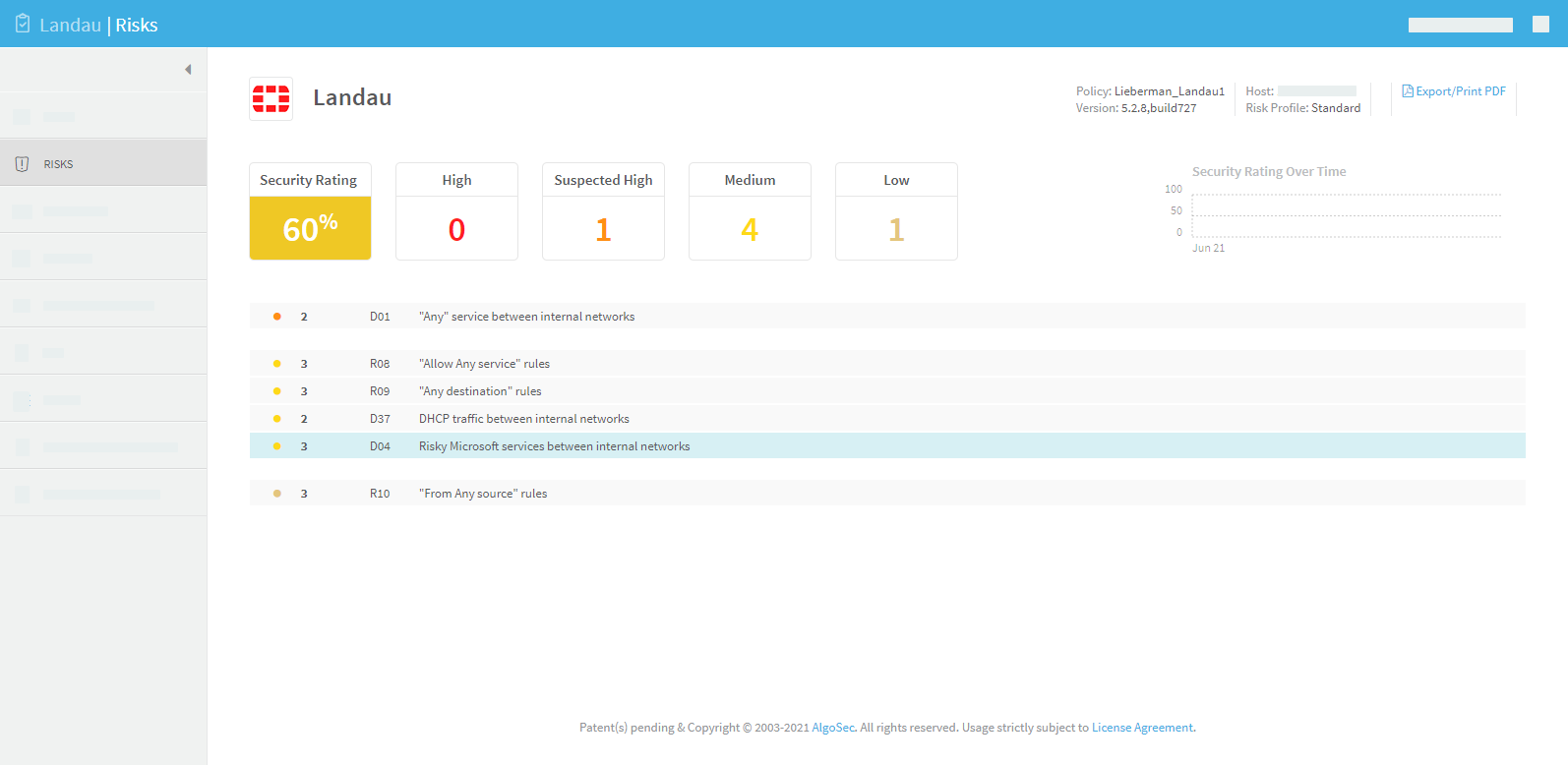
The AFA report RISKS and RISKY RULES pages list security holes in the device. Use the detailed information on these pages to tighten the device policy and improve your organization's security.
For details, see RISKS page and RISKY RULES page.
For example:
Browse and search through your security policies
Drill down to a specific device, group, or matrix using the main menu options on the left. Check the POLICY tabs for each item to view the rules configured on each device.
Filter rules by rule fields, objects, IP address, and so on. For example:
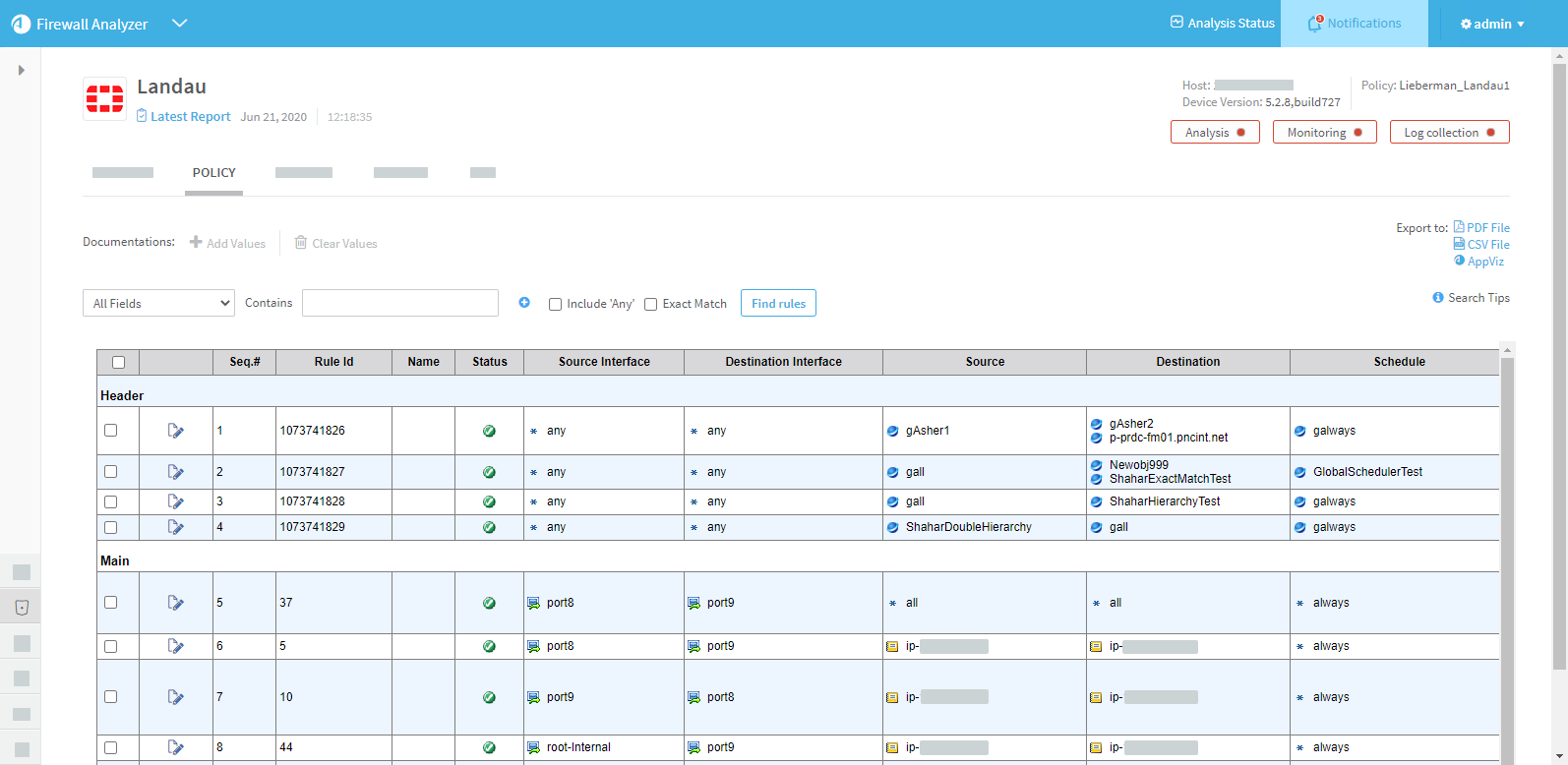
For more details, see View policy data.
Eliminate risk items that are irrelevant in your environment
- Customize the topology to mark your DMZ networks. Be advised about risky DMZ traffic.
- Customize trusted traffic to identify traffic that should not trigger risk items.
- Customize trusted networks to identify machines and subnets that should not trigger risk items.
- Customize Risk Profiles to determine the risk levels and to write your own risk items.
For complete instructions on all these subjects, see Customize risk detection.
View a compliance report
After running a few analyses, familiarize yourself with one of the automatically populated compliance reports (Sarbanes-Oxley, PCI-DSS, ISO/IEC 27001 and others), which may be useful to you even if you are subject to other types of regulations. For details, see the REGULATORY COMPLIANCE page.
View the real-time monitoring change history
After changing your device policy, browse the device's Monitoring tab to view the history of all policy changes made to the device. For complete instructions, see Manage real-time monitoring.
Run a Traffic Simulation Query on your network
Once AFA has analyzed your device(s) you can query the policy or policies on specific traffic passing through the device according to a specific source, destination, service or application (HTTP, SMTP, etc.). These queries are then immediately presented in the AFA user interface. For details, see Run traffic simulation queries.
Optimize your policy
After running an analysis, you can begin optimizing your device policy by pinpointing and then correcting common policy hitches such as having unused policy rules, rules that are covered by other rules or are special cases of following rules, rules that can be merged, rules that can be tightened as they are only partially used, etc. Go to an AFA report and click the Policy Optimization tab. For details, see the POLICY OPTIMIZATION page.
â See also:


 Clear your browser's cache