When viewing business services, the current business service map appears in the right pane. If desired, you can set the current map as the baseline.
Note: When importing Application Discovery data into AppViz, AppViz imports a map for each business service. If the business service has a baseline map defined, AppViz will import the baseline. Otherwise, AppViz will import the business service's current map.
Save the current map as the baseline
To save a business service’s current map as the baseline:
-
Click the Manage tab.
The Business Services page appears.
-
Select the desired business service.
The business service's map appears.
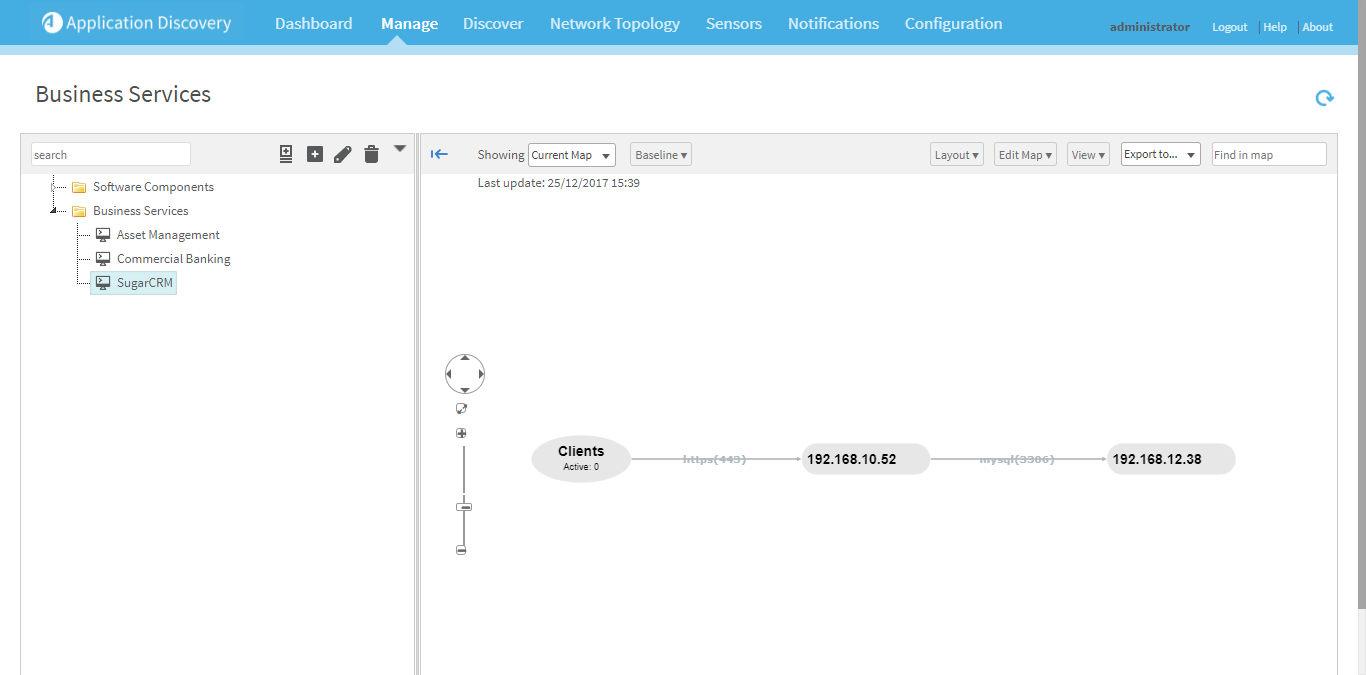
-
Hover over
 .
.A menu appears.
-
Select Save as baseline.
The current map is saved as the baseline.
Compare the current map to the baseline
To compare the baseline map with the current map:
-
View the desired Business Service. For details, see Manage business services.
-
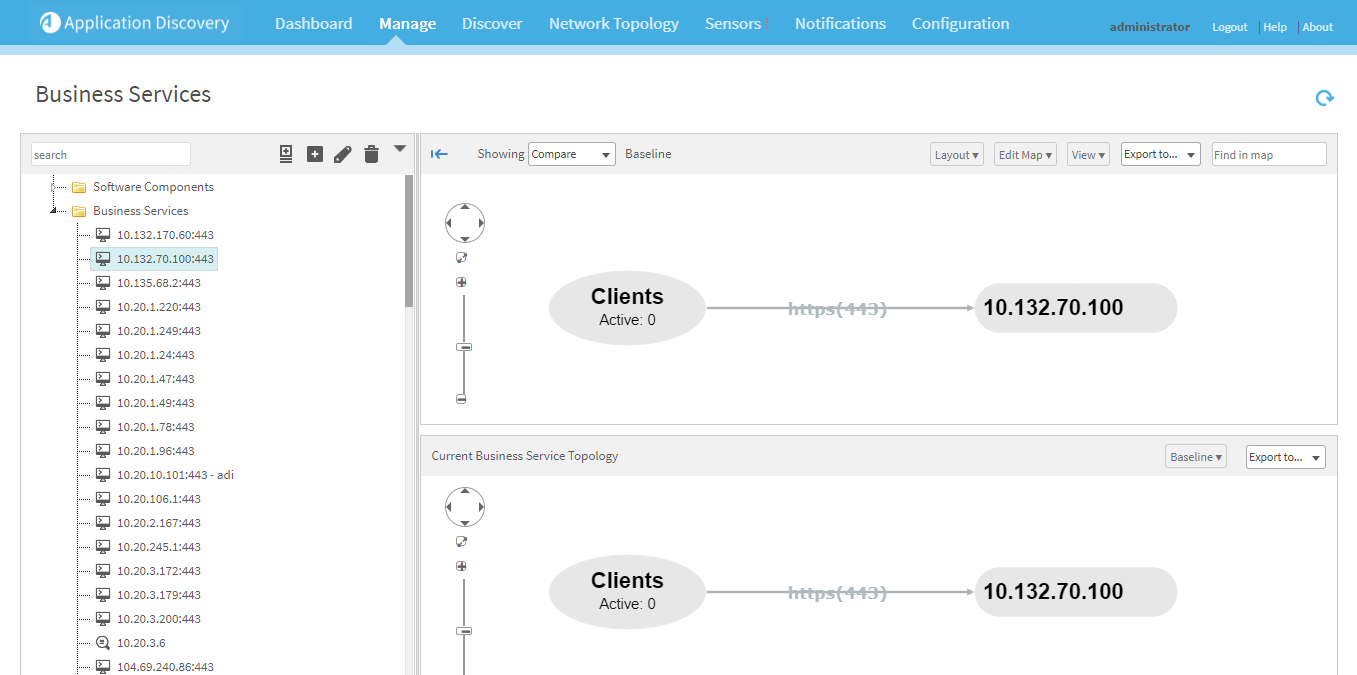
In the Showing drop-down menu, select Compare.
The right pane displays both the current and baseline maps.
Remove servers from the baseline
To remove a server from the baseline:
-
View the desired Business Service. For details, see Manage business services.
-
In the Showing drop-down menu, select Baseline.
The baseline map appears in the right pane.
-
Hover over
 .
.A menu appears.
-
Select Remove from Baseline.
The Remove connection from baseline window appears.
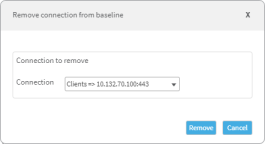
- Select the connection to remove in the drop-down menu.
- Click Remove.
Resolve DNS names in the baseline
To resolve the DNS names for servers in the baseline map:
-
View the desired Business Service. For details, see Manage business services.
-
In the Showing drop-down menu, select Baseline.
The baseline map appears in the right pane.
-
Hover over
.A menu appears.
- Select Resolve DNS names.


 Clear your browser's cache