Configure real-time monitoring
This option must be activated for the ASMS environment and then enabled per device. AFA will periodically check devices' policies for changes, and detected changes will be displayed in the AFA Web interface.
Additionally, a syslog message will be logged in /var/log/messages.
Note: You can configure AFA to send e-mail notifications to selected users whenever changes are detected. For more details, see Configure event-triggered notifications.
Activate real-time monitoring at specific frequencies
Note: In addition to activating real-time monitoring with this procedure, real-time monitoring must be enabled on each device you want to monitor. When you add a device to AFA, this is enabled by default. This option is controlled by the real-time change monitoring check box in the Devices Setup page for each device.
Do the following
-
In the toolbar, click your username.
A drop-down menu appears.
-
Select Administration.
The Administration page appears, displaying the Options tab.
-
Click the Monitoring tab.
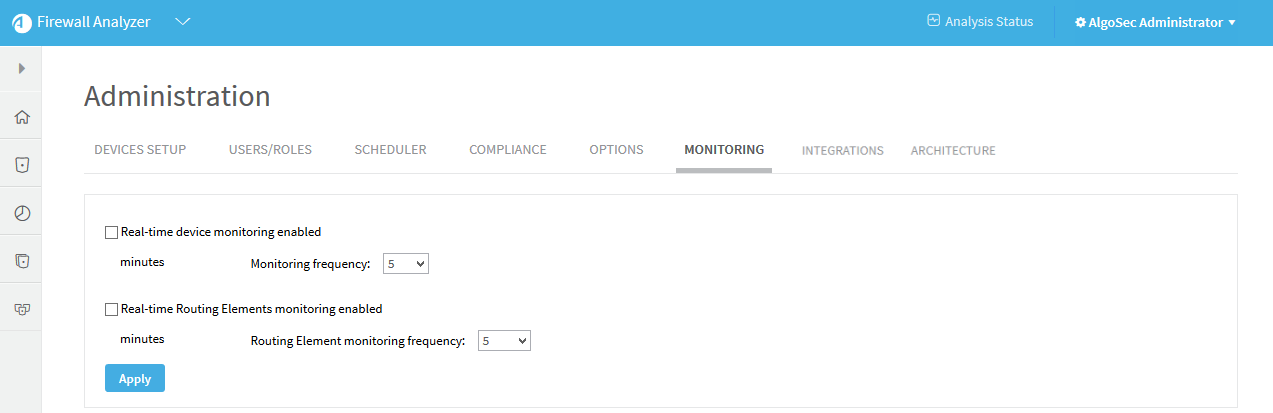
The Monitoring page appears.
-
To activate real time monitoring for devices, do the following:
-
Select the Real-time device monitoring enabled option.
-
Set the Monitoring frequency to the interval of time in minutes at which AFA should monitor devices.
-
To activate real-time monitoring for routing elements, do the following:
-
Select the Real-time Routing Elements monitoring enabled option.
-
Set the Routing Element monitoring frequency to the interval of time in minutes at which AFA should monitor routing elements.
-
Click Apply.
Configure real-time monitoring to run once or twice a day at specific hours
Note: Applies only to device monitoring on devices for which monitoring is enabled.
Using the configuration parameters Monitor_Frequency and MONITOR_USE_FREQUENCY_AS_HOUR_OF_DAY) you can configure monitoring to run once at a specific hour or twice a day, at the beginning and end of a specific 12 hour interval.
On the monitoring tab shown above, only the number selected for Monitor_Frequency is displayed, without indication of how it is being used (i.e. if it is being used as a frequency or as hour/s of day in conjunction with the parameter value MONITOR_USE_FREQUENCY_AS_HOUR_OF_DAY. Running once a day at 12:00 (12 p.m.) or 13:00 (1 p.m.) is not configurable.
 To monitor once a day
-
In Administration> Options> Advanced Configuration
-
Set MONITOR_USE_FREQUENCY_AS_HOUR_OF_DAY=no.
-
Set Monitor_Frequency as a multiple of 60 ranging from 780 (13*60) to 1440 (24*60), according to the chart below.
Value To run monitoring at 780 13:00 only 840 14:00 only 900 15:00 only 960 16:00 only 1020 17:00 only 1080 18:00 only 1140 19:00 only 1200 20:00 only 1260 21:00 only 1320 22:00 only 1380 23:00 only 1440 00:00 only
-
-
At the bottom of the Advanced Configuration page, click OK and wait for a confirmation message.
-
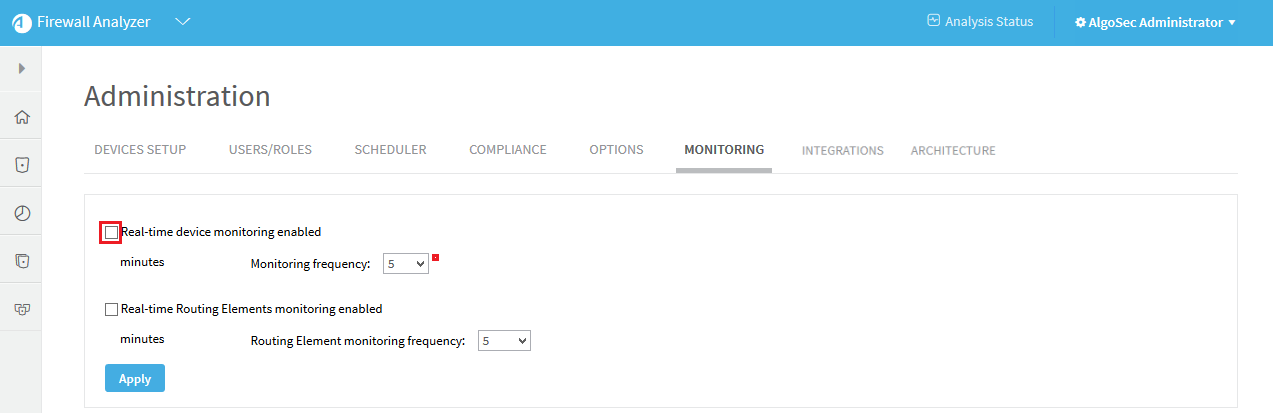
In Administration> Monitoring verify that
-
The correct number is displayed in the Monitoring Frequency drop down
-
The Real-time monitoring enabled check box
-
-
Click Apply.
To monitor twice a day
-
In Administration> Options> Advanced Configuration
-
Set MONITOR_USE_FREQUENCY_AS_HOUR_OF_DAY=yes
-
Set Monitor_Frequency as a multiple of 60, ranging from 120 (2*60) to 720 (12*60), according to the chart below.
Value To run monitoring at 120 02:00 and 14:00. 180 03:00 and 15:00 240 04:00 and 16:00 300 05:00 and 17:00 360 06:00 and 18:00 420 07:00 and 19:00 480 08:00 and 20:00 540 09:00 and 21:00 600 10:00 and 22:00 660 11:00 and 23:00 720 12:00 and 00:00
-
-
At the bottom of the Advanced Configuration page, click OK and wait for a confirmation message.
-
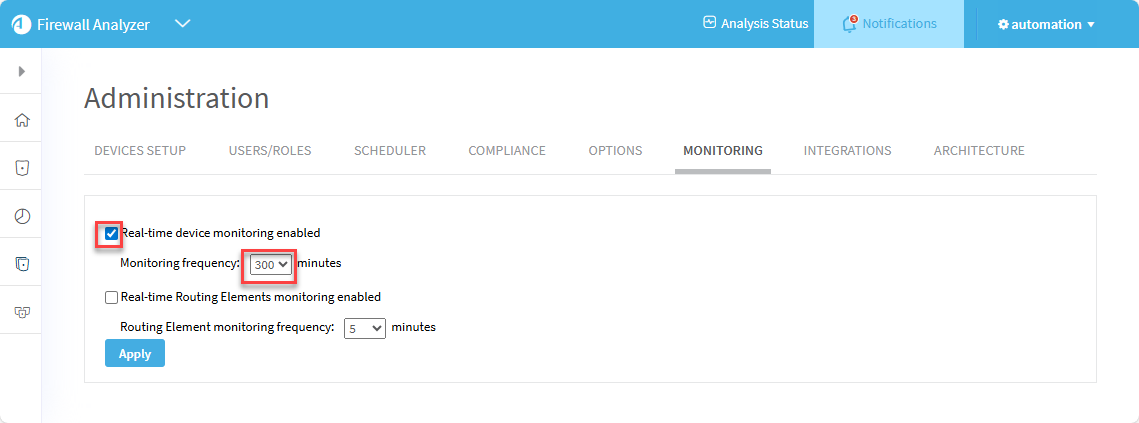
In Administration> Monitoring verify that
-
The correct number is displayed in the Monitoring Frequency drop down
-
The Real-time monitoring enabled check box
-
-
Click Apply.
Notes:
-
Currently a limitation exists that there is no indication in this dialog showing whether the Monitoring Frequency number is working as a frequency in minutes or as an indicator of time of day.
-
Setting MONITOR_USE_FREQUENCY_AS_HOUR_OF_DAY=no or deleting this parameter will cause the monitor_frequency to be interpreted as frequency and not time of day.
-
Any unacceptable number entered as the monitor_frequency value will cause the monitor frequency to revert to every 5 minutes. (Valid values are 1-60, and multiples of 60).
-
For more information, see Monitor_Frequency and MONITOR_USE_FREQUENCY_AS_HOUR_OF_DAY


