Specify routing data manually
Relevant for: AFA Administrators
This topic explains how AFA administrators can manually change a device’s routing and topology data using URT (Unified Routing Table) files.
By default, AFA compiles routing and topology data from each device automatically every time the device is monitored or analyzed. However, you may want to override or supplement that data in situations where AFA does not automatically collect all necessary routing details (for example, an unsupported VPN type), or where you need to add custom elements.
AFA provides two fundamental ways to define routing information manually:
- Static mode
- Hybrid (mixed) mode
Overview of Modes
-
Static Mode
-
You upload a complete, static representation of the device’s routing data via a URT file.
-
After switching to Static mode for a device, AFA ignores any new changes made on the device unless you manually update and upload a new URT file.
-
This approach is helpful if you must override or correct all routing information for a device, but it requires continuous maintenance of the URT file to keep it in sync with the device.
-
-
Hybrid Mode
-
You provide only the additional or modified routing information to complement what AFA discovers automatically.
-
AFA continues to regenerate URT files during monitoring and analysis, and merges your custom “add-on” information.
-
In practice, this eliminates the need to maintain an entire static URT file. You maintain only the parts that AFA cannot (or does not) discover automatically—for example, an extra interface or custom routes.
-
The final URT used in AFA includes both the automatically discovered data and your additional route/interface data.
-
Usage Examples
Why Use Static Mode?
You might have a special scenario where you want to override all routing information with your own. For instance, if a device’s routing data is highly customized or significantly different from what AFA can parse. In such a case, you select Static mode, provide your URT file, and AFA will rely solely on your URT file for future analyses.
Why Use Hybrid Mode?
You may have a fully supported device but with a few custom elements—perhaps an interface or route that AFA doesn’t detect automatically. Rather than providing a complete static URT file that must be updated every time the device changes, you can simply maintain a tiny “delta” file (named additionalRoutes.urt) that adds those custom routes or interfaces. AFA merges the “additionalRoutes.urt” content with the automatically discovered data.
 Click for an example:
For example, say a device has three interfaces (interfaces A, B, and C). The administrator manually adds a new interface, interface D to the URT.
Later in a configuration change, interface E is added to the device.
- If interface D was added to the URT Using Static mode: to see interface E, the administrator must again manually update the URT file adding interface E.
- If interface D was added to the URT Using Hybrid mode: when AFA regenerates updated URT files for this device, interface E appears automatically.

To specify routing data manually
Note: You can only specify routing data for AWS VPC and Transit Gateway from the map, see To specify routing data from the map
Specifying routing data manually for primary devices with sub-devices is done differently than for primary devices without secondary devices.
If sub-devices are defined in the URT file, specify routing data manually for each sub-device (not for the parent device). If the primary device has no secondary device, specify routing data manually for it directly.
Using Static mode
Do the following:
-
Access the Devices Setup page. For details, see Access the DEVICES SETUP page.
-
From the tree on the left, select the device or sub-device you want to edit, and then click Edit on the right.
-
In the Route Collection area, select Static Routing Table (URT).
-
Do one of the following:
- If you already have a URT defined that you want to edit, click Download current URT file.
- To create a new URT file, click Download Sample file.
-
Edit the file with the routing information you want to import. See an example for manually specifying routing information at How to manually specify routing information for Cisco Layer 2 devices in AlgoPedia..
-
Again access the Devices Setup page. For details, see Access the DEVICES SETUP page.
- From the tree on the left, select the device or sub-device you want to edit, and then click Edit on the right.
-
In the Route Collection area, select Static Routing Table (URT).
-
Click Upload new file, and select the edited file.
AFA validates your file, and notifies you if any syntax or content error is found.
- When complete, click OK.
The new routing table will take affect after the next device analysis.
Using Hybrid mode
To manually specify routing data in Hybrid mode for a device or sub-device:
Do the following:
-
Create new URT files, edit an existing or edit a downloaded sample URT.
- For a single device with no sub-devices, on the URT, specify additional routes. When a device has sub-devices, make URT files for each sub-device and not for the parent device. Specify additional routes for the sub-device. See an example for manually specifying routing information at How to manually specify routing information for Cisco Layer 2 devices in AlgoPedia.
- Name the file(s) additionalRoutes.urt (make sure to name each URT file exactly as shown. The filename is case sensitive).
- Save the file(s) in the folder /home/afa/.fa/firewalls/<deviceTreeName> for a single device with no sub-devices or, when a device has sub-devices, save in each subfolder /home/afa/.fa/firewalls/<deviceTreeName>/<sub-device name>.
- Analyze the device.
After the analysis/monitoring, the results of URT appear: topology is changed and URT shows on the map.
To specify routing data from the map
This procedure describes how to specify routing data manually using Static mode directly from the map , instead of the Devices Setup page.
Do the following:
-
In AFA, view the graphic network map. Click DEVICES, select a device, and then click MAP.
-
Locate and right-click the device you want to edit, and select Routing Information.
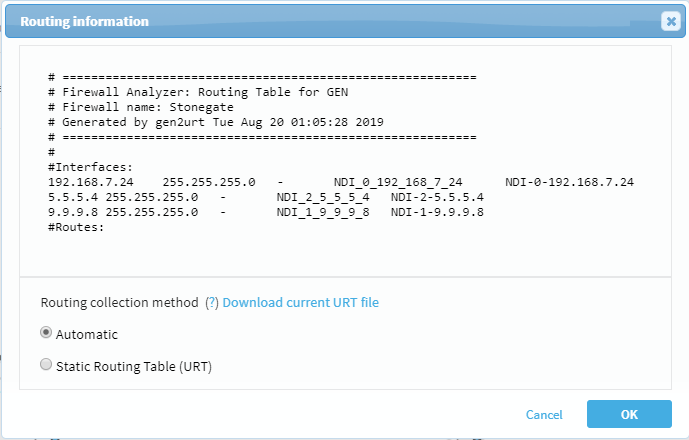
The Routing information dialog shows the current URT file. For example:
-
Select Static Routing Table (URT), and then do one of the following:
- If you already have a URT defined that you want to edit, click Download current URT file.
- To create a new URT file, click Download Sample files.
-
Edit the file with the routing information you want to import. See an example for manually specifying routing information at How to manually specify routing information for Cisco Layer 2 devices in AlgoPedia.
-
Again access the Devices Setup page. For details, see Access the DEVICES SETUP page.
- From the tree on the left, select the device or sub-device you want to edit, and then click Edit on the right.
- In the Route Collection area, select Static Routing Table (URT).
-
click Upload new file, and select the your edited file.
AFA validates your file, and notifies you if any syntax or content error is found.
-
When complete, click OK.
The new routing table will take affect after the next device analysis.


