
AI Application Discovery in AppViz
AppViz AI Application Discovery process simplifies how you can onboard applications to AppViz. This advanced feature leverages artificial intelligence (AI) to identify and suggest applications and flows for onboarding into your system, making the discovery process faster and more intelligent.
AppViz uses AI to identify potential applications based on data from FireFlow tickets or AFA device policy tables, presenting these findings for your review before you decide to onboard them.
Note: AI Application Discovery tags (such as  and
and  , including suggested applications based on them) are not the same as AI-Service Exposure tags
  on applications originating from ACE Cloud App Analyzer.
To Enable AI Application Discovery
This section describes the steps required in order to enable AI Application Discovery.
Note: You can create a list of blacklisted applications from AI discovery, see the property ai.blacklisted.applications.
Do the following:
-
Connect ASMS to AppViz. For details, see Connect AppViz to ASMS.
-
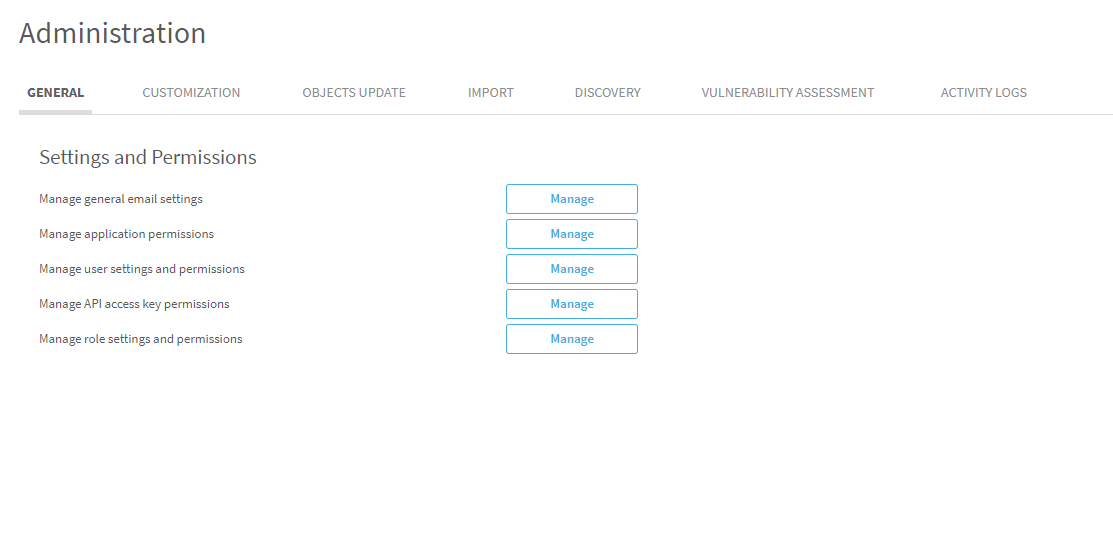
Navigate to the Administration area.
-
Hover over the
 SETTINGS icon at the bottom left of the screen. After the panel expands, click
  ADMINISTRATION.
The Administration area appears in the workspace.
-
-
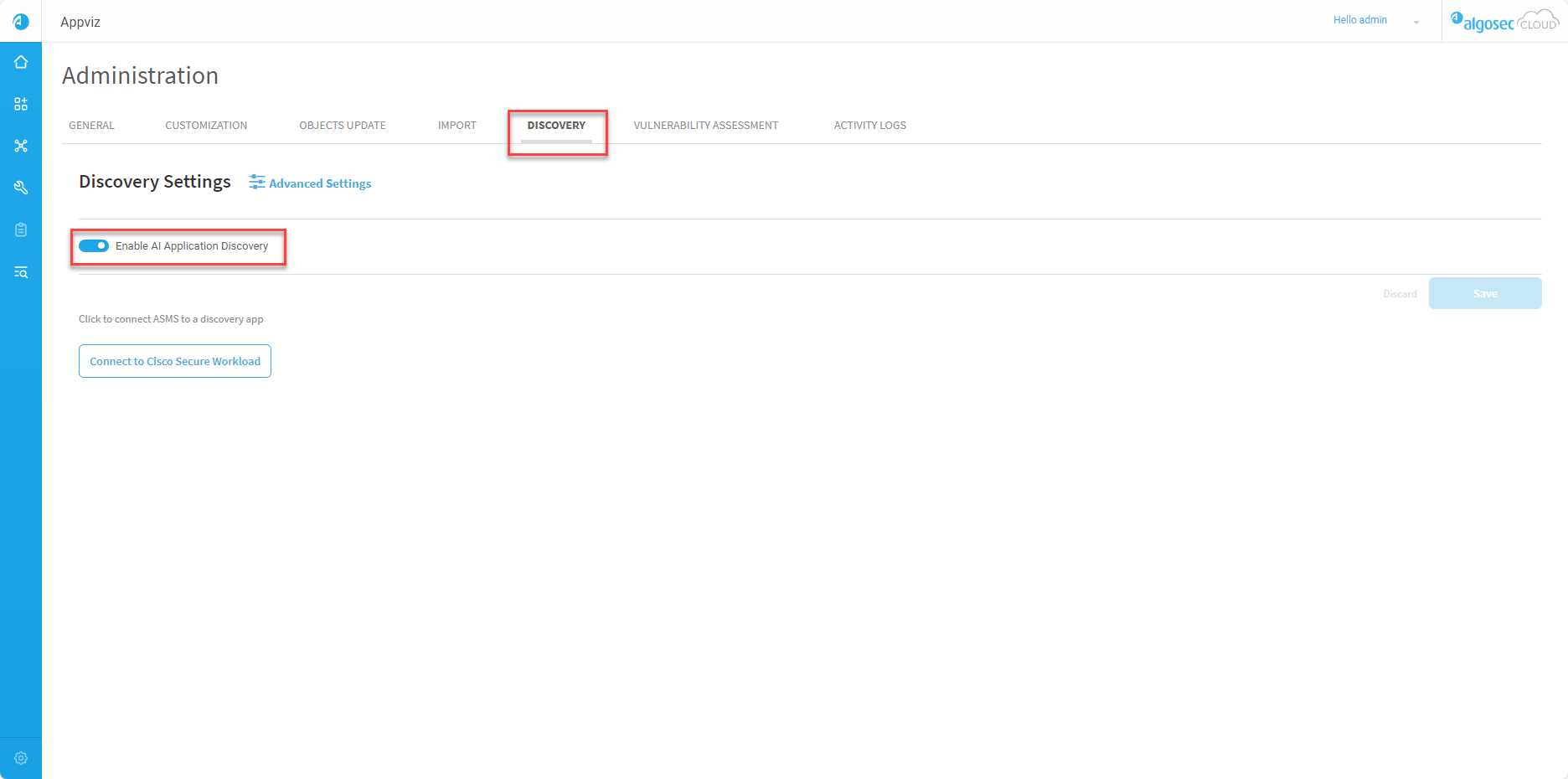
Click on the DISCOVERY tab within Settings.
-
Toggle on the Enable Auto Application Discovery.
-
Click Save.
AI Discovery data fetching from ASMS begins after the next scheduled objects sync. The duration of the AI Discovery process varies depending on the customer's data.
Important: If you want AppViz to discover applications using AFA instead of FireFlow, follow the steps in Configure AI Discovery Settings before the next scheduled objects sync.
-
(Optional) You can create a list of blacklisted applications from AI discovery by setting the ai.blacklisted.applications user property. For more information, see ai.blacklisted.applications.
Access the AI Application Discovery Suggestions page
This section explains how to access the AI Application Discovery where you can view applications found by AppViz.
Do the following:
-
Navigate to the AI Application Discovery page in either of the following methods:
-
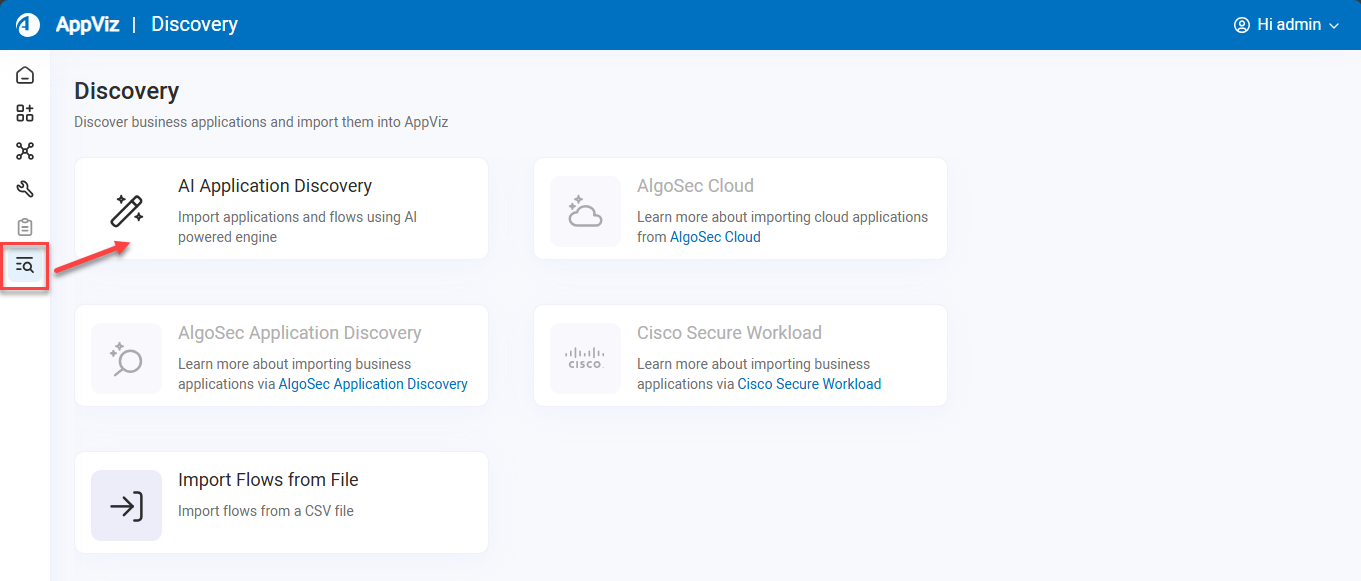
From the AppViz main menu, click DISCOVERY, and then select AI Application Discovery.
-
From the AppViz main menu, click APPLICATIONS, and then click on the notification in the top right of the screen.
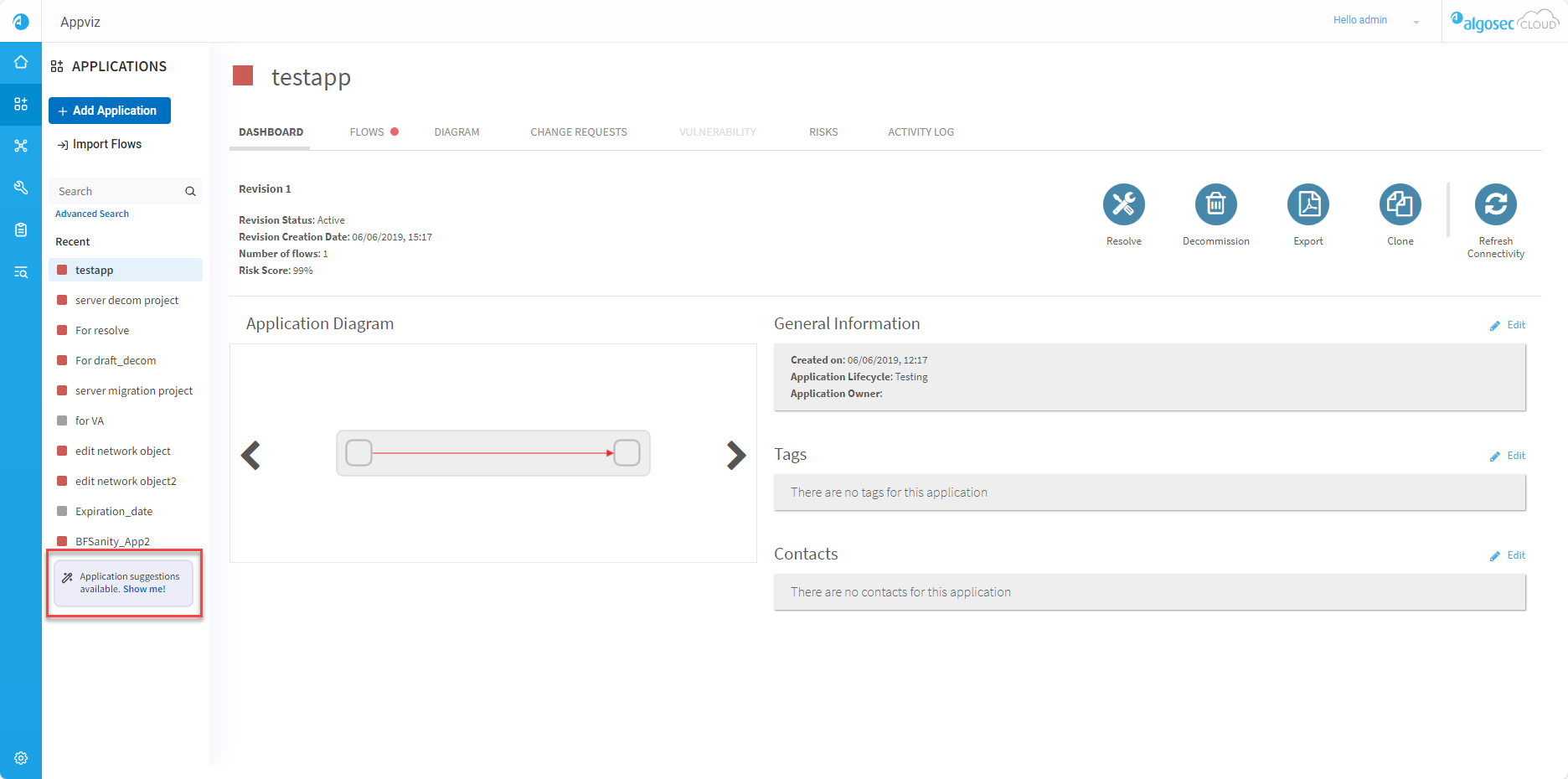
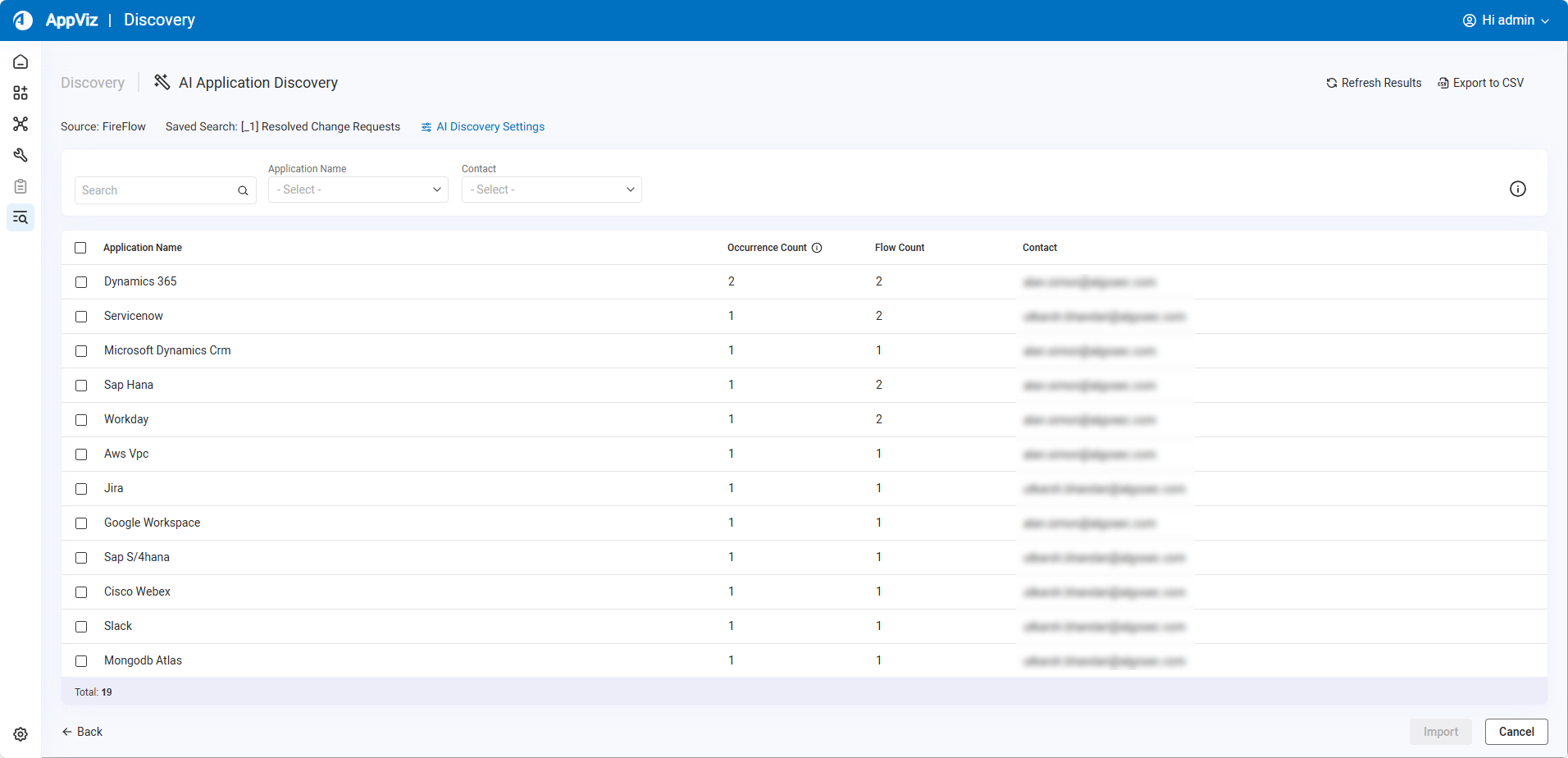
The AI Application Discovery import page appears.
Note: Column names and corresponding data vary depending on the AI discovery source. For details on setting the AI discovery source, see Configure AI Discovery Settings.
-
Import AI Application Discovery Suggestions
This section explains how to select the applications you want to import to AppViz.
Note: You can use the properties application.activation.default.discovery.types and application.expiration.default.discovery.types to control activation and expiration defaults for imported applications based on their discovery source. See Configure advanced AppViz properties.
Do the following:
-
Navigate to the AI Application Discovery Suggestions page. For details, see Access the AI Application Discovery Suggestions page.
-
Use the checkboxes to the left of the application names to select which applications to import.
Note: Applications are added in draft status. You can change the suggested application names to better fit your needs. You can modify application attributes or remove them as necessary
The list of discovered applications includes the following columns:
Column
AI App Source Discovery Description
Application Name
AFA, FireFlow Name of the suggested application.
Tip: An warning icon
 appears if the application name already exists in AppViz. Click the application name to view its details on the Applications page Dashboard tab.
Policies AFA The number of policies in which the application name appears. Occurrence Count
FireFlow The number of change requests in which the application was detected by the AI.
Tip: Hover over the occurrence count to see the most recent change request in which the application was identified.
Flow Count
FireFlow Number of flows in which the application name appears.
Contact
FireFlow Name of the requestors associated with the detected change requests.
(Optional) To rename an application :
-
Hover over the row of the application name you want to change.
The Edit
 button appears on the far right of the column.
 -
Click
. -
Edit the Application Name.
-
Press Enter.
(Optional) To remove an application :
-
Hover over the row to display the Delete
 button.
 -
Click
to remove the application from the list.
-
-
Click Import.
The applications are added to the Applications list.
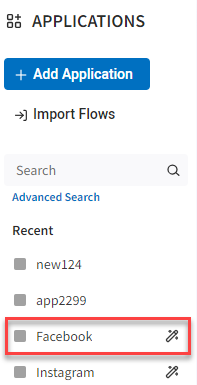
Applications and flows discovered through AI Discovery appear with special tags. For example:
-
 for applications discovered from FireFlow tickets
 -
 for applications discovered from AFA device policy tables
 -
 for flows discovered using AI Discovery
-
Configure AI Discovery Settings
This section describes how to select the Source and Saved Search used by AI Discovery.
Do the following:
-
Click DISCOVERY from the navigation menu on the left, and then click the discovered application source AI Application Discovery.
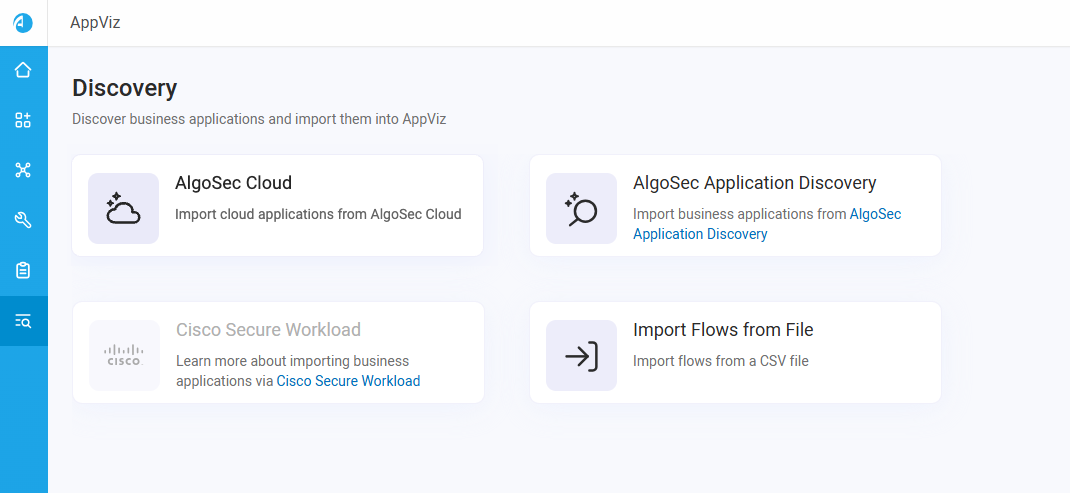
The AI Application Discovery import page appears.
-
Click AI Discovery Settings.

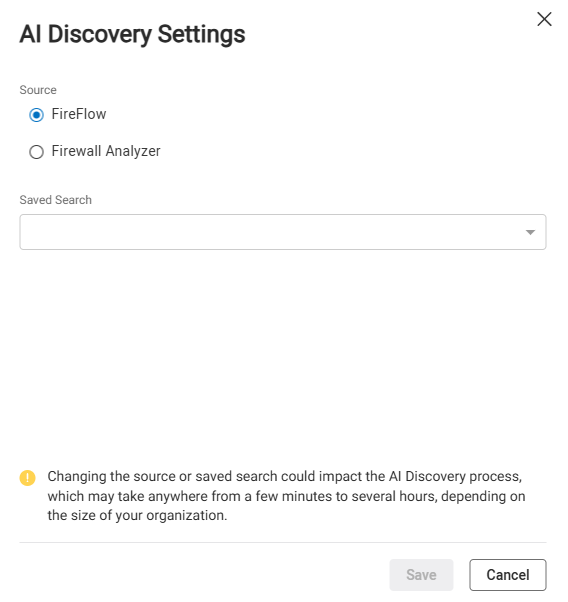
The AI Discovery Settings dialog appears.
-
Set the Source and Saved Search parameters as required.
Note: If the AI Discovery Source is AFF, you can customize which Change Request fields are analyzed by setting the ai.used.custom.fields.in.cr user property. For more information, see ai.used.custom.fields.in.cr.
-
Click Save.
Export AI Application Discovery Suggestions to a CSV File
This section explains how to export AI Application Discovery suggestions and their associated flows to a CSV file. The export provides detailed, granular flow information and translates traditional firewall policy into AlgoSec’s application-centric model, organizing the data around applications and their flows for easier analysis and decisions on what to import to AppViz.
Do the following:
-
Click Export to CSV.
The file, named applications-[date].zip, is downloaded to the default folder.
Note:
-
Users data appears in the CSV only when the AI discovery source is set to FireFlow.
-
Comments data appears in the CSV only when the AI discovery source is set to Firewall Analyzer.
To set the AI discovery source, see Configure AI Discovery Settings.


 Clear your browser's cache