 Import Applications and Traffic Flows from ACE Cloud App Analyzer
You can import cloud applications discovered by ACE Cloud App Analyzer into AppViz, including their associated application traffic flows.
-
Cloud App Analyzer analyzes flow logs to identify:
-
Ingress traffic
-
Egress traffic
-
Inter‑application traffic
-
-
AppViz retrieves this data, optimizes the flows, and converts them into native application flows.
-
Importing applications with their flows provides visibility into:
-
Application ingress and egress traffic
-
Inter-application communication
-
Hybrid and cloud traffic patterns
-
Application dependencies
-
This improves application mapping accuracy and supports cloud migration, modernization, micro-segmentation, and security posture initiatives.
Note: Currently, Cloud App Analyzer supports AWS VPC Flow Logs only.
Before You Begin
-
Ensure ACE Cloud App Analyzer is configured and synchronized.
-
Verify that AWS VPC flow logs are available in ACE Cloud App Analyzer. See Permission Diagnostics for the Flow Logs.
-
Confirm that Cloud Application synchronization has completed successfully.
-
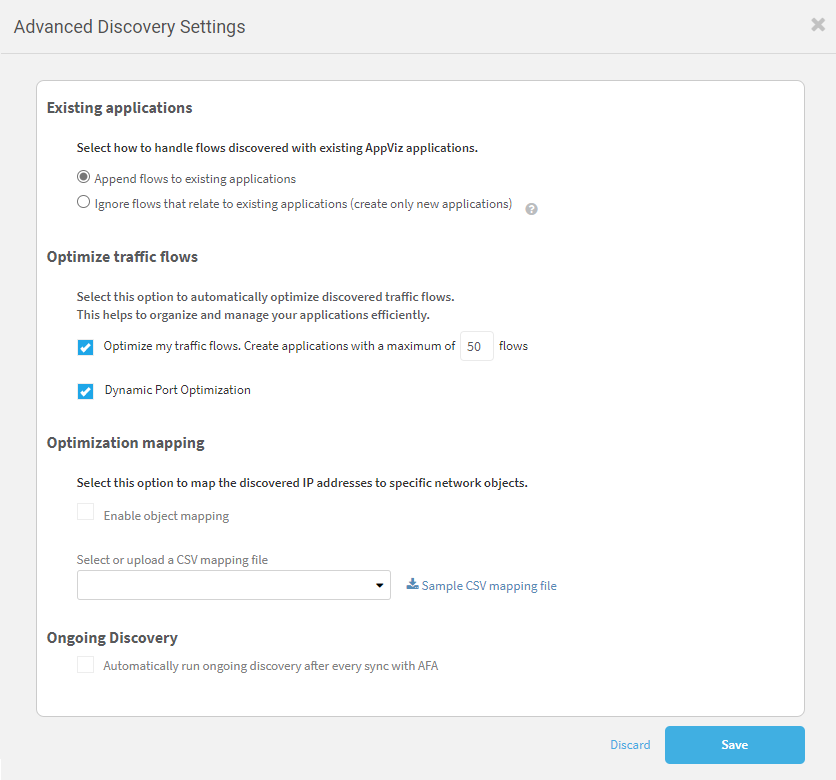
Ensure Optimize My Traffic Flows. and Dynamic Port Optimization (optional) are enabled in: Settings > Administration > Discovery > Advanced Settings. See Configure advanced discovery settings.
Note: You can use the properties application.activation.default.discovery.types and application.expiration.default.discovery.types to control activation and expiration defaults for imported applications based on their discovery source. See Configure advanced AppViz properties.
To Import Applications
Do the following:
-
In AppViz, click DISCOVERY in the left navigation menu. Select the discovered application source AlgoSec Cloud.
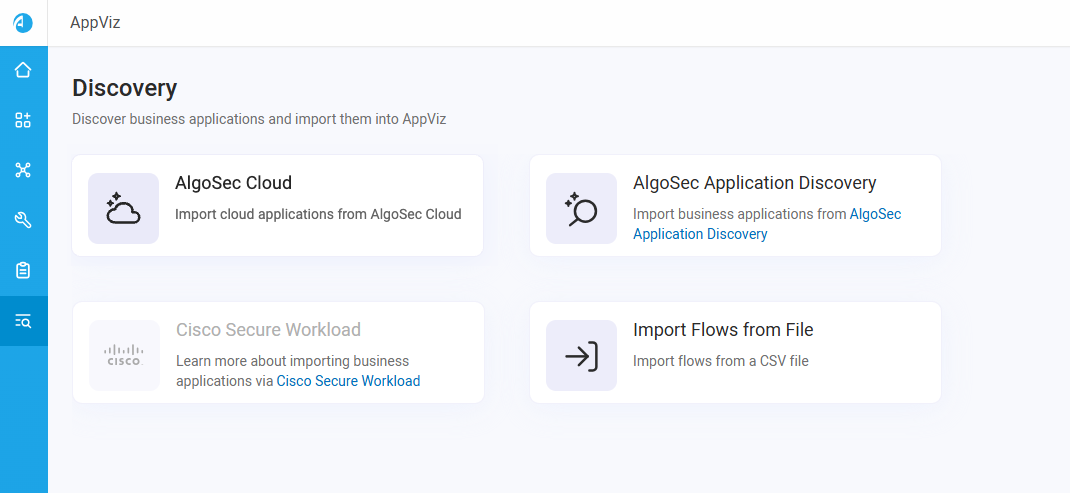
The AlgoSec Cloud Applications page appears on the Select Applications step.
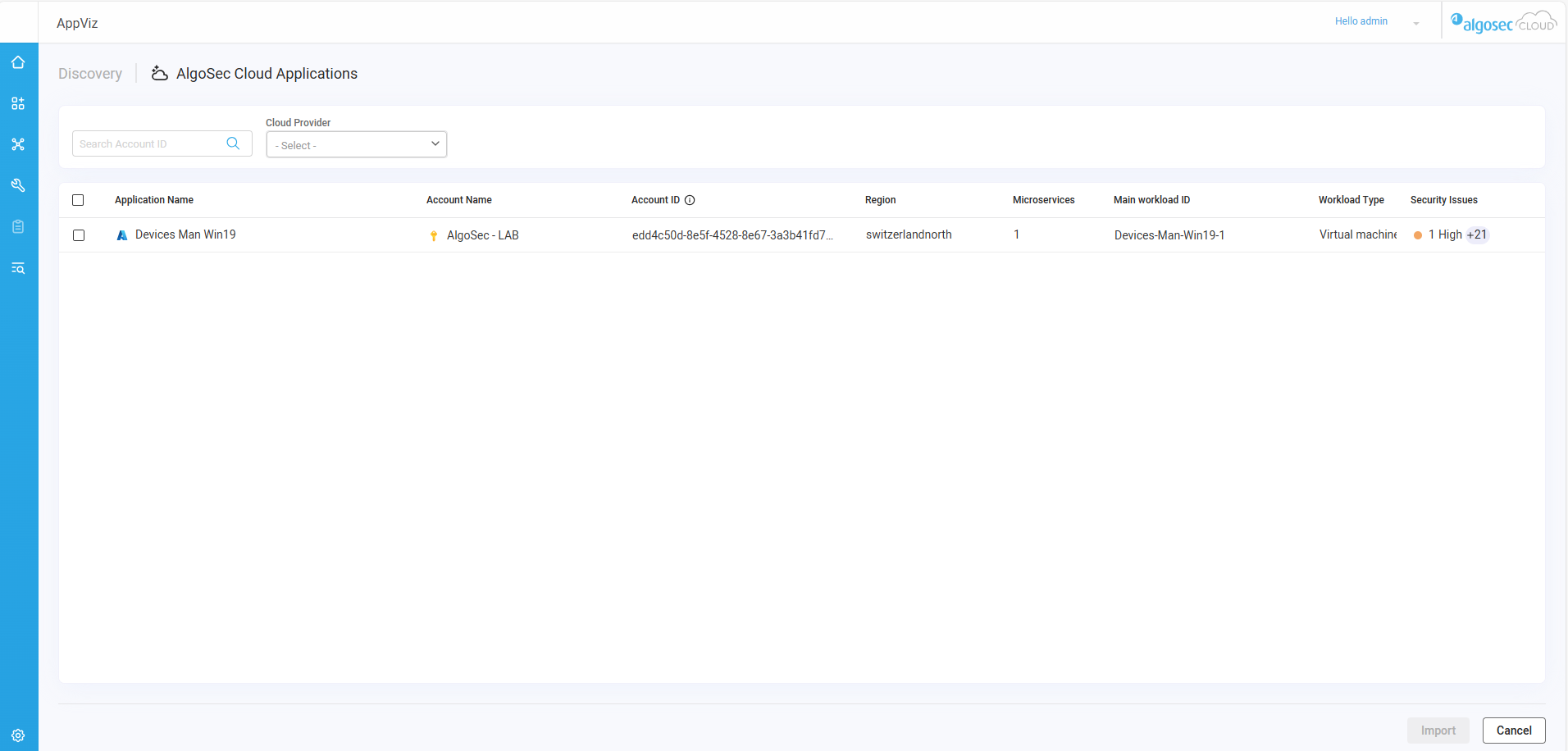
Note: The applications displayed are based on data collected during the most recent daily synchronization with Cloud App Analyzer.
This list provides detailed information about each application, including:
Column
Description
Application Name
The name of the cloud application as identified by ACE Cloud App Analyzer and displayed in AppViz.
Account Name The name of the cloud account in which the application is deployed. Account ID The ID of the cloud account in which the application is deployed. Region The cloud provider region where the application workloads are deployed. Unoptimized Flows The number of raw traffic flows identified for the application during the most recent synchronization with ACE Cloud App Analyzer, before flow optimization is applied. Microservices The number of microservices detected within the application based on workload and traffic analysis. Workload Name The name of the primary workload associated with the application (for example, an EC2 instance, container cluster, or other compute resource). App Risky Findings
Shows high-level findings including:
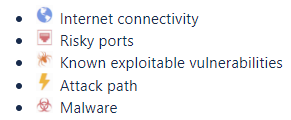
Workload Type The type of compute resource hosting the application workload (for example, Virtual Machine, Container, or other supported cloud resource type). App Graph Provides access to a visual representation of the application’s traffic flows and dependencies ( in ACE Cloud App Analyzer) Security issues The number of detected security issues associated with the application, based on traffic analysis and policy evaluation. -
 (Optional) Sort and filter applications to locate specific entries.
-
Sort: To sort by Application Name, Account Name, Region, or Microservices, click on its column name.
-
Filter:
The built-in search and dropdown fields are as follows:
Field Description Search -
Enter partial or full text to search the following information:
-
Application Name
-
Account Name
-
Account ID
-
Region
-
Workload Name
-
Workload Type
-
-
Click on a specific search result to show its details in the list of applications, or press Enter to populate the list with all matching search results.
Application Name Select one or more application names.
Security Issues Select one or more security issues.
Add Filters Add additional filters (as described below) Add additional filters
You can add additional filters to filter applications based on data from other columns.
Do the following:
-
Click +, located to the right of the current filters.

A new dropdown field with placeholder text Select Filter appears.
-
Click Select Filter in the new dropdown and select the filter you want to add.
You can now use this dropdown to filter results by the selected option.
-
-
Manage columns: To hide or show columns, click
 and use the checkboxes to select the columns to display. Application Name, Region, App Graph, and Security Issues cannot be hidden. Click Reset View to show all of the columns.
-
-
Select the application(s) you want to import.
-
Click Next.
The Review Optimized Flows step appears.
-
For Azure and GCP applications: Flows are not supported, click Import and continue on Step 7 below.
-
For AWS Applications: . AppViz retrieves the flows from Cloud App Analyzer and performs flow optimization. A progress indicator shows the optimization status.
Tip: Optimization runs in real time and may take several minutes, depending on the flow volume. You can navigate away while processing continues; you are notified when it completes.
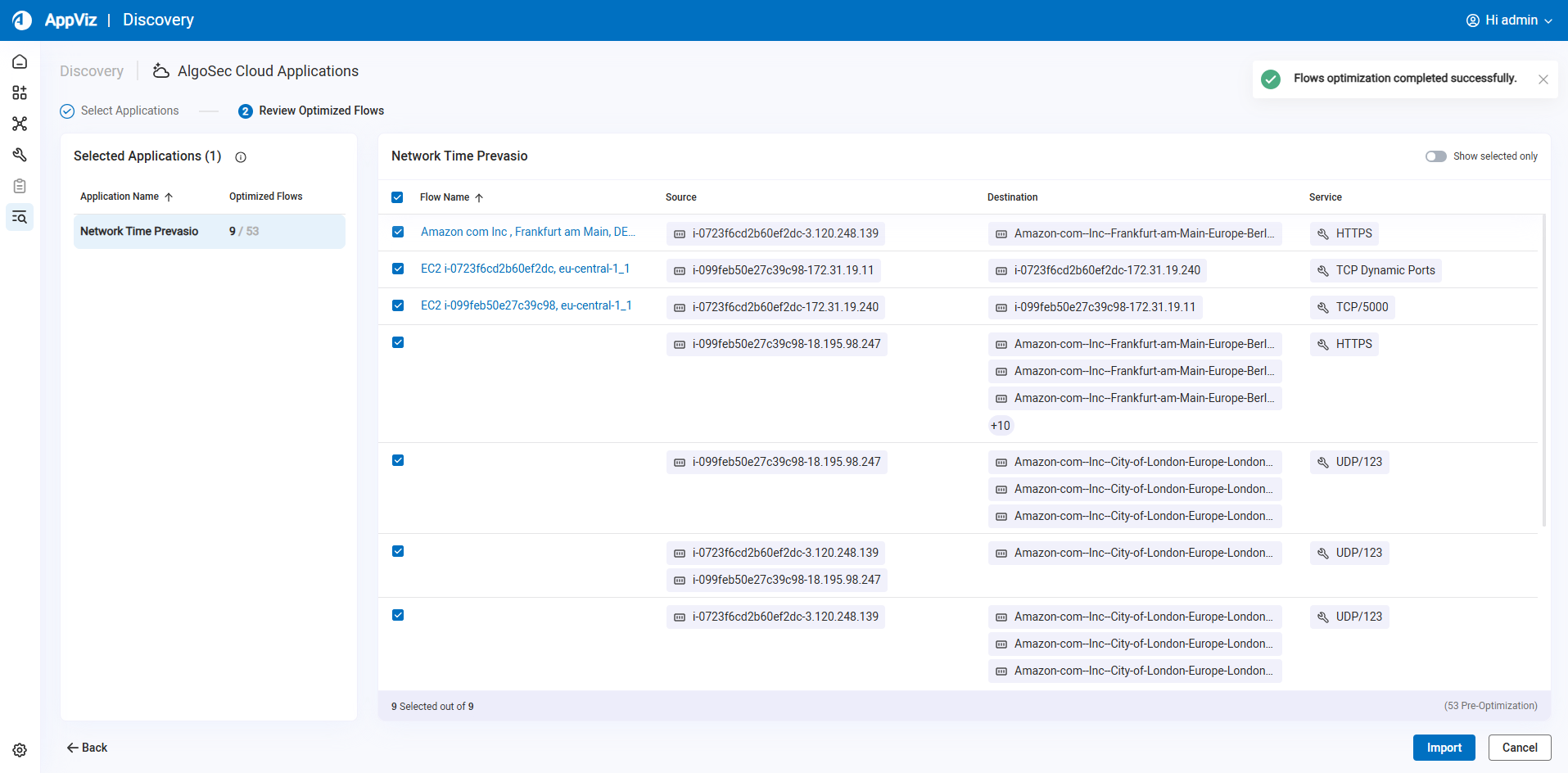
About the Review optimizations Step page
The page is divided into two main panes:
Selected Applications Pane (Left)
Displays the applications selected in the previous step.
For each application, the pane shows:
-
Application Name
-
Optimized flows count (for example, 9 / 53)
The count indicates the number of selected flows out of the total optimized flows discovered for the application.
Selecting an application displays its flows in the main table.
Flows Table (Right)
Displays the optimized flows for the selected application. Each row represents a single optimized flow.
The table includes the following columns:
Column
Description
Checkbox
Select or clear the flow for import. Flow Name The generated name of the optimized flow. Click to open the Flow Details window. Source The source object(s) of the traffic flow. Destination
The destination object(s) of the traffic flow. Service
The associated protocol and port (for example, HTTPS, TCP/5000, UDP/123, or TCP Dynamic Ports). Tip: If multiple objects are grouped in a flow, a “+N” indicator appears. Click it to view additional grouped objects.
Sorting and Filtering
These options help you quickly review large numbers of flows.
Flow Details Window
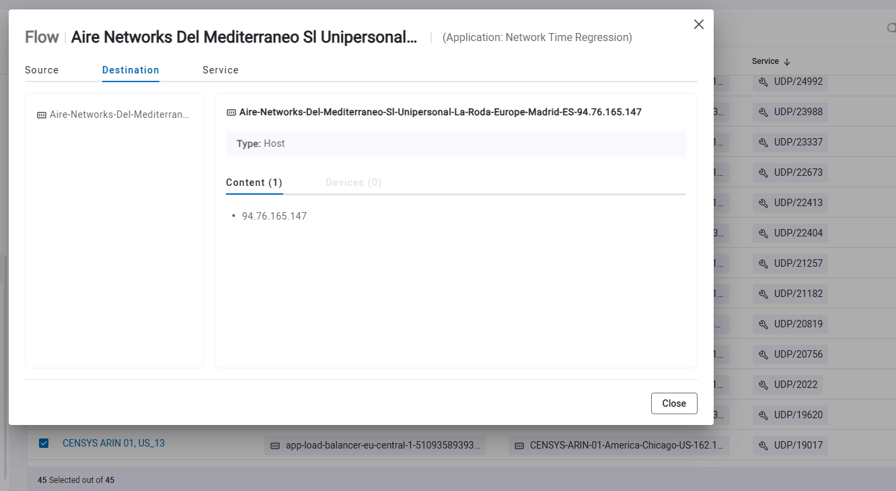
Clicking a flow name opens the Flow Details window, which displays:
-
All related source objects
-
All related destination objects
-
Service details
-
Additional object information
Use this window to validate flows before importing. You can:
-
Sort flows by Flow Name
-
Sort by Service
-
Toggle Show selected only to display only flows marked for import
-
-
Review and Select Flows: Discovered flows are displayed per application.
Things you can do
-
Sort applications by name.
-
Sort flows by flow name.
-
Sort flows by service name.
-
Filter to display only selected flows.
-
Hover over network or service objects to view additional details.
-
Click a flow name to open the Flow Details window.
-
-
After reviewing all selected applications and their flows:
-
Click Import to import the applications and selected flows as native AppViz applications.
-
Click Back to modify your application selection.
-
Click Cancel to exit and discard the import process.
-
-
The application is imported to AppViz .
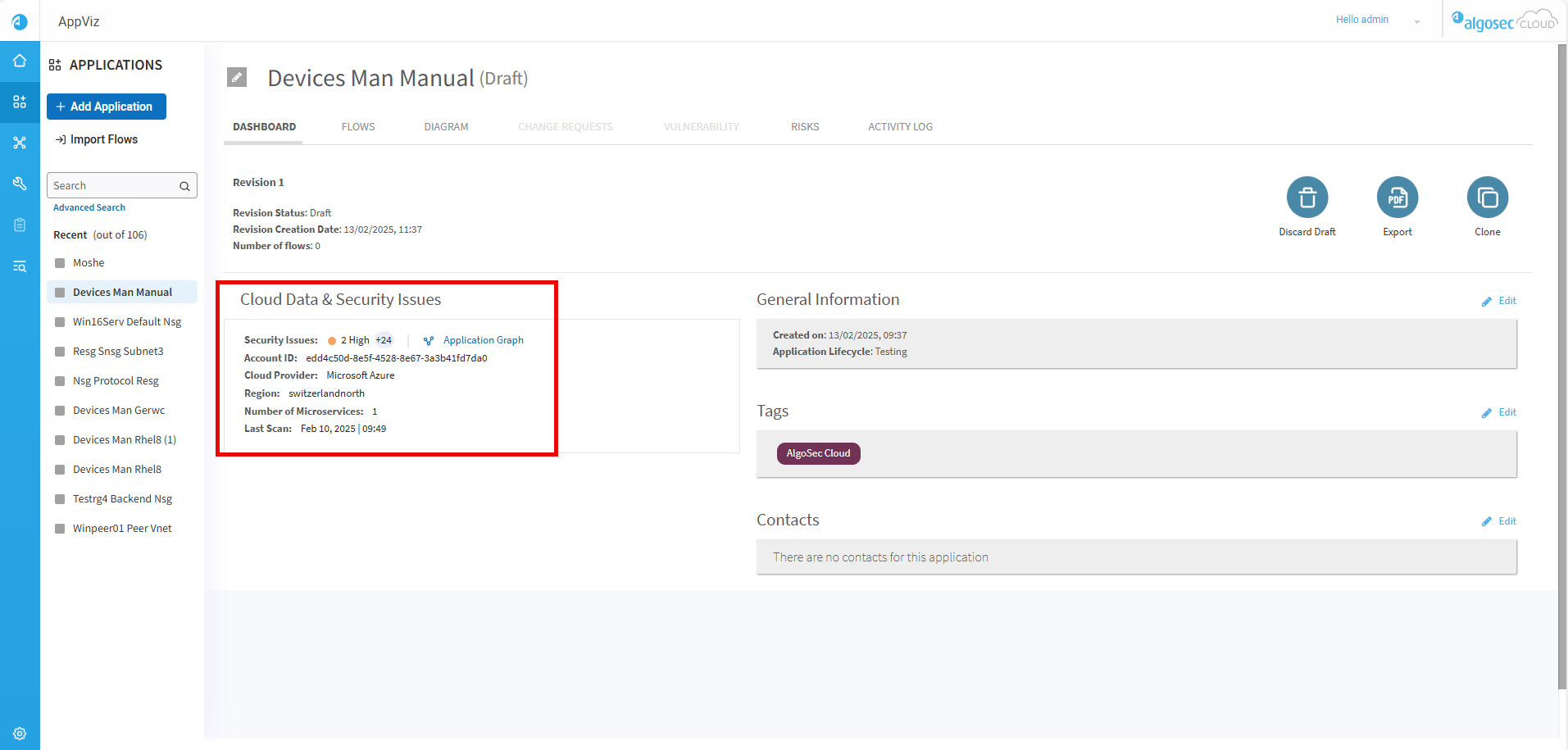
Applications imported from Cloud App Analyzer:
-
Are automatically assigned the “AlgoSec Cloud” tag.
-
Display a Cloud Data & Security Issues section in the Application Dashboard.
-
Provide a link to open the application graph in Cloud App Analyzer.
-


