 Application Activation
This topic explains how to configure what happens when an application is activated (when FireFlow is connected).
-
Administrators can require every activation to generate a change request—ensuring that changes are applied through the network security policy—or allow users to decide whether to create one.
-
If users are given a choice, administrators can also set the default behavior of the confirmation popup that appears when Activate Application is clicked, choosing whether the Generate a change request option is selected by default.
Application Activation Configuration Options
To configure what happens when an application is activated:
Do the following:
-
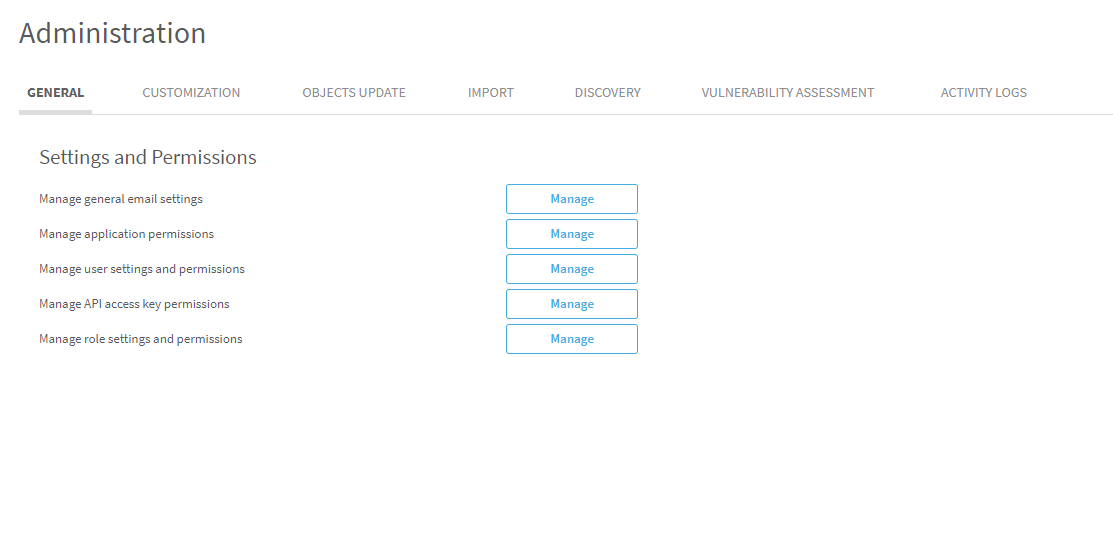
Navigate to the Administration area: Hover over the
 SETTINGS icon at the bottom left of the screen. After the panel expands, click
  ADMINISTRATION.
The Administration area appears in the workspace.
-
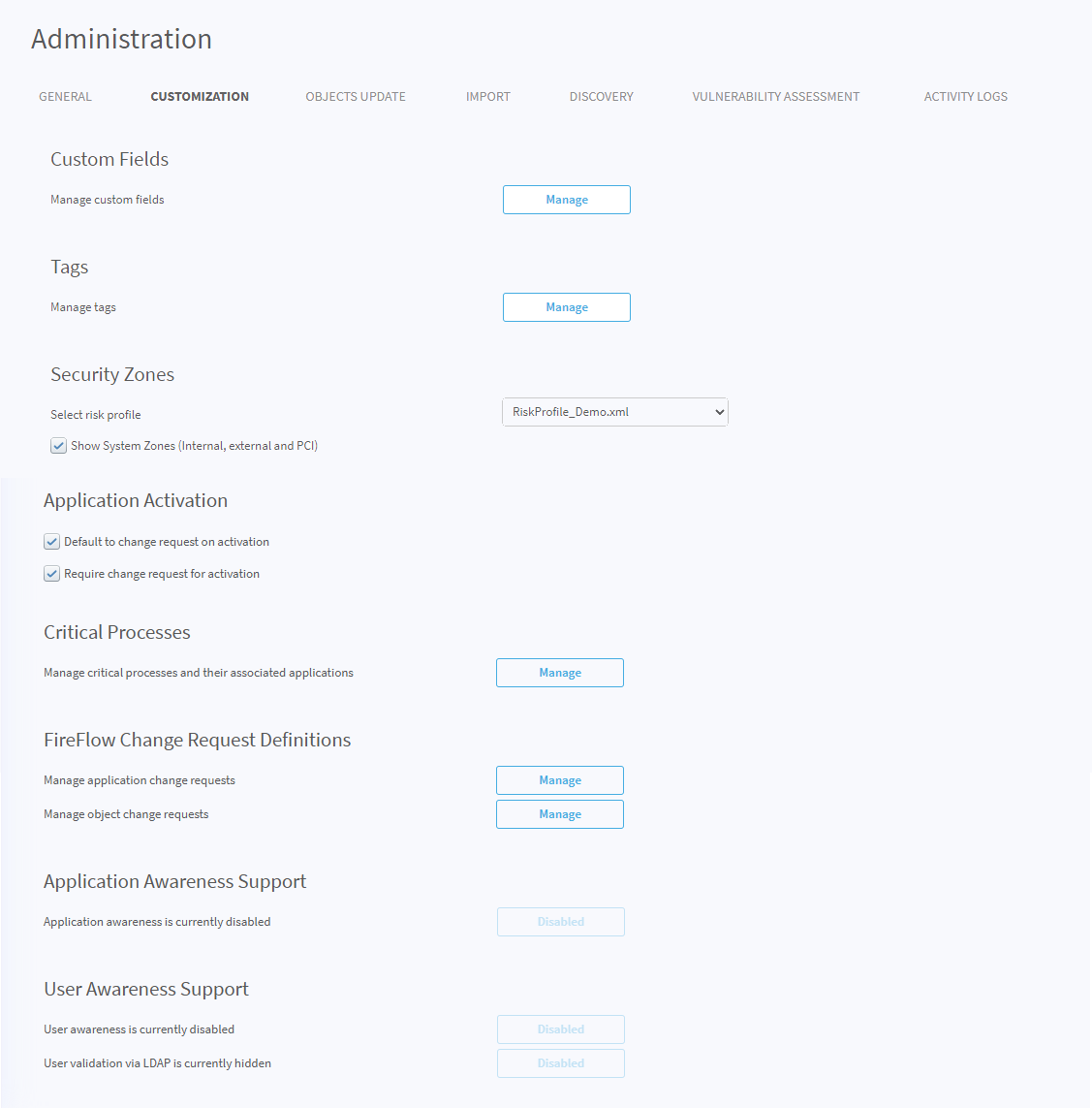
Click the CUSTOMIZATION tab. The customization tab opens.
-
In the Application Activation area, Select as follows:
Setting Enabled If Disabled Default to change request on activation When you click Activate Application, the confirmation popup appears with “Generate a change request” selected.
When you click Activate Application, the confirmation popup appears with “Generate a change request” unselected. Require change request for activation A change request is always required to activate a draft application. You can activate a draft application either with or without creating a change request.
â See also:


 Clear your browser's cache