
Logging In and Out
This topic describes how you can log in and log out of AlgoSec Security Management Suite(ASMS).
Note: For details about first time access for the administrator, see Admin first time logging in.
AppViz is an entirely SaaS-based application, and is accessible whenever you are connected to the internet. The supported browser is the latest version of Google Chrome.
Log into AppViz
Log into AppViz using the Account ID (Tenant ID) provided with your purchase.
For tenant login without Single Sign-On (SSO), you will also need your AppViz Username and Password.
Tip for IT department: To configure SSO user authentication see Manage Single Sign-On (SSO)
Do the following:
-
Navigate to:
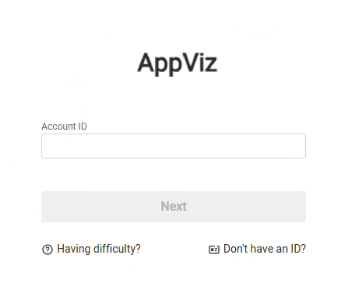
If you've previously accessed ASMS using this browser, the Account ID you entered appears in the Account ID field. Otherwise, if this is your first-time logging in with this browser, enter your Account ID. Click Next.
-
Log in:
-
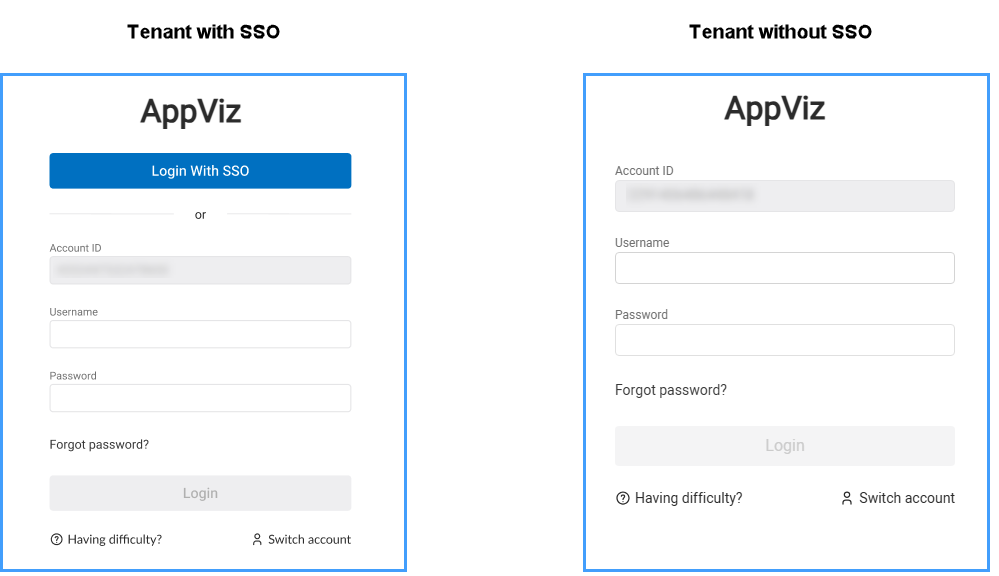
Tenants with SSO: Click Login with SSO.
-
Tenants without SSO: Enter your AppViz Username and Password. Click Login.
Tip: To speed up your login, copy the login URL for your region into your browser address bar or save as a browser bookmark, replacing <tenantID> with your own account ID number. For example:
https://us.app.algosec.com/<product>?tenantId=12308345304958303
-
With SSO: Immediately logs you in to AppViz.
-
Without SSO: Sends you directly to the login page for that account ID.
 First time logging in
Do the following:
-
Check your email for a welcome message from [email protected] which contains:
Note: If you do not see this email, check your "Junk Mail" or "Spam" folder.
-
A link to activate your account
-
Temporary login credentials (which expire in 30 days)
-
A direct link to your AppViz tenant which you can save for future use
-
-
Click the Log in to your account button or the direct link provided in the email.
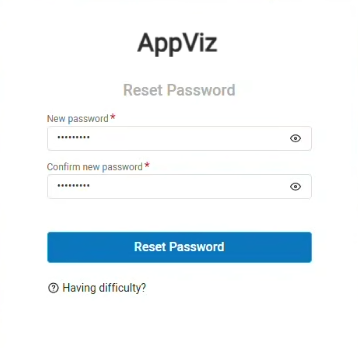
AppViz prompts you for a new password.
-
Enter your new password, then enter it again to confirm, and click Reset Password.
Note: For password requirements see Password requirements
Note: Your verification email should arrive within minutes. If it does not, be sure to check your "Junk Mail" folder.
A success dialog appears.
-
Click Continue.
-
Log into your account with the new password.
Admin first time logging in
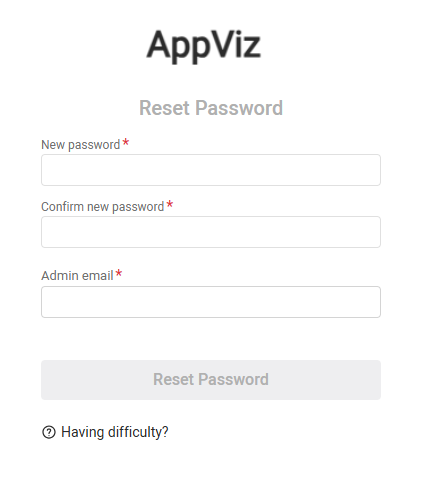
The first time you log in as an Admin, AppViz prompts you to change your password.
-
Enter your new password, then re-enter it to confirm.
Note: For password requirements, see Password requirements
-
Enter the admin email address.
-
Click Reset Password.
An email with a verification code is sent to your inbox. Copy the code into the popup window, and click Login.
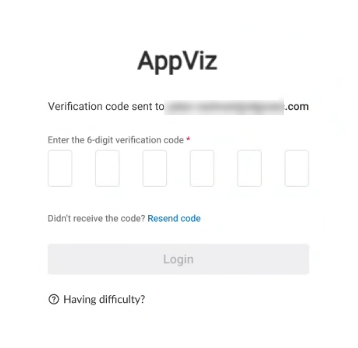
Note: If you did not receive a verification code, click Resend Verification Code.
Don't have a tenant ID or username
If you do not have your account ID or username, contact AlgoSec customer support.
In the login dialog, the Register link takes you to an informational page. Scroll down and fill out the form to learn more about AppViz.
Forgotten or resetting password
If you need to reset your password, do the following:
-
In the login dialog , click Forgot password?
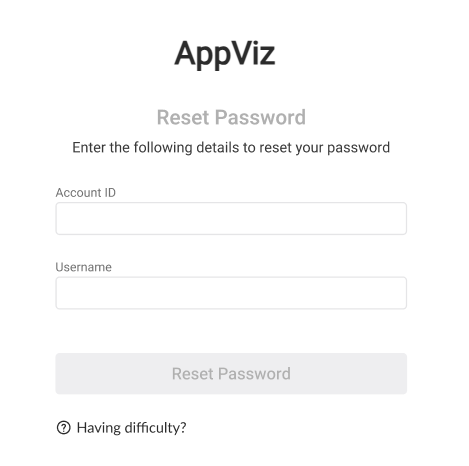
The reset password dialog is displayed:
-
Enter Account ID and Username, then click Reset Password.
AlgoSec will send you an email with a link to reset your password.
If you do not have your account ID or your username, contact AlgoSec customer support.
Switch account
If you have multiple tenant IDs, you can switch between your accounts by clicking Switch account to access the Account Login window and enter the Account ID.
-
-
(Optional) Logging in with Multi-Factor Authentication (MFA)
First time logging in with MFA
If this is your first time logging in with Multi-Factor Authentication (MFA), the interface will guide you to set up your MFA device and login using MFA for AppViz.
Note: MFA is not available when logging in with SSO.
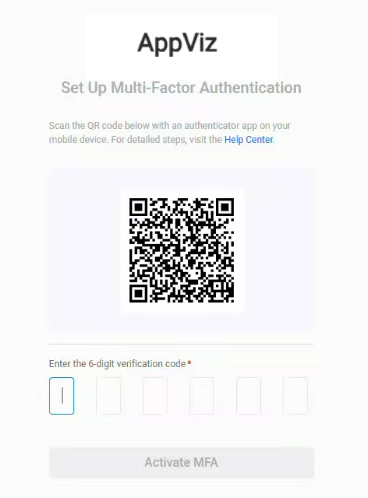
After logging in with your username and password, the following screen will be displayed the first time you attempt to log into AppViz with Multi-Factor Authentication enforced:
-
Install a standard MFA Authenticator application such as Google Authenticator or Microsoft Authenticator.
-
Scan the QR image with the camera on your mobile device.
A new AppViz record will be added to the authenticator app with a time-based authentication code. -
Enter the authentication code received in the AppViz Authentication code field.
-
Click Activate MFA.
The AppViz login dialog appears.
-
Enter your Username and Password.
-
Click Login.
Subsequent MFA logins
-
In the login screen, enter account, username and password.
-
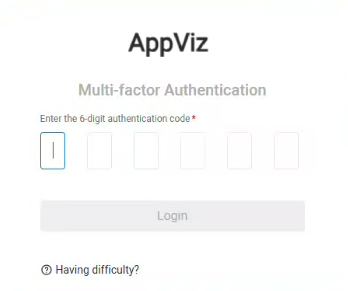
An additional login screen is displayed requesting submission of an authentication code.
-
Open the authenticator app on your mobile device to obtain the authentication code.
-
Enter the 6-digit authentication code as prompted.
-
Click Login.
-
Password requirements
-
Must contain at least 1 lowercase letter (a-z)
-
Must contain at least 1 uppercase letter (A-Z)
-
Must contain at least 1 special character
! " # $ % & ' ( ) * + , - . / : ; < = > ? @ [ \ ] ^ _ ` { | } ~
-
Must contain at least 1 number (0-9)
-
Must be at least 8 characters long
Note: Temporary passwords set by administrators expire after 30 days.
Successful Login
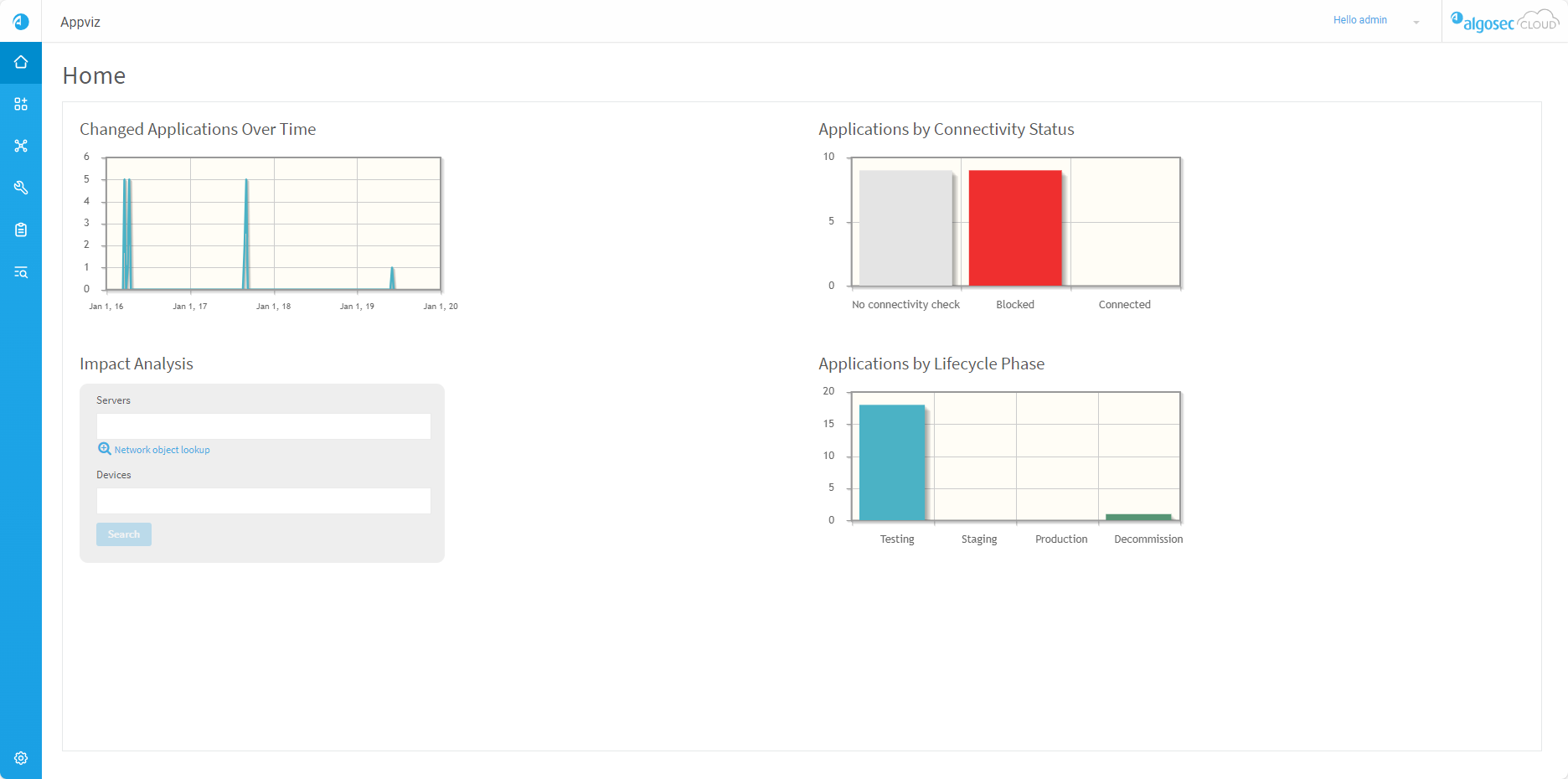
Upon successful login, the AppViz
Log out of AppViz
Log out of AppViz regularly to ensure security.
Do the following:
- At the top-right of any AppViz page, click the drop down arrow next to your username.
-
Select Logout from the list of options displayed.


