Add Zscaler Internet Access (ZIA)
ASMS supports ZIA as follows:
-
Policy Visibility for policy type: Firewall Policy Control
-
Report Generation
-
Topology including VPN tunnels
-
Change analysis and monitoring
-
Risks Calculation
-
Map Visibility (IPSec and GRE tunnels)
-
Regulatory Compliance
-
Traffic Simulation Query
-
Policy Optimization
The following sections describe how ASMS connects to ZIA public services:
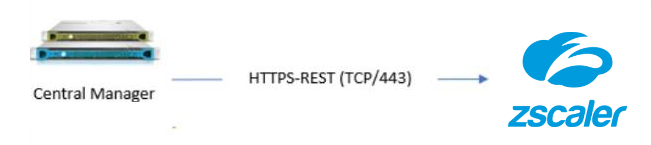
From AFA, we communicate with ZIA via Rest API over HTTPS protocol.
Required user role permissions
ASMS requires minimal, view-only access permissions to access Zscaler tenant data and perform data collection.
Do the following:
-
Create a ZIA admin role (read-only)
-
Log in to the ZIA Admin Portal (or Experience Center, depending on your tenant).
-
Navigate to Administration>Authentication>Administration Controls>Role Management>Add Administrator Role.
-
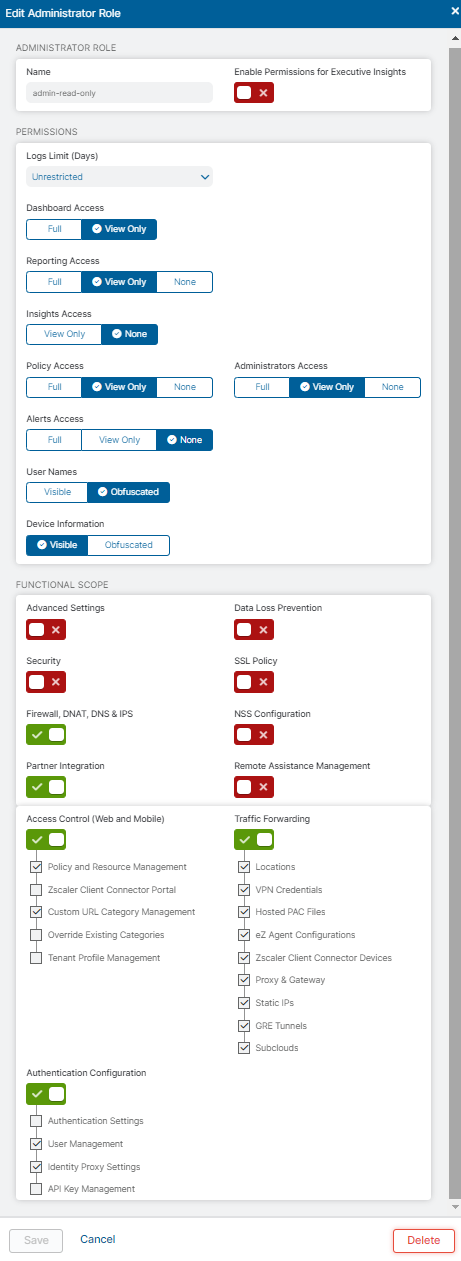
In the Permissions section, set minimum access permissions as per the above screenshot.
-
In the tabbed lower section, ensure that configurations in all sub-sections are set to View Only.
-
-
Provision the AlgoSec admin identity in ZIdentity
-
Create the user in your external IdP and provision it to ZIdentity (recommended), or create it directly in ZIdentity if your process allows it.
-
Zscaler supports adding users locally and also managing users via SCIM / JIT provisioning.
Note: If your organization standard is “no local users,” do not create a local (non-IdP) ZIdentity user for AlgoSec.
-
-
Assign the ZIA role to the AlgoSec identity via ZIdentity (Administrative Entitlements)
-
Log in to the ZIdentity Admin Portal.
-
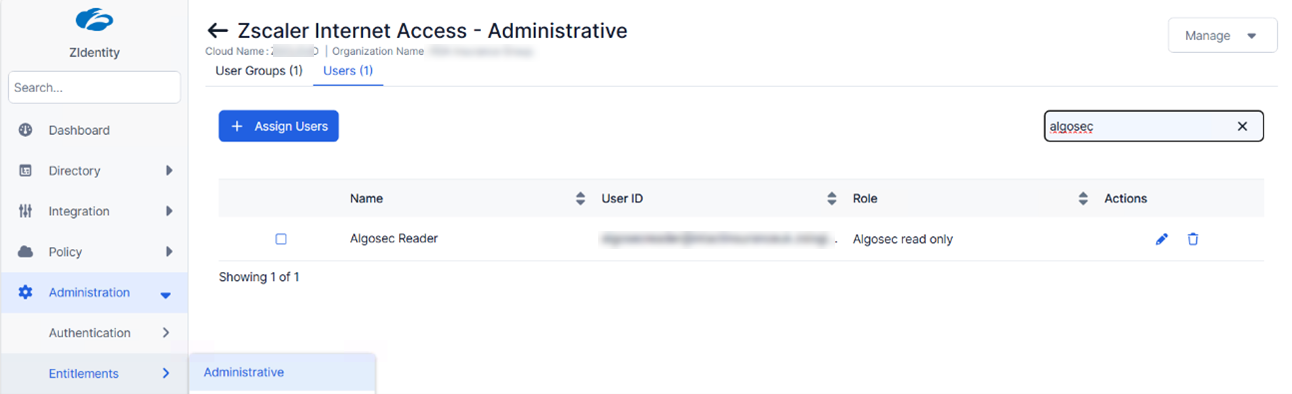
Navigate to Administration > Entitlements > Administrative.
-
Select the ZIA service.
-
On the Users (or User Groups) tab, click Assign Users (or Assign Groups).
-
Select the AlgoSec user (or group) and choose the ZIA role you created in step 1.
-
Save.
Tip: If the new ZIA role does not appear immediately in ZIdentity, perform a manual sync from the View Roles page.
-
-
Get a Zscaler API key
-
Get the Zscaler Cloud Service API Security Key as described in Zscaler documentation.
Note: ZIA legacy API authentication uses a combination of the API key plus admin username and password. Ensure the identity you provisioned supports this API authentication model.
-
-
Add ZIA in AFA (ASMS)
-
In AFA, navigate to Administration > Devices Setup.
-
From New, select Devices.
-
Select Zscaler > Zscaler Internet Access.
-
Enter:
-
Display name: Add a meaningful name. The display name must not contain spaces.
-
User name: The Login ID of the ZIdentity user that has the ZIA Administrative Entitlement (for example, user_name@domain_name)
-
Password: The password used for ZIA API authentication
-
Zscaler Cloud Name (example: zscaler.net, zscalerone.net)
-
API Key: The ZIA API Security Key
-
-
-
Configure optional proxy and monitoring/permissions options as needed.
- Click Finish


 Clear your browser's cache