Enable Virtual Machine Security (Azure)
This topic explains how to enable virtual machine security scanning for Azure Virtual Machines (VMs) and Virtual Machine Scale Set (VMSS) instances.
Azure VM Scanning provides:
- Detection of OS and software vulnerabilities
- Identification of malware on VM disks
- Discovery of plaintext secrets stored on the filesystem
Scanning is performed outside the virtual machines, ensuring no impact on workload performance.
How Azure VM Scanning Works
The scanning process follows these steps:
- VM disk snapshots are created.
- A temporary spot VM is launched in the customer's Azure account.
- The disks are attached and scanned.
- Results are sent to Cloud App Analyzer dashboards.
- All temporary resources are removed after the scan completes.
In the onboarding Azure wizard, we offer two methods to add VM scanning permissions that you can choose from :
Manually add VM scanning permissions
Do the following:
- Create a custom Azure RBAC role.
- Assign the role to the service principal created during onboarding.
- Grant the role the required permissions. See For VM Scanning.
Automatically add VM scanning permissions
You can automatically add VM scanning permissions as part of the onboarding wizard for Azure.
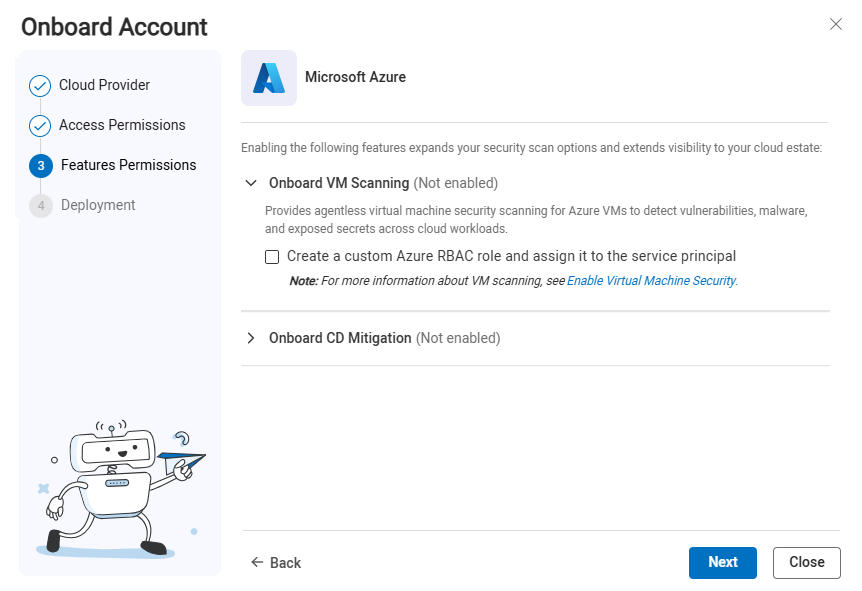
-
To add permissions automatically to the Azure RBAC role, in the Onboarding Wizard select Create a custom Azure RBAC role and assign it to the service principal.
For a list of permissions that are added automatically by ACE, see For VM Scanning..


 Clear your browser's cache