Permissions Diagnostics
This topic explains how to use Permissions Diagnostics in ACE to confirm that your onboarded cloud accounts have everything they need for each type of scan.
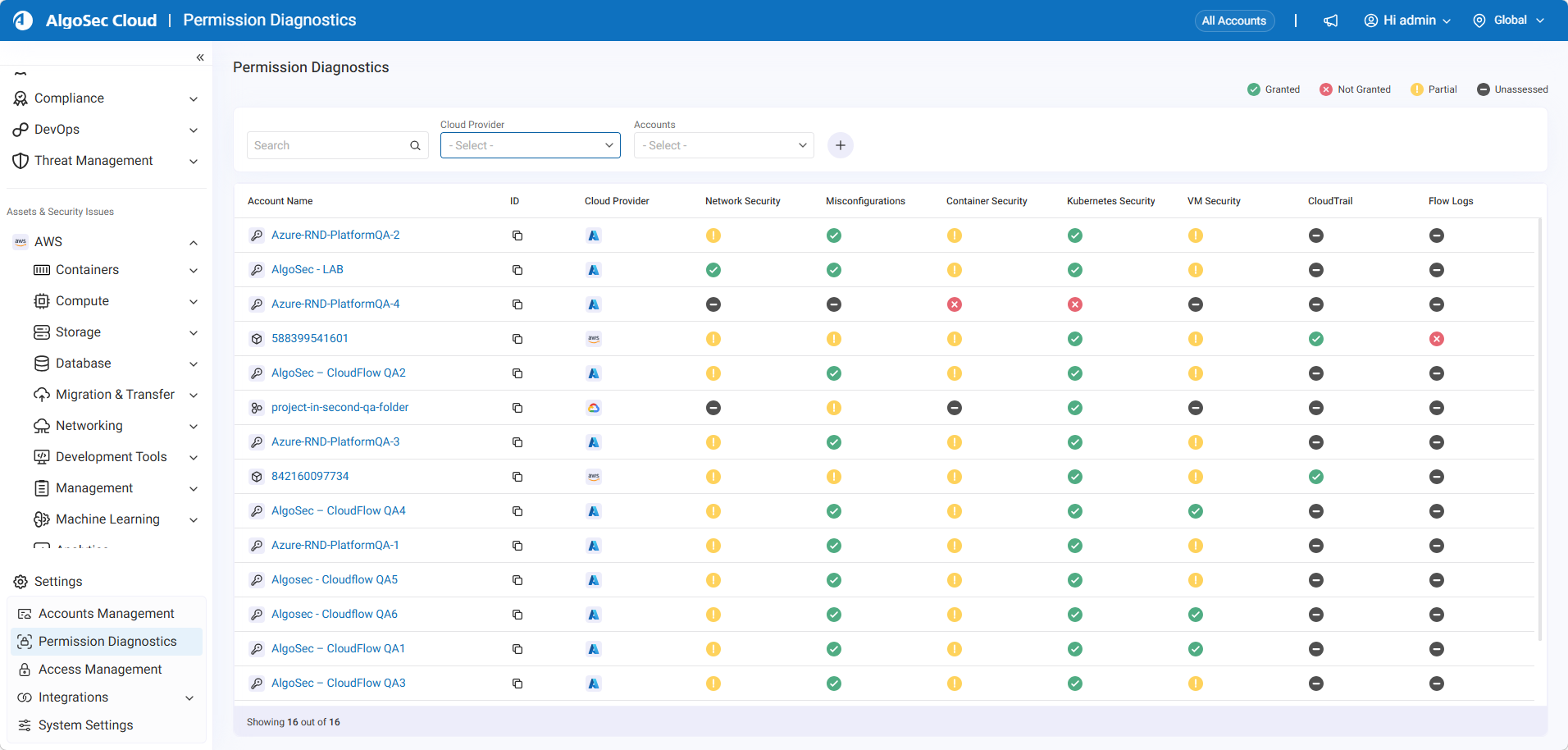
For each scan type, such as Network security, Misconfigurations, Containers, Kubernetes, VM, Data events, and Flow logs, ACE requires certain permissions, resources and logging to be enabled in your cloud accounts. The Permissions Diagnostics page shows you, account by account, which prerequisites are present and which are missing for each scan type. When a requirement isn’t met, the page surfaces an remediation link to clear, step‑by‑step instructions to fix it. This gives you a quick way to identify and address configuration gaps so ACE can do its job without guesswork.
When you onboard a cloud account with the wizard and choose to automatically grant permissions and enable logging, the required prerequisites are configured for you. On the Permissions Diagnostics page, these items appear in green because they are already satisfied.
If you onboard the account manually and skip the automatic setup steps, the page shows the remaining items that require attention. You can resolve them by running the wizard again and enabling the features or by following the steps provided on the Permissions Diagnostics page.
Understanding statuses (high level)
Results are aggregated into a scan status as follows.
| Icon |
Scan status |
Meaning (user-facing) |
|---|---|---|

|
|
Required access or resources are in place for the evaluated scope. |
|
|
|
Required access or configuration is missing for the evaluated scope. |

|
|
Some requirements are met and others are not; review per row. |

|
|
ACE could not determine state (due to API errors, missing credentials, or blocked permission discovery) or service is not available for the cloud type. |

Access Permissions Diagnostics
-
In the left sidebar, expand Settings.
-
Select Permissions Diagnostics. The Permissions Diagnostics page opens.
-
On the Permissions Diagnostics page, find the list of onboarded accounts.
-
Use the search or filter controls at the top of the list to narrow it down if you have many accounts.
-
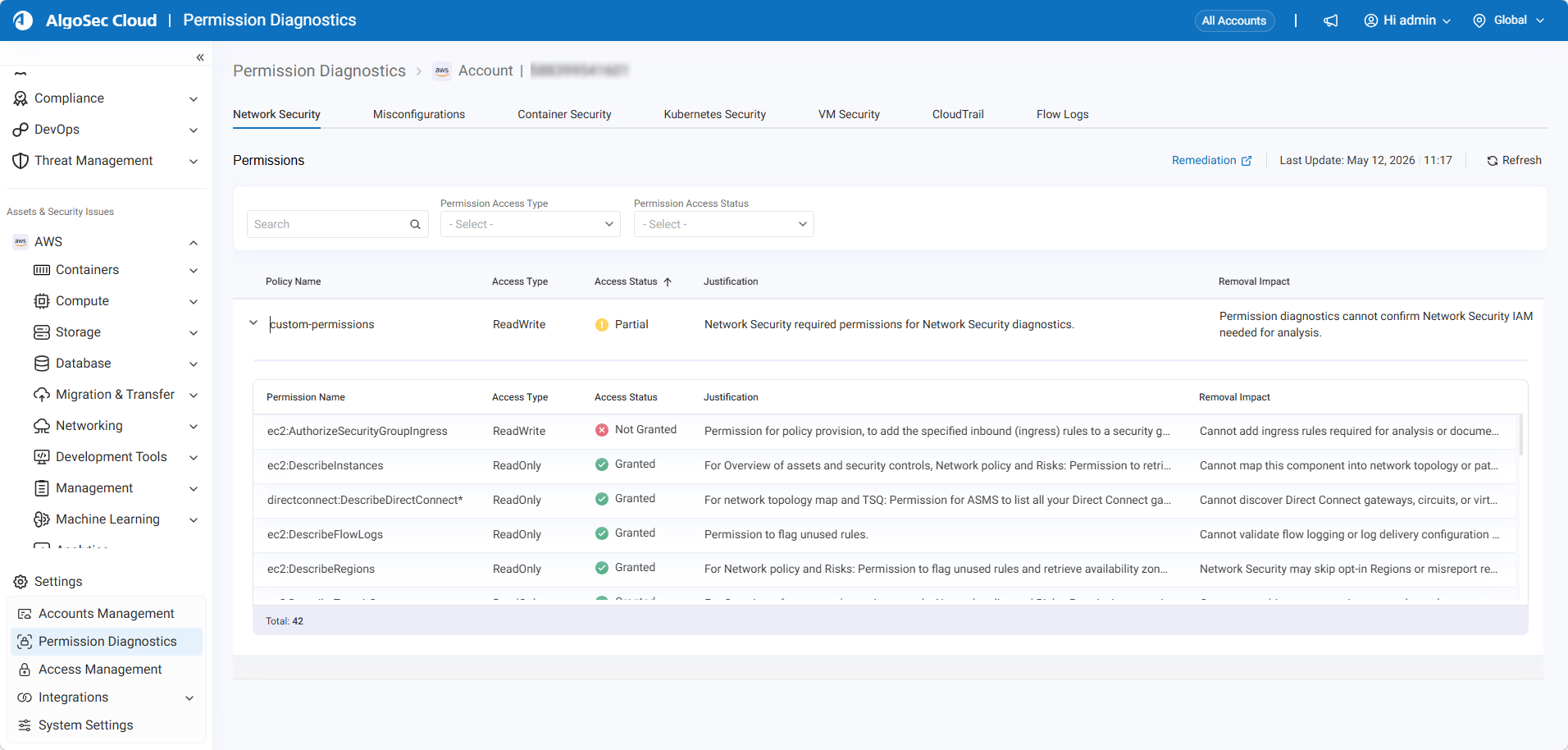
Click the row of the account you want to review. The page loads the stored diagnostics for that account, showing you the status of each scan type and whether any permissions, resources or logging are missing.
-
Review the Status:
Tip: Click Refresh to update the results
-
Remediation
When there are items that require you attention, click
 at the top of the Permissions Diagnostics tabs.
 Manual setup instructions tailored to your environment appear.
-
Follow the instructions to complete the steps. While you setup, your configuration status is displayed in the table.
-
Click Refresh to update the table in real time.
See â See also:
ACE Permission Diagnostics API:


 Clear your browser's cache