Offboard Google Cloud projects from ACE
You can offboard Google Cloud projects from ACE with the following methods:
 To offboard all projects that were onboarded using the script/no script methods
Do the following:
From the GCP Shell run the following command:
gcloud iam service-accounts delete ace-sa-$ALGOSEC_TENANT_ID@$PROJECT_ID.iam.gserviceaccount.com
Note:
-
You need proper permissions to run "gcloud iam service-accounts delete".
-
Replace PROJECT_ID with the Access Project ID specified while onboarding.
-
Replace ALGOSEC_TENANT_ID with your AlgoSec Tenant ID.
For more details on using the GCP Shell to offboard a project, see Delete and undelete service accounts.
Note: Removed projects will automatically sync with ACE once every hour.
To offboard specific projects that were onboarded using the script/no script methods
Do the following:
-
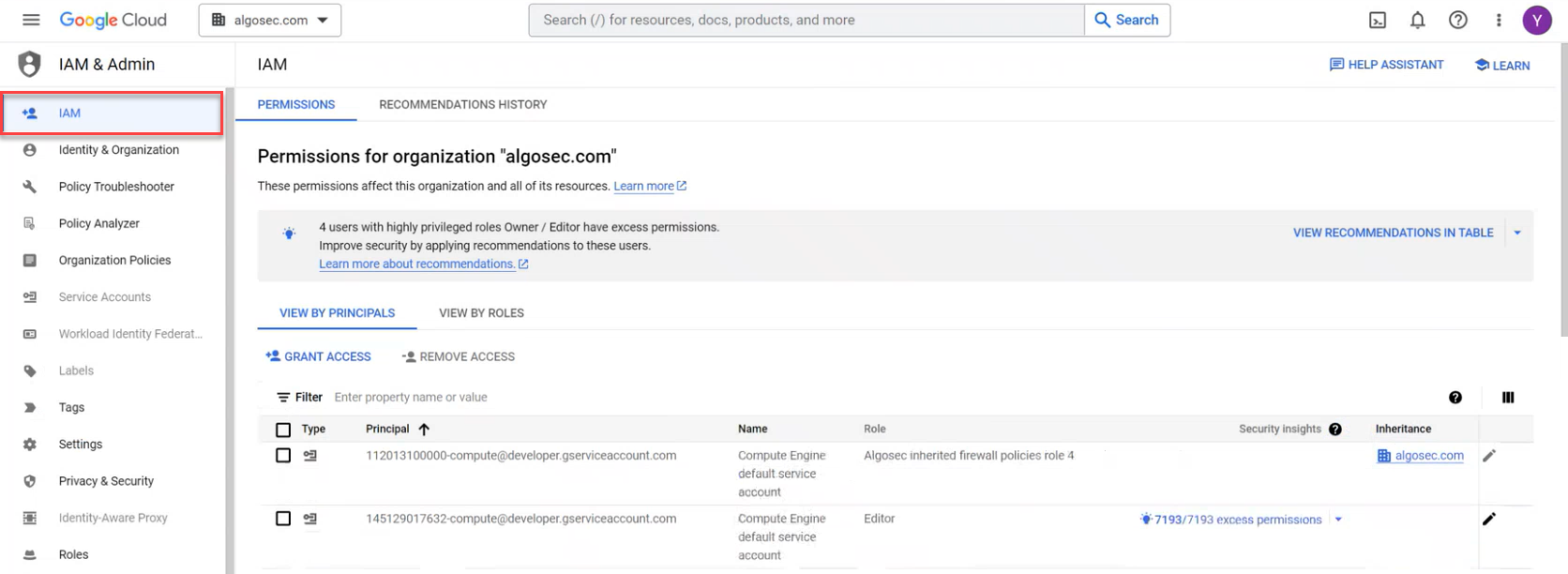
Navigate to the Google Cloud Console and select IAM from the navigation menu.
-
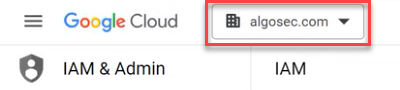
Select the project / folder / organization you want to offboard.
-
To remove all projects, select Organization
-
To remove all projects from within a folder, select Folder
-
To remove a specific project, select the Project.
-
-
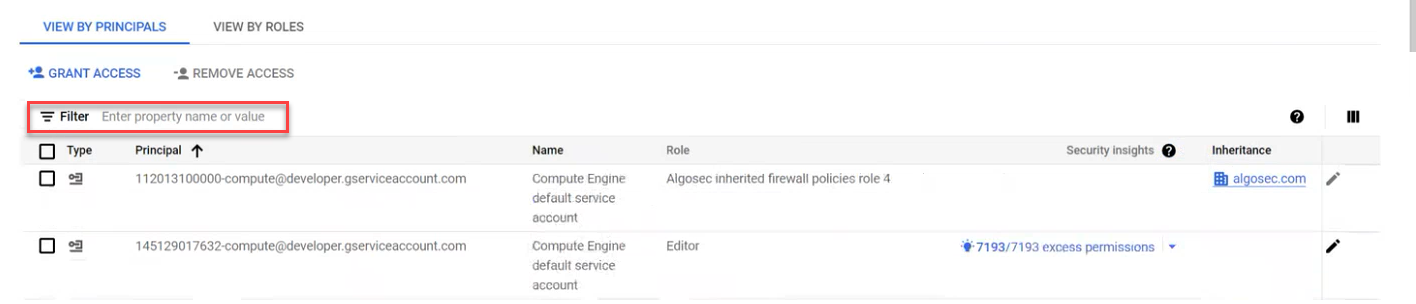
Use the Filter to search for the access project.
-
Select the access project you want to remove and then click Remove Access.
A confirmation window appears.
-
Click CONFIRM.
The access project and associated project(s) is removed.
Note: Removed projects will automatically sync with ACE once every hour.
To offboard projects that were onboarded using the API or Terraform method
Do the following:
You can remove the project from ACE interface or API.
To remove the project from the ACE interface:
-
In ACE, hover over the
 Settings icon at the bottom left of the screen. After the panel expands, click
  Onboarding. The Onboarding Management page is displayed, with a table showing details for each account defined in ACE.
 -
Select the checkbox to the left of the projects(s) you want to delete. You can click on the checkbox in the column header to select all vendors.
-
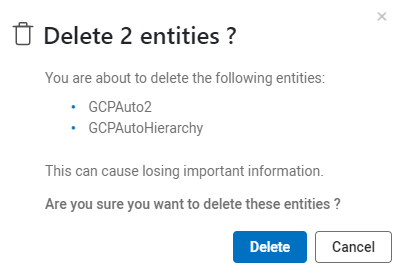
Click Delete.
A confirmation window appears.
-
Click Delete again to delete the selected project(s).
To remove the subscription by API:
Do the following:
Go to the Delete a Google Cloud project API and follow instructions to remove the project.
To remove the subscription by Terraform:
Do the following:
Use terraform destroy to delete all infrastructure resources and offboard from ACE.
Remove Cloud App Analyzer CD mitigation resources
If ACE Cloud App Analyzer CD mitigation was onboarded, complete removal requires cleaning up project resources.
Remove Google Cloud Platform Resources:
When you onboard a GCP project, folder, or organization with Cloud App Analyzer, several resources are created within each project. If you decide to stop using Cloud App Analyzer, you will need to delete these resources.
Do the following:
-
Update your Binary Authorization policy to remove the Prevasio Attestor requirement before deletion.
Note: Deleting the attestor without updating the policy first will block all new deployments to your cluster.
Resource: prevasio-<HASH>-attestor
-
Revert Security Policy: Remove prevasio-<HASH>-attestor from the Binary Authorization policy.
-
Delete Compute & Event Resources:
-
Delete Cloud Functions (events-forwarder, scanner, attestation-creator):
-
prevasio-<HASH>-events-forwarder
-
prevasio-<HASH>-cloud-run-scanner
-
prevasio-<HASH>-image-attestation-creator
-
-
-
Delete Cloud Scheduler job: prevasio-<HASH>-cloud-run-scanner-scheduler
-
Delete Pub/Sub Topic: prevasio-<HASH>-images-to-sign
-
Delete Pub/Sub Subscriptions: prevasio-<HASH>-image-attestation-creator-subscription, prevasio-<HASH>-event-subscription
-
Delete Security Artifacts
-
Attestor: prevasio-<HASH>-attestor
-
Container Analysis Note: prevasio-<HASH>-note
-
KMS Key: prevasio-attestor-key (inside prevasio-attestor-keyring)
-
Secrets: prevasio-<HASH>-org-id, prevasio-<HASH>-host, prevasio-<HASH>-api-key
-
-
Remove IAM Roles: algosec.gke.custom.role
HASH = first 5 letters of AlgoSec Tenant ID


