Algo Administration
This section explains how administrators can configure and manage Algo for their organization.
Algo provides direct access to core ASMS capabilities through simple, natural-language chat commands in Microsoft Teams. Users interact with Algo by starting a one-on-one conversation in the Teams Algo application and asking Algo to perform tasks.
Algo’s capabilities—called activities—are continuously growing. As new activities become available, administrators can choose which ones to enable for their users, ensuring each user has access only to the capabilities they need.
How Algo Works
Algo connects to selected ASMS capabilities and exposes them as activities that users can trigger through natural-language instructions in Teams. Activities represent the individual tasks that Algo can perform—for example, retrieving device information or running a traffic simulation.
In the Tech preview release, a predefined set of activities is enabled by default. Administrators can fine-tune access by modifying the activity whitelist, allowing only approved users to perform specific activities.
Algo Functionality
Administrators have full control over which activities are available to each user or group.
For information on managing activity-level permissions, see Control User Access to Algo Activities.
Current Algo Functionality | Available to All Users
By default, users can issue natural-language commands in Microsoft Teams to:
-
Retrieve device information
-
Run traffic simulations
-
Create and manage change requests, including:
-
Rule removal requests
-
Traffic change requests
-
Object change requests
-
-
View available FireFlow request templates
Current Algo Functionality | Available to Admins Only
The following additional commands are reserved for administrators:
-
Retrieve user information
Manage Users
By default, when Algo is set up, all Microsoft Teams users in your organization can access it. Administrators can manage who can use Algo and which activities they are allowed to perform.
-
To control who can access Algo, see Restrict User Access.
-
To control which activities Algo users are allowed to perform, see Control User Access to Algo Activities.
Restrict User Access
When Algo is first configured, every Microsoft Teams user in your organization has access. If you want to limit usage—for example, to a pilot group or specific departments—you can assign access only to selected users or groups. Once configured, only the users and groups you add will be able to use Algo.
Configure Who Can Access Algo
Do the following:
-
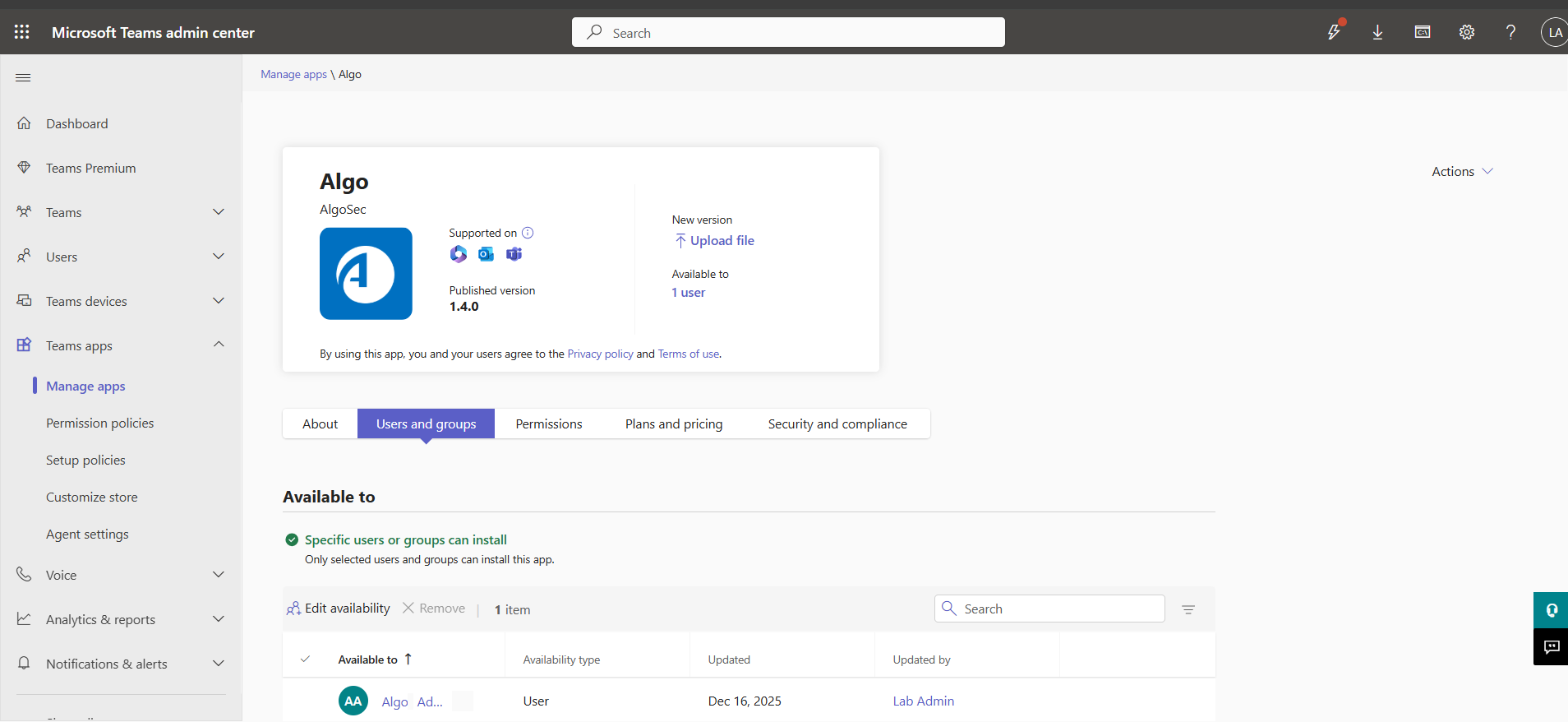
In the Microsoft Teams Admin Center, go to Teams Apps > Manage Apps.
-
Select Algo to open the Algo page.
-
Click the Users and Groups tab.
-
Click Edit Availability and add users and groups who should have access.
Only the users and groups you add will be able to open and use Algo in Teams.
Control User Access to Algo Activities
Algo provides a growing set of activities—the tasks and capabilities that users can ask Algo to perform through natural language. Administrators can choose which activities are available to specific users or groups, ensuring users only access the capabilities appropriate for them.
Configure Activity Access for Selected Users
Do the following:
-
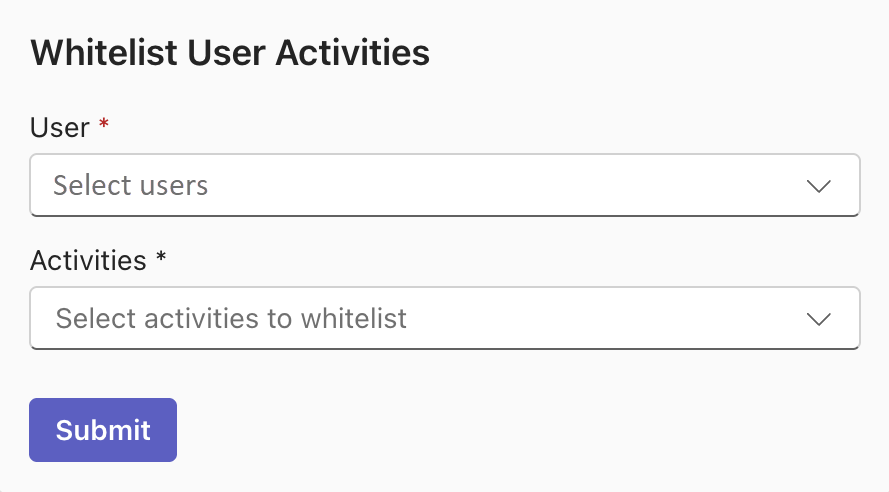
In Microsoft Teams admin account, open Algo and enter the command::
!whitelist
The Whitelist User Activities form appears.
-
In the User field, select the user or groups you want to configure..
-
In the Activities field, choose the activities you want those users to be able to access.
-
Click Submit.
The selected users will now be able to use only the activities you assigned.


 Clear your browser's cache