Integrate Algo with Microsoft Teams
This topic explains how to connect Algo to your Teams Azure Tenant ID and make the Algo Teams app available to users in your organization.
Before you begin
- Role: You must be a Global Administrator in the Azure tenant you’re onboarding.
- Access: You can sign in to the Teams Admin Center.
- App package: Download the Algo Teams app package (
.zipmanifest + icons) from the AlgoSec Portal (requires login).
Step 1 — Connect ASMS to the AlgoSec SaaS Environment
Follow the step by step instructions in ASMS integration to SaaS services for connecting between the AlgoSec SaaS environment and ASMS.
Step 2 — Add your Azure Tenant ID to Algo
-
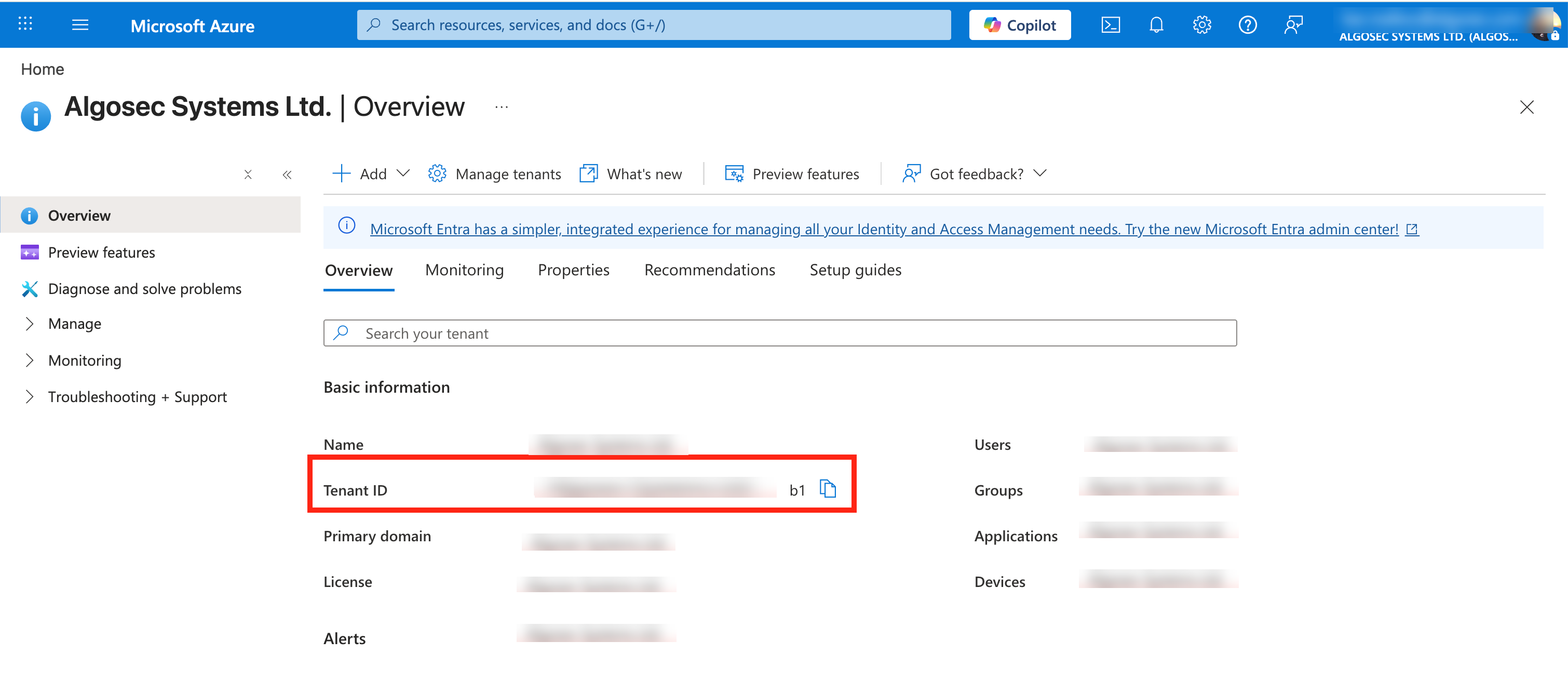
Get your organization’s Azure Tenant ID: In Microsoft Azure Portal, Select Microsoft Entra ID.

The Overview page appears.
-
Copy the Tenant ID.
-
In your browser, use the link and credentials that were sent to you to navigate to the Algo Onboarding page.
The Algo Onboarding page appears.
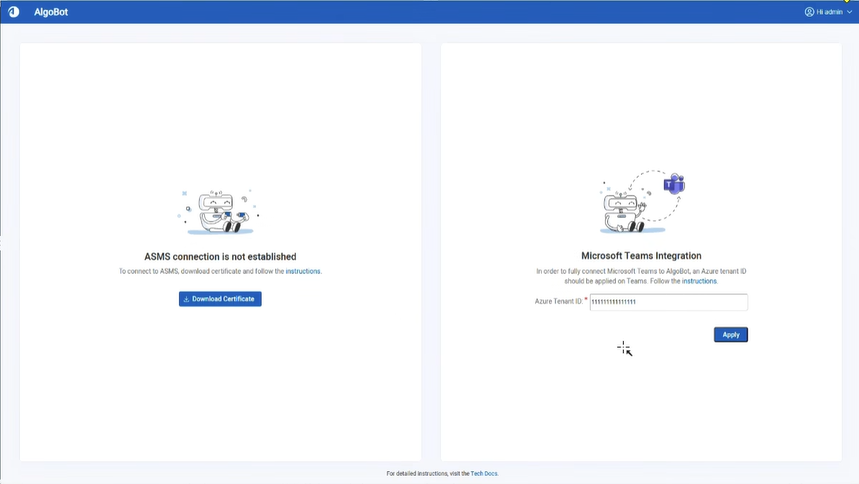
- Under Microsoft Teams Integration, paste your Azure Tenant ID.
- Select Apply.
Step 3 — Onboard the Algo Teams app in the Teams Admin Center
Onboarding enables the app in your tenant, grants its permissions, and makes it available to users.
Sign in
- Go to the Teams Admin Center.
- Sign in with a Global Administrator account.
Upload the app package
- In the left navigation, select Teams Apps and then Manage apps.
- Choose Actions then Upload new app, then select Upload.
- Pick the Algo
.zipmanifest package and upload it. - After upload, open the app’s App details page.
Complete admin sign-in and consent
- Open Microsoft Teams (desktop or web).
-
Click Apps.
-
In the Built for your org area, click
 to add Algo, and complete the sign-in prompt.
 -
When prompted, grant admin consent for the requested permissions (select “Consent on behalf of your organization” if shown), then choose Accept.
Step 4 — Set up user access
Follow steps in Manage Users.


 Clear your browser's cache