Add Palo Alto Networks devices
Relevant for: AFA Administrators
This topic describes how AFA connects to Palo Alto Panorama, Palo Alto Strata Cloud Manager, and firewall devices.
Palo Alto Panorama
Panorama network connections
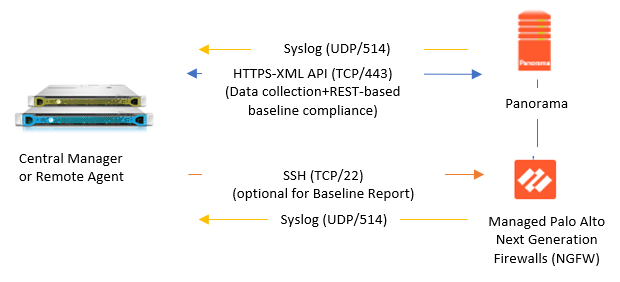
The following image shows how an ASMS Central Manager or Remote Agent connects to Palo Alto Panorama and Palo Alto Next Generation Firewalls (NGFWs).
 Service chaining mode
AFA automatically identifies Palo Alto Panorama devices in service-chaining mode when the device has a single interface, or a single one non-management interface.
If your device has multiple non-management interfaces and service-chaining mode is not identified automatically, configure this for your device manually. For details, see Configure one-armed mode manually.
LR/VR/Vwire and VSYS analysis
Once added, AFA identifies and analyzes individual LRs/VRs/VWires for the firewalls managed by Panorama, in addition to analyzing each VSYS. The VSYS analysis aggregates the information provided for its LRs/VRs/VWires, and should be used for most AFA analysis features, such as policy optimization recommendations.
VR/VWire analysis data provides the ability to troubleshoot routing and topology issues, such as traffic simulation query results, manage risks, and determine which risky rules to trust.
Although the VSYS analysis aggregates the information for each LR/VR/VWire under it, the VSYS analysis does not contain all the data provided in the LR/VR Report/Analysis.
Inter-VR/LR routing / Inter-VSYS support
For Palo Alto Firewalls managed by Panorama, AFA supports all inter-VR, Inter-LR, and inter-VSYS cases, whether they are by shared VR/LR or an explicit inter-VR,/LR by doing the following:
- Using shared VRs and LRs
- Using the VR/LR as a next-hop router
- Including the inter-VSYS using the external zones
Note: Shared Gateways are partially supported, only when the virtual/logical router is already included in the devices tree.
When AFA detects either of these inter-VR/LR routing configurations, it adds fake, or back-plane interfaces to the firewall's VR/LR URT file to simulate these connections. These connections can then be displayed on the AFA network map and in traffic/routing query results.
Note: Log data can also be forwarded from M100/M500 collectors.
Panorama device permissions
ASMS requires the following device permissions to connect to Palo Alto Panorama devices:
Device analysis
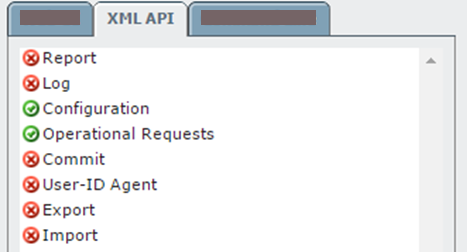
ASMS requires a Panorama REST API account configured with Configuration and Operational Requests permissions.
For example:
ActiveChange
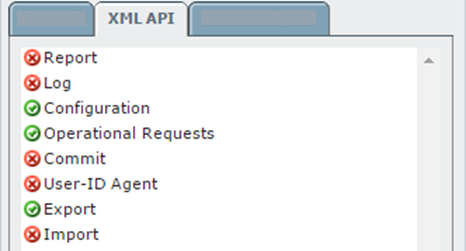
When ActiveChange is enabled, ASMS requires the Export permission.
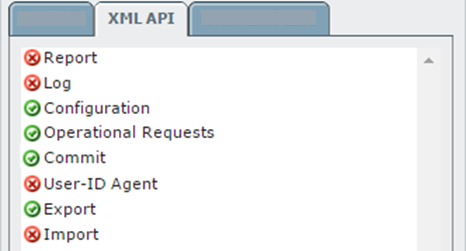
When PanoramaActiveChangeCommit ="Panorama", "Full", or "Selected", the Commit permission must be enabled as well. (For more details see PanoramaActiveChangeCommit)
For more about these FireFlow modes, see Configuring ActiveChange Implementation Behavior for Palo Alto Panorama Devices.
Example 1
Permissions selection without implementing the FireFlow modes mentioned above:
Example 2
Permissions selection when implementing one of the FireFlow modes mentioned above:
Add a Palo Alto Networks Panorama
This procedure describes how to add a Palo Alto Networks Panorama device to AFA.
Do the following:
-
Access the Devices Setup page. For details, see Access the DEVICES SETUP page.
-
In the vendor and device selection page, select Palo Alto Networks > Panorama.
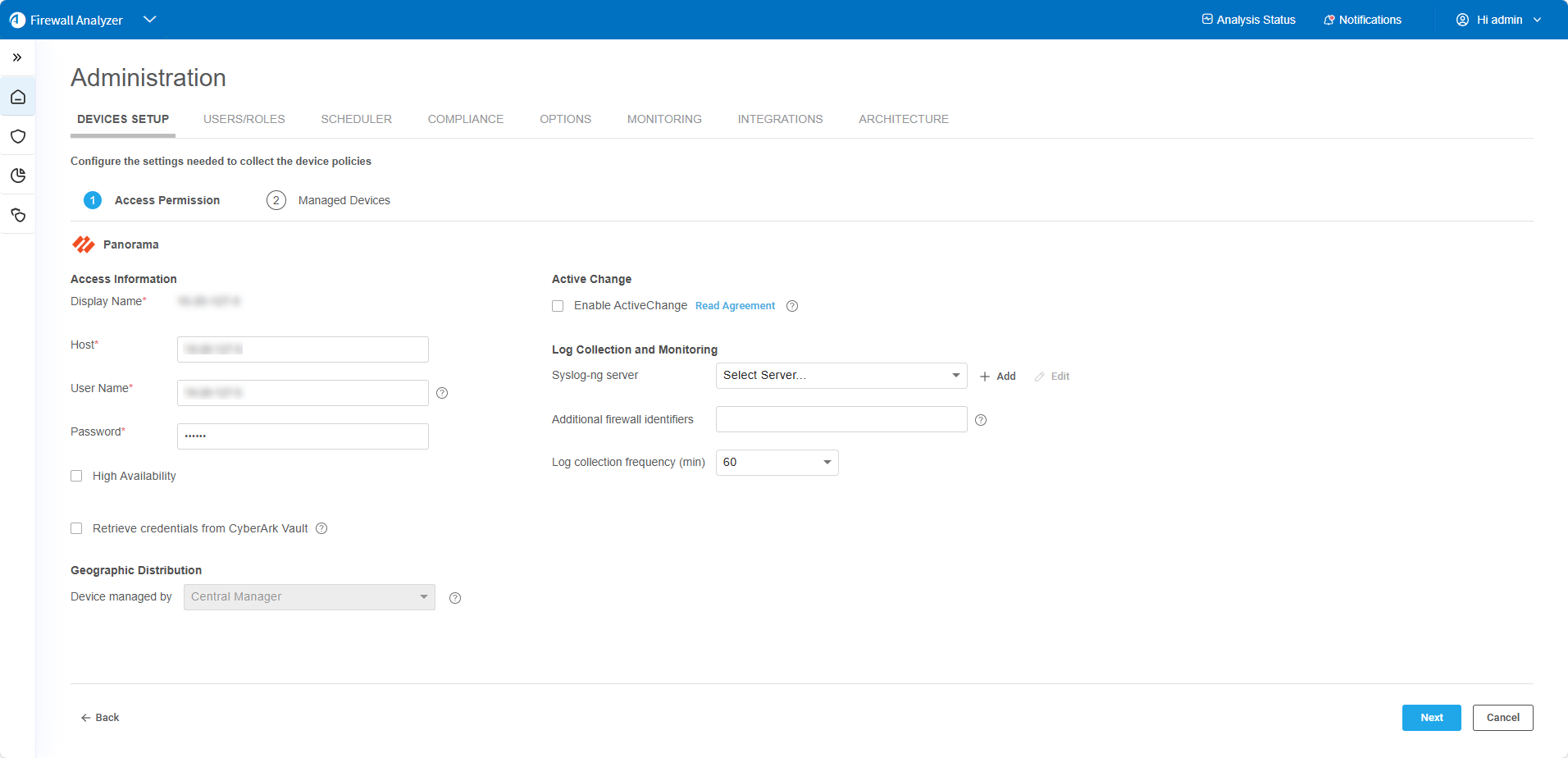
The Access Permission page opens.
-
Complete the fields as needed.
Access Information
Host
Enter the host name or IP address of the device.
User name
Enter the administrative username to use for REST API access to the device.
For more details, see Panorama device permissions.
Password
Enter the associated password.
High Availability
Select this option to configure a High Availability cluster.
If selected, you must also enter a value for the Secondary field.
Secondary Panorama
Type the host name or IP address for the secondary device.
Geographic Distribution
Select the remote agent that should perform data collection for the device.
To specify that the device is managed locally, select Central Manager.
This field is relevant when a Geographic Distribution architecture is configured.
ActiveChange
Select this option to enable ActiveChange for the device.
The ActiveChange License Agreement appears. Select the I agree checkbox, and then click OK.
Log Collection and Monitoring
Syslog-ng server
Specify the syslog-ng server. For details, see Specify a Syslog server.
Log collection frequency
Type the interval of time in minutes, at which AFA should collect logs for the device.
You must also configure the device to send syslog messages. For more details, see Configure log collection on a Panorama device.
Note: To process logs from the devices managed by the Panorama, you may need to specify additional device identifiers, especially when the sub-device is represented by multiple or non-standard device identifiers in the logs. This may be relevant, for example, with firewall clusters or non-standard logging systems.
For more details, see Add additional device identifiers for sub-systems.
-
If you enabled ActiveChange, the ActiveChange License Agreement dialog is displayed.
Select I Agree and click OK.
-
Click Next to continue to the Managed Devices page.
This page lists the devices that are managed by the Panorama, including standalone devices and virtual systems.
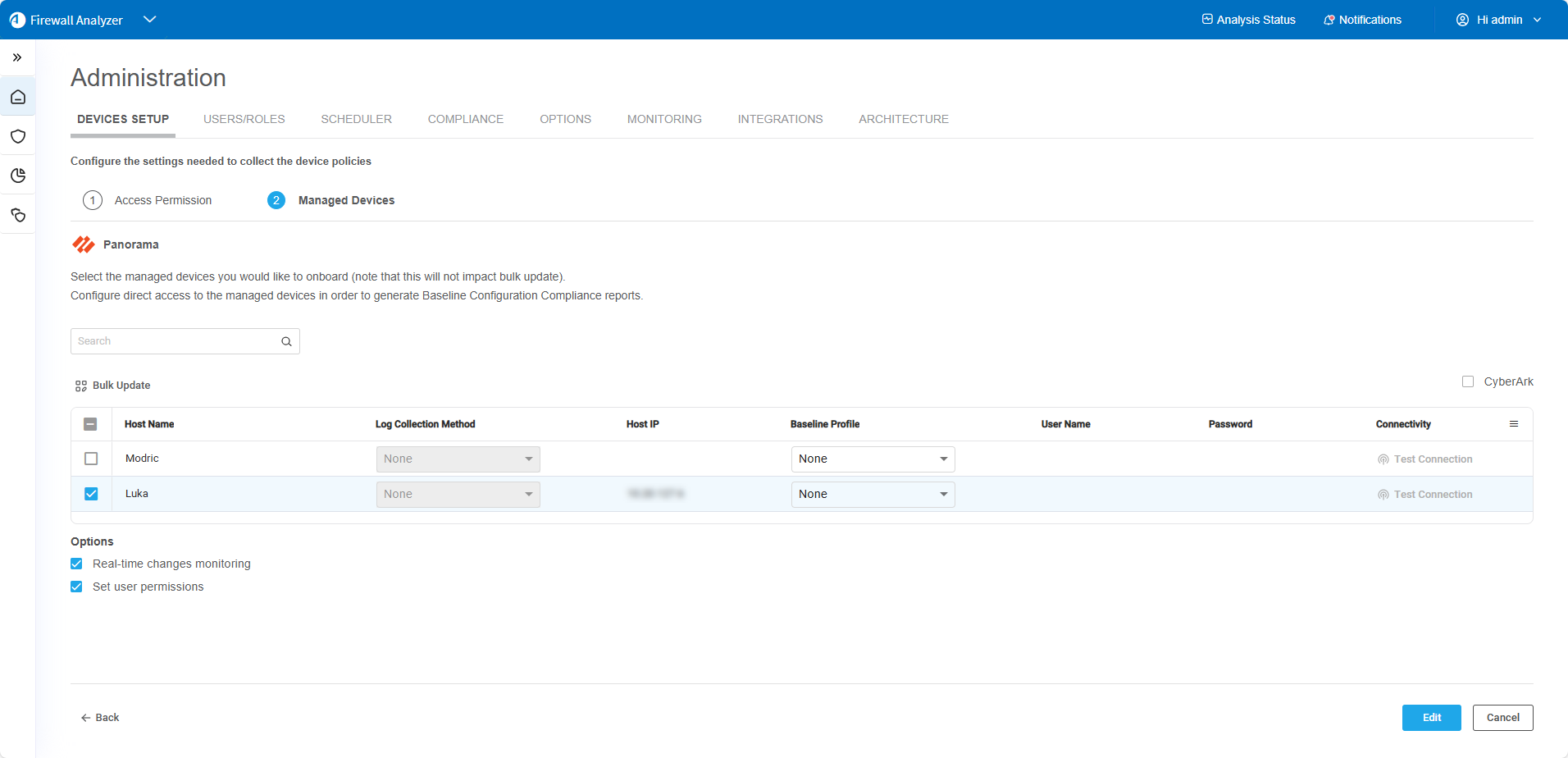
Tip: You can use filters to refine the list of devices.

Do the following:
-
Hover over the column header of the column you want to search or filter.
-
Click
 to bring up the filter popup dialog.
 -
Enter the text to search or filter the devices.
-
-
(Optional) To exclude a device, clear its check box in the table.
-
(Optional) Configure device details.
Configure a single
Do the following:
-
Double-click on the row of the
-
Enter Host IP, User Name, and Password in the appropriate fields.
-
(Optional) Select options from the following dropdowns.
Log Collection Method Select one of the following to determine log functionality for a selected device:
- None (default): Disable logging.
- Standard: Enable logging.
- Extensive: Enable logging and the Intelligent Policy Tuner.
This enables AFA to detect policy optimization data, such as unused rules, and display them in the Policy Optimization section of the AFA report.
Note: Completing log collection and monitoring details on the Access Permission page enables the Log Collection Method dropdown.
Baseline Profile The drop-down list includes all the relevant baseline compliance profiles in the system. For more information on baseline compliance profiles and instructions for adding new baseline compliance profiles, see Customize baseline configuration profiles
Select the baseline compliance profile to use for generating Baseline Compliance Reports for this device. Built-in profiles include:
-
Panorama CIS (REST-based)
-
Palo Alto Baseline Report (SSH-based)
-
Select None (default) to disable Baseline Compliance Report generation for this device.
Note: If this router is divided into VRF modules, Baseline Compliance Reports will only be generated for the root/default VRF.
Tip: Selecting the baseline profile automatically allows you to edit the Host IP, User Name, and Password fields.
-
Click Test Connectivity to test connectivity to the defined
Note: This triggers a direct SSH connection to the
Configure all of the selected Do the following:
-
Click
 .
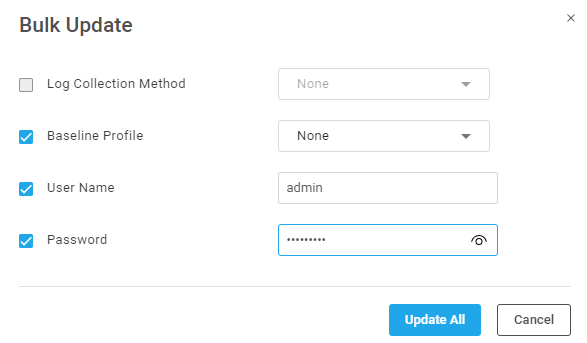
.The Bulk Update window appears.
-
Select the checkboxes of the credentials and settings you want to update and enter appropriate values.
Log Collection Method Select one of the following to determine log functionality for a selected device:
- None (default): Disable logging.
- Standard: Enable logging.
- Extensive: Enable logging and the Intelligent Policy Tuner.
This enables AFA to detect policy optimization data, such as unused rules, and display them in the Policy Optimization section of the AFA report.
Note: Completing log collection and monitoring details on the Access Permission page enables the Log Collection Method dropdown.
Baseline Profile The drop-down list includes all the relevant baseline compliance profiles in the system. For more information on baseline compliance profiles and instructions for adding new baseline compliance profiles, see Customize baseline configuration profiles
Select the baseline compliance profile to use for generating Baseline Compliance Reports for this device. Built-in profiles include:
-
Panorama CIS (REST-based)
-
Palo Alto Baseline Report (SSH-based)
-
Select None (default) to disable Baseline Compliance Report generation for this device.
Note: If this router is divided into VRF modules, Baseline Compliance Reports will only be generated for the root/default VRF.
Tip: Selecting the baseline profile automatically allows you to edit the Host IP, User Name, and Password fields.
User Name User name associated with the Password Pasword associated with the -
Click Update All.
-
Click Test Connectivity to test connectivity to the
Note: This triggers a direct SSH connection to the
A message informs you whether AFA connected to the
-
-
Select the remaining options as needed:
Real-time change monitoring
Select this option to enable real-time alerting upon configuration changes.
For details, see Configure real-time monitoring.
Set user permissions
Select this option to set user permissions for this device.
-
Click Finish. The new device is added to the device tree.
In the device tree, Panoramas are represented with a four tier hierarchy: Panorama, PA firewall, VSYS, and VR/Vwire.
Passive-Active clusters
Passive-Active clusters, including VSYSs and firewalls display as follows:
-
Display as a single node on the tree and on the map.
-
Cluster display names in the device tree, report, and so on, represent both names of the cluster members. For example: NODE1_NODE2
-
Sub-nodes of the device, such as a VSYS, follow afterward. For example: NODE1_NODE2_VSYS1
-
Baseline compliance: Define the active node details in the device definition wizard.
-
For Active-Active clusters, AFA includes both nodes in the tree.
-
-
If you selected Set user permissions, the Edit users dialog box appears.
In the list of users displayed, select one or more users to provide access to reports for this account.
-
To select multiple users, press the CTRL button while selecting.
-
Click OK to close the dialog.
-
A success message appears to confirm that the device is added.
Configure log collection on a Panorama device
ASMS can collect log data by receiving syslog messages from the Panorama device, or by collecting syslog messages from a remote syslog-ng server.
This procedure describes how to configure the Panorama device to send syslog messages to ASMS. For more details, see Log Collection and Monitoring.
On the Panorama device, do the following:
-
Configure a new Syslog Server Profile for the syslog server. For details, see Palo Alto KnowledgeBase.
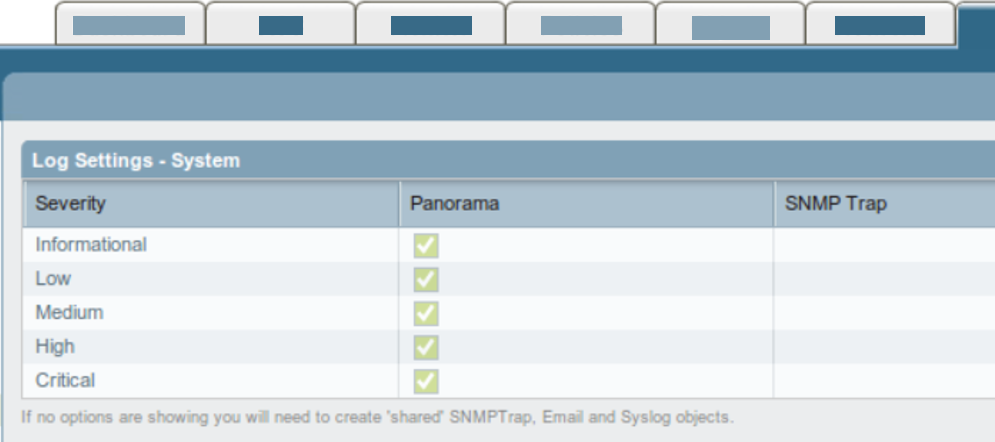
-
Configure the log settings by selecting all severities. For example:
Palo Alto Strata Cloud Manager
Strata Cloud Manager network connections
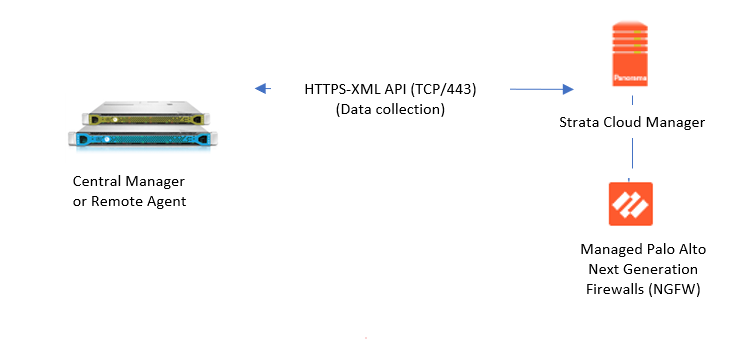
The following image shows how an ASMS Central Manager or Remote Agent connects to Palo Alto Strata Cloud Manager device.
Palo Alto Strata Cloud Manager required permissions
To connect to Palo Alto Strata Cloud Manager devices, ASMS requires a service account with a minimum role of View Only Administrator to access Strata Cloud Manager. Confirm the correct tenant is selected, as the service account’s location determines which tenants it can access.
Add a Palo Alto Strata Cloud Manager device
This procedure describes how to add a Palo Alto Strata Cloud Manager device to AFA.
Do the following:
-
Access the Devices Setup page. For details, see Access the DEVICES SETUP page.
-
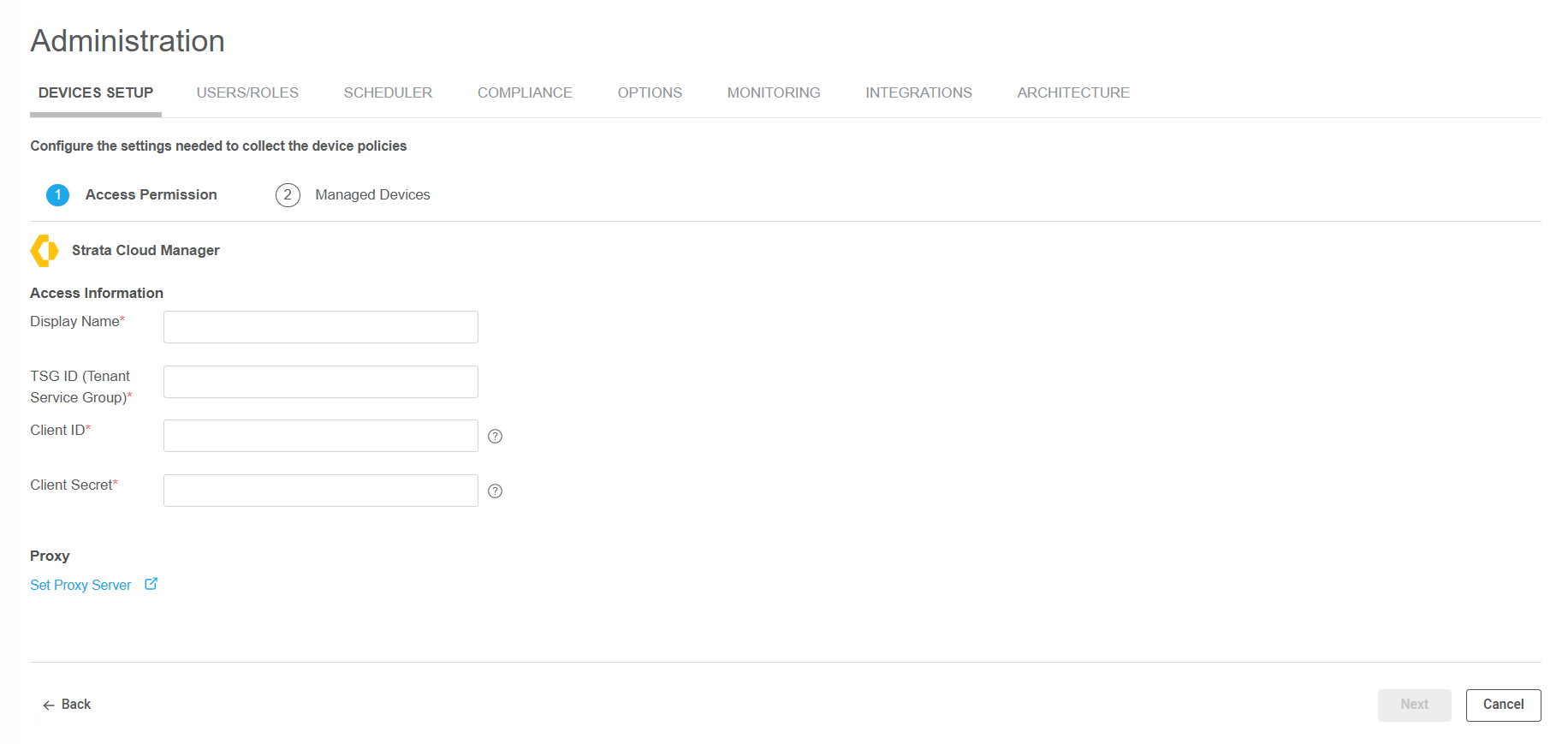
In the vendor and device selection page, select Palo Alto Networks > Strata Cloud Manager.
The Access Permission page opens.
-
Complete the Access Information fields as needed.
Display Name
Enter the name to appear on in ASMS.
TSG ID (Tenant Service Group)
Enter the Tenant Service Group ID to define the scope of the ASMS device setup. ASMS will only collect devices that are managed by this TSG or any of its descendants. These devices will appear on the Managed Devices page in step 5, where the user can choose which to onboard.
Client ID
Enter the Client ID to use for accessing the device. This is typically an email address.
Client Secret
Enter the associated Client Secret.
-
(Optional) Click Set Proxy Server to configure a proxy server to connect all devices defined in AFA. For more details, see Define a proxy server.
-
Click Next to continue to the Managed Devices page.
This page lists all the NGFW devices that are managed by the Palo Alto Strata Cloud Manager Tenant Service Group (entered on the Access Permissions page) or any of its descendents.
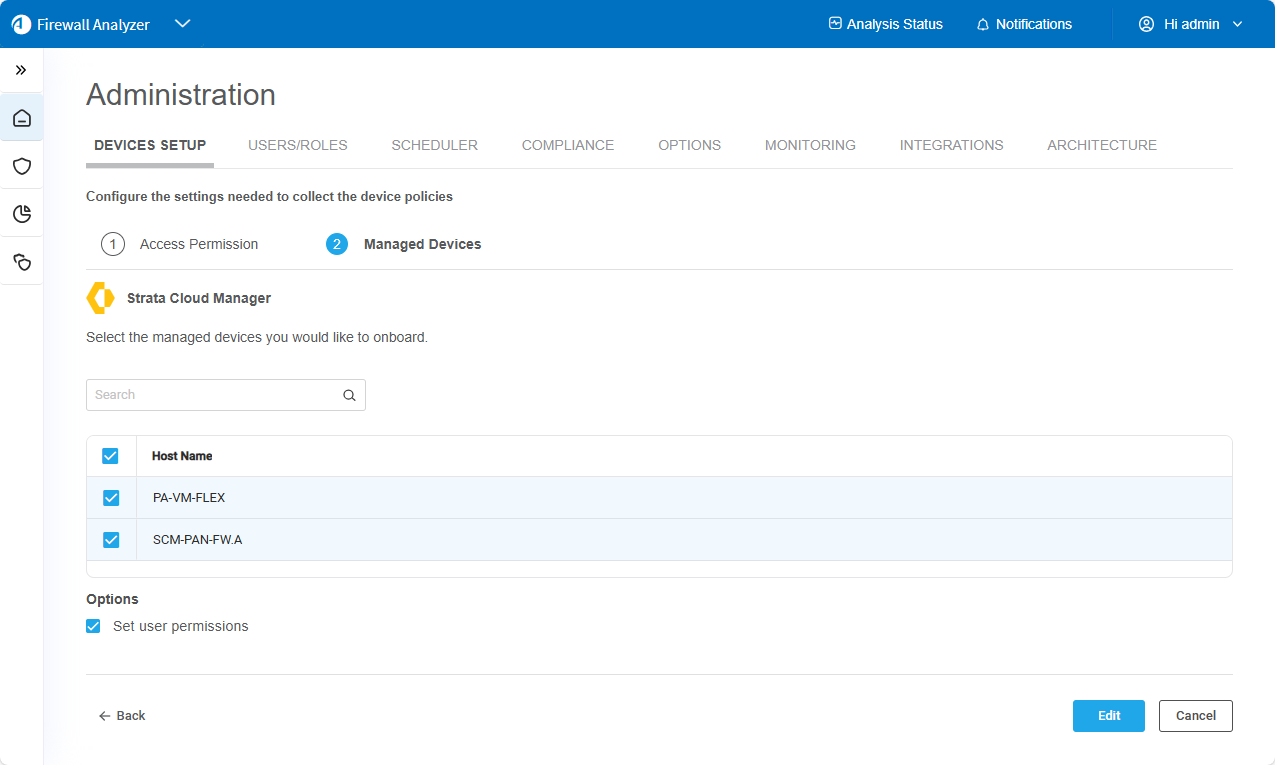
Tip: You can use filters to refine the list of devices.

Do the following:
-
Hover over the column header of the column you want to search or filter.
-
Click
to bring up the filter popup dialog. -
Enter the text to search or filter the devices.
-
-
(Optional) To exclude a device, clear its check box in the table.
-
Select the remaining options as needed:
Set user permissions
Select this option to set user permissions for this device.
-
Click Finish. The new device is added to the device tree.
In the device tree, Strata Cloud Managers are represented with a four tier hierarchy: Strata Cloud Manager, PA firewall, VSYS, and LR.
Passive-Active clusters
Passive-Active clusters, including VSYSs and firewalls display as follows:
-
Display as a single node on the tree and on the map.
-
Cluster display names in the device tree, report, and so on, represent the name of the primary onboarded device. For example: NODE1
-
Sub-nodes of the device, such as a VSYS, represent both primary and non-primary names of the cluster members. For example: NODE1_NODE2_VSYS1, where NODE1 is the primary and NODE2 is the non-primary.
-
ASMS will make API requests to the primary member if it is currently active; otherwise, ASMS will make API requests to the secondary member.
-
-
If you selected Set user permissions, the Edit users dialog box appears.
In the list of users displayed, select one or more users to provide access to reports for this account.
-
To select multiple users, press the CTRL button while selecting.
-
Click OK to close the dialog.
-
A success message appears to confirm that the device is added.
Palo Alto Next Generation Firewalls
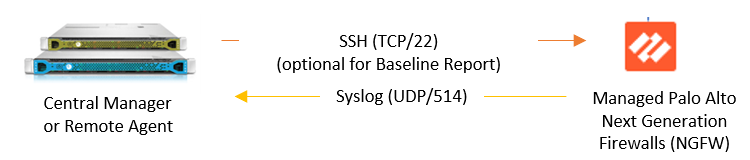
The following image shows how an ASMS Central Manager or Remote Agent connects directly to Palo Alto Next Generation Firewalls (NGFWs).
Palo Alto Networks Firewall required permissions
To connect to Palo Alto firewall devices, ASMS requires one of the following types of users:
-
Superuser (read-only)
-
Device Admin
-
Device Admin (read-only)
If the Palo Alto firewall is a version earlier than 4.1.7, is managed by Panorama, but is defined directly in AFA, ASMS requires one of the following types of users:
-
SuperUser (read/write)
-
Admin (read/write)
Add a Palo Alto Networks firewall
This procedure describes how to add a Palo Alto Networks firewall to AFA.
Note: Palo Alto Networks firewalls defined directly in AFA do not support the advanced routing analysis provided for Palo Alto Networks devices defined at the Panorama level. AFA does not identify individual VR/Vwires and therefore does not benefit from the routing information they provide.
For more details, see Add a Palo Alto Networks Panorama.
Do the following:
-
Access the Devices Setup page. For details, see Access the DEVICES SETUP page.
-
In the vendor device selection page, select Palo Alto Networks > Firewall.
-
Complete the fields as needed.
Access Information
Host
Type the host name or IP address of the device.
User Name
Type the administrative username to use for SSH access to the device.
If the device is managed by Panorama and Panorama is used to push all or part of the device's configuration, you must provide a user of the Superuser type.
If the device is either not managed by Panorama, or it is managed by Panorama but no configuration is pushed from Panorama towards the device, then you can specify a username of any of the following types: Superuser, Superuser (Read Only), Device Admin, or Device Admin (Read-Only).
Password
Type the password to use for SSH access to the device.
Geographic Distribution
Select the remote agent that should perform data collection for the device.
To specify that the device is managed locally, select Central Manager.
This field is relevant when a Geographic Distribution architecture is configured.
Baseline Configuration Compliance
To enable generation of Baseline Compliance Reports for this device, select the baseline compliance profile to use.
The drop-down list includes all baseline compliance profiles in the system. For more information on baseline compliance profiles and instructions for adding new baseline compliance profiles, see Customize baseline configuration profiles.
To disable Baseline Compliance Report generation for this device, select None.
Route Collection
Specify how AFA should acquire the device's routing information:
-
Automatic. AFA will automatically generate the device's routing information upon analysis or monitoring.
-
Static Routing Table (URT). AFA will take the device's routing information from a static file you provide. For more information, see Specify routing data manually.
Remote Management Capabilities
Select a method of data collection:
-
SSH (more secure)
-
Telnet
Then define the following:
Custom Port
To specify a custom port, select this option and type the port.
This option is only relevant when SSH is selected.
Number of allowed encryption keys
Enter the permitted number of different RSA keys received from this device's IP address.
Different RSA keys may be sent from the same IP address in cases of cluster fail-over, device operating system upgrades, etc. For example, if a cluster fail-over occurs, the secondary node will send a new RSA key from the same IP address to AFA. If this number is set to 1, the connection to the node will fail, resulting in a failed analysis.
Log Collection and Monitoring
Specify whether AFA should collect logs for the device, by selecting one of the following:
-
None: Do not collect logs.
-
Standard: Enable log collection.
-
Extensive: Enable log collection and the Intelligent Policy Tuner.
The default value is Extensive.
Additionally, define the following values:
Syslog-ng server
If you selected Standard or Extensive in the Log collection method field, you must specify the syslog-ng server. For details, see Specify a Syslog server.
Additional firewall identifiers
Enter any additional IP addresses or host names that identify the device.
When adding multiple entries, separate values by a colon (:). For example: 1.1.1.1:2.2.2.2:ServerName
This is relevant when the device is represented by multiple or non-standard device identifiers in the logs, for example, in cases of firewall clusters or non-standard logging settings. If AFA receives logs with an identifier it does not recognize, the logs will not be processed.
Note: This field is not supported for sub-systems (Juniper VSYS/LSYS, Fortinet VDOM, Cisco security context, etc.). To configure additional identifiers for sub-systems, see Add additional device identifiers for sub-systems.
Log collection frequency
Type the interval of time in minutes, at which AFA should collect logs for the device.
Options
Real-time change monitoring
Select this option to enable real-time alerting upon configuration changes. For details, see Configure real-time monitoring.
Set user permissions
Select this option to set user permissions for the device.
-
-
Click Finish.
The new device is added to the device tree, with a two tier hierarchy: firewall and VSYS.
-
If you selected Set user permissions, the Edit users dialog box appears.
In the list of users displayed, select one or more users to provide access to reports for this account.
-
To select multiple users, press the CTRL button while selecting.
-
Click OK to close the dialog.
-
A success message appears to confirm that the device is added.
Configure one-armed mode manually
AFA automatically identifies Palo Alto Panorama devices in one-armed mode when the device has a single interface, or a single one non-management interface. If your device has multiple non-management interfaces and one-armed mode is not identified automatically, configure this for your device manually.
Do the following:
-
On the AFA machine, access your device configuration meta file as follows:
/home/afa/.fa/firewalls/<device_name>/fwa.meta
where <device_name> is the name of the device listed. If you device is listed multiple times, enter the longer name.
-
On a new line, enter:
is_steering_device=yes
- Run an analysis on the device to update the device data in AFA.
â See also:


