Early availability features
This topic describes features available as Early Availability (EA) and how to enable ASMS's Early Availability features.
ASMS's Early Availability features enable you to access new functionality and support earlier than general availability. Customers partaking of Early Availability often provide invaluable feedback on the design and implementation of these features. Early Availability features have shorter QA cycles than GA features, and therefore are disabled by default.
Warning: We recommend that you do not use Early Availability features in your production environment. They should be enabled only in testing systems, and disabled in production systems.
Enable ActiveChange for MSO- and NDO-managed Cisco ACI tenants
ActiveChange for Cisco ACI tenants managed by a Cisco MSO (Multi-Site Orchestrator) and NDO (Network Data Orchestrator) is available as an early availability feature.
Note: By default, ActiveChange is supported for tenants managed by an APIC.
With this early availability feature enabled, you can add, modify and remove rules from the policy directly from FireFlow.
When Cisco ACI tenants are managed by an MSO/NDO, each APIC in turn can manage one or more tenants. Each tenant contains one schema, with one or more associated templates. Schemas and templates are configured in FireFlow in order to implement ActiveChange on the device.
To enable/disable early availability ActiveChange for MSO- and NDO-managed Cisco ACI in AFA
-
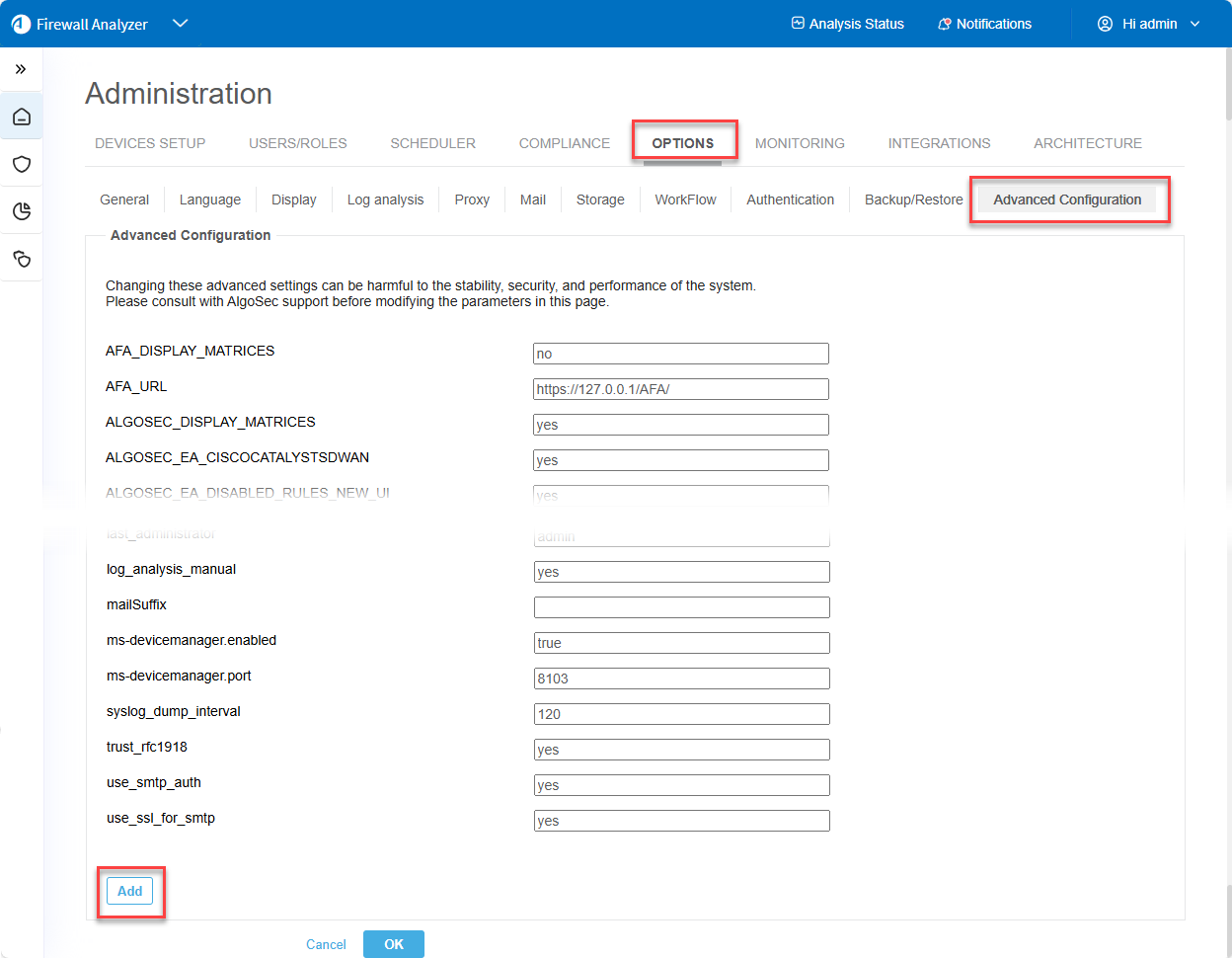
In the AFA Administration area, navigate to the Options > Advanced Configuration tab.
-
Click ADD to add a new configuration parameter, and enter the following details
Name AlgoSec_EA_MSO_ActiveChange Value Enter one of the following:
- true = Enable MSO-and NDO-managed Cisco ACI tenants ActiveChange support
- false (default) = Disable MSO-and NDO-managed Cisco ACI tenants ActiveChange support
-
Click OK
Note: After switching EA/GA mode, we recommend you restart your system.
Configure ActiveChange behavior for MSO- and NDO-managed Cisco ACI tenants in FireFlow
In ACI MSO/NDO, there is no default value for the schema and template. In order to implement ActiveChange for the MSO- and NDO- managed Cisco ACI tenants, user-defined schema and templates are required for each tenant.
| Configuration Parameter Name | Value |
|---|---|
| CiscoMsoActiveChangePolicyTargets |
Defines policy targets (schema and templates) for each tenant. Format: { <Apic ID/Name> : {<tenant Name> : { "schema":<Schema name>, "templates":[<template1>,<template2>...]}}} Limitation: In this Early Availability version, if you define more than one template for a schema, ActiveChange selects only the first template in the list (defined in the FireFlow parameter CiscoACIMSOActiveChangePolicyTargets, see below). For example, Schema Payroll has templates Detroit, Baltimore and Abu Dhabi. Since changes are applied to the MSO and deployed on the first template defined in the schema, ActiveChange only selects Detroit. Changes will be made only on the Filters and Contracts that are defined in the template that is configured in FireFlow. |
| CiscoMsoActiverChangeCommit |
By default, FireFlow will apply changes on the MSO/NDO and deploy the changes to the relevant MSO- or NDO-managed Cisco ACI APICs. If required, you can change this so changes will be applied only to the MSO/NDO and you can manually commit the changes to the APICs later. The value assigned to this parameter determines whether or not ActiveChange deploys changes to APICs. The possible values are:
|
To configure ActiveChange behavior for MSO- and NDO-managed Cisco ACI tenants:
-
Switch to FireFlow.
-
Click the Advanced Configuration tab.
The Advanced Configuration page is displayed.
-
In FireFlow Configuration, Click ActiveChange and filter for CiscoACIMSOActiveChangePolicyTargets or just scroll to find it.
-
Click on the edit icon next to the current value field. Define the schema and templates for one tenant.
For example:
Copy{
"10_20_30_40": {
"10_20_30_40_ActiveChangeEA": {
"schema": "Payroll",
"templates": [
"Detroit",
"Baltimore",
"Abu Dhabi"
]
}
}
} - Click Update below the current value field to update the value.
-
Filter for CiscoMsoActiverChangeCommit or just scroll to find it.
Assign a value to this parameter to determine whether or not ActiveChange deploys changes to APICs.
-
Click Update below the current value field to update the value.
- Click Store Changes at the top of the page.
- Restart FireFlow.
Support for NSX-T deployed on AWS (VMC)
This section describes the ASMS Early Availability support for NSX-T deployed on AWS (VMC).
Important: We recommend that you enable this Early Availability feature only in a lab environment.
- Supported Features
- Unsupported Functionality
- Limitations
- Network connectivity
- Device permissions
- Enable / Disable early availability support for NSX-T deployed in AWS
- Add a VMware NSX-T to AFA
Supported Features
ASMS supports NSX-T deployed in AWS (VMC) as follows:
-
VRFs separation
-
Rules visibility
-
Report Generation
-
Topology
-
Change History
-
Risks Calculation
-
Map Visibility
-
Regulatory Compliance
-
Traffic Simulation Query
-
Monitor Cycle
Unsupported Functionality
The following functionality is not supported:
-
ActiveChange
-
L2 Rules
-
Changed by (Audit Logs collection)
-
Traffic-related recommendations
-
IPT and unused rules (Traffic Logs collection)
-
IPV6 rules and NSGroups with IPV6 content
Limitations
NSX-T on AWS has the same limitations as NSX-T on-premise, e. g.:
-
NSX-T is shown only in TSQ result mini map
-
ASMS supports only Distributed Firewall (for East-West traffic)
Network connectivity
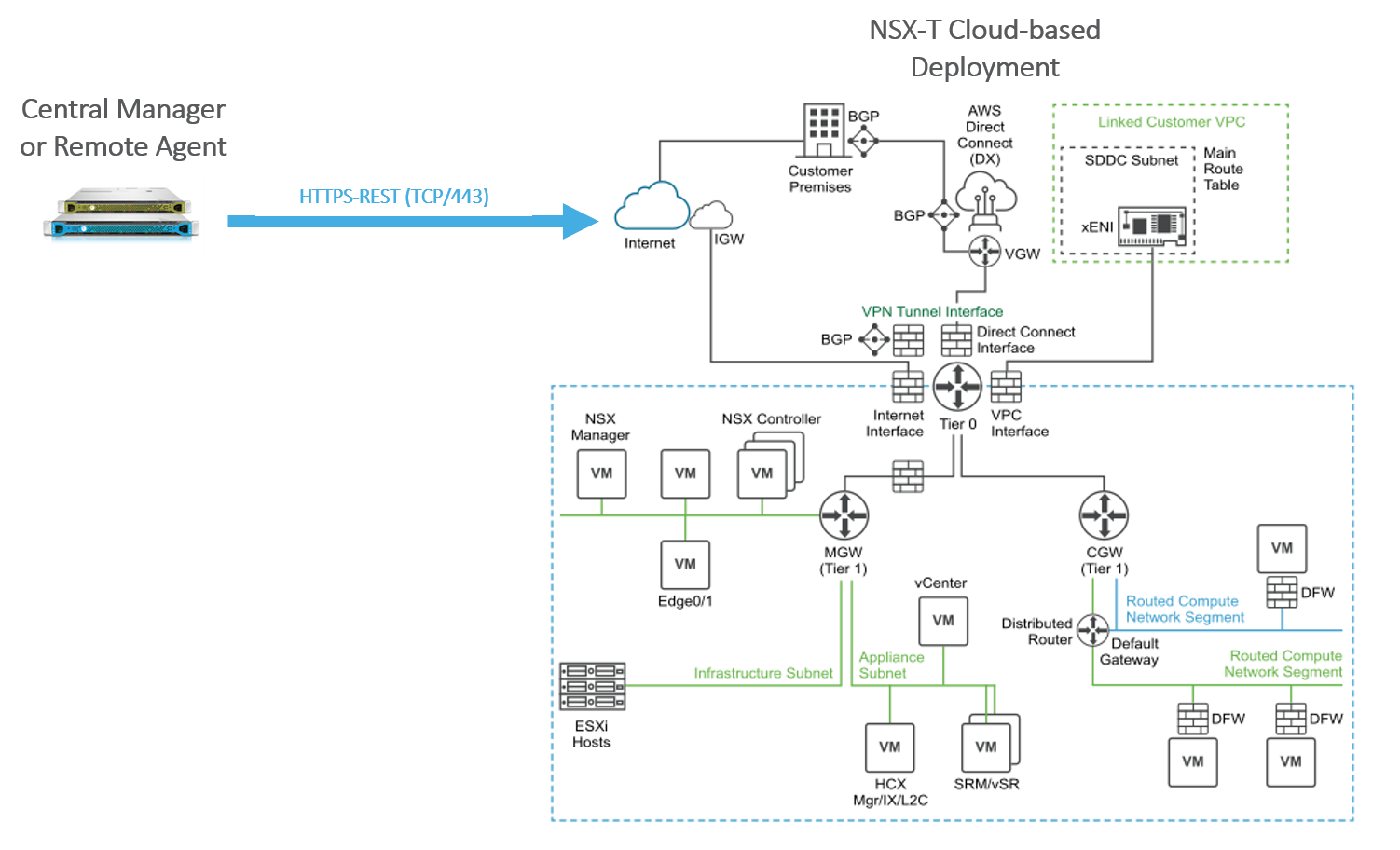
VMware Cloud on AWS uses NSX-T to create and manage internal SDDC networks and provide endpoints for VPN connections from your on-premises network infrastructure.
Device permissions
 Device analysis on NSX-T that is hosted on AWS (VMC)
ASMS requires minimal, read-only access permissions to access VMware NSX-T data centers and perform data collection.
The user accessing the VMware NSX-T Data Center for analysis and monitoring must have one of the following NSX-T roles:
- EA - Enterprise Administrator
- A - Auditor
- Custom role/permissions (use R flag for all features/components)
Note: If you are using the NSX Manager, we recommend using the built-in NSX Manager user to connect from ACE.
Enable / Disable early availability support for NSX-T deployed in AWS
This procedure describes how to enable or disable support for NSX-T deployed in AWS in ASMS.
Do the following:
-
In AFA, click your username, and select Administration > Advanced Configuration.
-
Click Add to add a new configuration parameter.
-
Define the parameter value as follows:
Name AlgoSec_EA_NSXT_Cloud Value One of the following:
- yes = Enable NSX-T deployed in AWS device support
- no = Disable NSX-T deployed in AWS device support
For more details, see Advanced Configuration. Continue with Add a VMware NSX-T to AFA.
Add a VMware NSX-T to AFA
This procedure describes how to add a VMware NSX-T that is hosted on AWS (VMC) to AFA.
Do the following:
-
From the Administration area, access the Devices Setup page. For details, see Access the DEVICES SETUP page
-
Click New > Devices > VMware > NSX-T. In the vendor device selection page, click VMware > NSX-T.
-
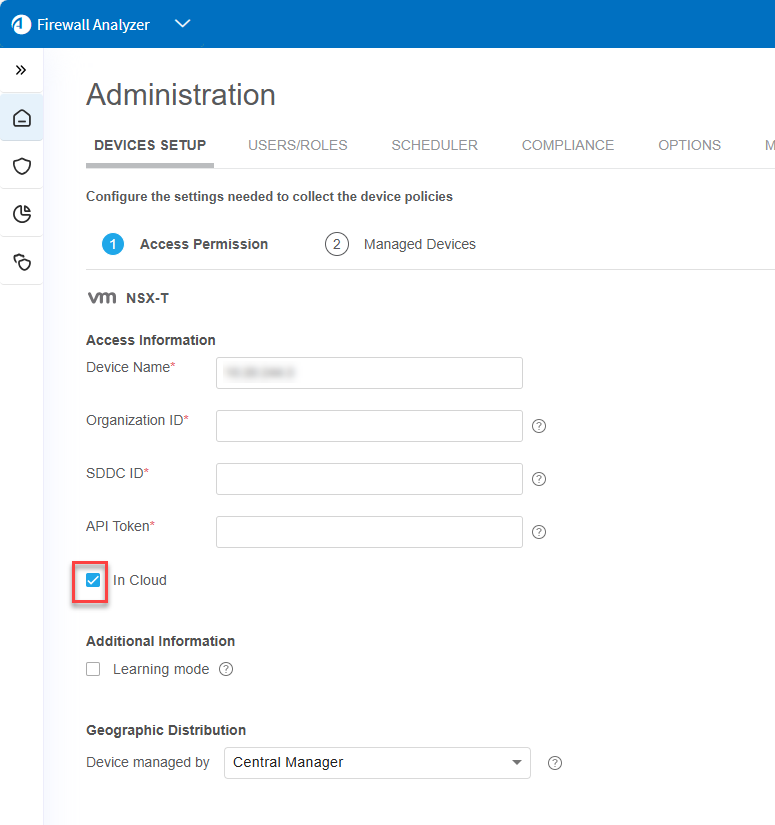
For NSX-T that is hosted on AWS (VMC), select In Cloud.
-
Complete the fields as needed.
Access Information NSX-T that is hosted on AWS (VMC)
Device name
Give the device a name. This is the name that will be displayed in the devices tree.
Tip: To avoid future confusion, we recommend you use the SDDC name for the device name.
Organization ID Organization ID (from VMware Cloud interface) SDDC ID Software-Defined Data Center (SDDC) ID number (from VMware Cloud interface). Each SDDC needs to be added separately. API Token API token. Generate a token from your VMware Cloud services account. Specify the roles required for on-boarding: Geographic Distribution
Select the remote agent that should perform data collection for the device.
To specify that the device is managed locally, select Central Manager.
This field is relevant when a Geographic Distribution architecture is configured.
Additional Information
Select the Learning mode option to specify that AFA traffic simulation should treat traffic that is not specified in a rule as blocked.
In reality, the default behavior for NSX-T devices is to allow all traffic that is not explicitly blocked. Learning mode enables you to better understand the specific traffic that needs to be allowed on the device.
Note: Learning mode is supported for NSX-T versions 3.0 and above.
Route Collection
Specify how AFA should acquire the device's routing information:
- Automatic. AFA will automatically generate the device's routing information upon analysis or monitoring.
- Static Routing Table (URT). AFA will take the device's routing information from a static file you provide. For details, see Specify routing data manually.
Options
Real-time change monitoring
Select this option to enable real-time change monitoring.
For details, see Configure real-time monitoring.
Set user permissions
Select this option to set user permissions for this device.
You can select the Learning mode option to specify that AFA traffic simulation should treat traffic that is not specified in a rule as blocked. By default, DBWs allow all traffic that is not explicitly blocked. Learning mode enables you to better understand the specific traffic that needs to be allowed on the device.
Note: Learning mode is not supported for NSX-T versions below 3.0.
- Click Finish. The new device is added to the device tree.
-
If you selected Set user permissions, the Edit users dialog box appears.
In the list of users displayed, select one or more users to provide access to reports for this account.
-
To select multiple users, press the CTRL button while selecting.
-
Click OK to close the dialog.
-
A success message appears to confirm that the device is added.
Palo Alto Networks Prisma Access devices in ASMS
Note: AlgoSec supports only Panorama Managed Prisma Access.
This section describes the ASMS Early Availability support for Palo Alto Networks Prisma Access devices:
- Supported features in Early Availability
- Limitations
- Network connectivity
- Device permissions
- Prisma Access visibility in the device tree
- Enable / Disable early availability support for Prisma Access
- Configure a Panorama device that manages a Prisma Access
Supported features in Early Availability
ASMS supports Prisma Access devices as follows:
-
Policy visibility
-
Risk analysis
-
Traffic Simulation Query
-
Remote Networks and Service Connections
-
Mobile users
The following functionality is not supported:
-
Changes
-
Policy optimization recommendations based on traffic like Intelligent Policy Tuner (IPT) and unused rules
-
FireFlow support
Limitations
Panorama Prisma Access has the following limitations:
-
Basic Search: Possible inaccurate results from RuleBase searches when using exact match.
The connection to Prisma Access is done via the Panorama device that manages it:
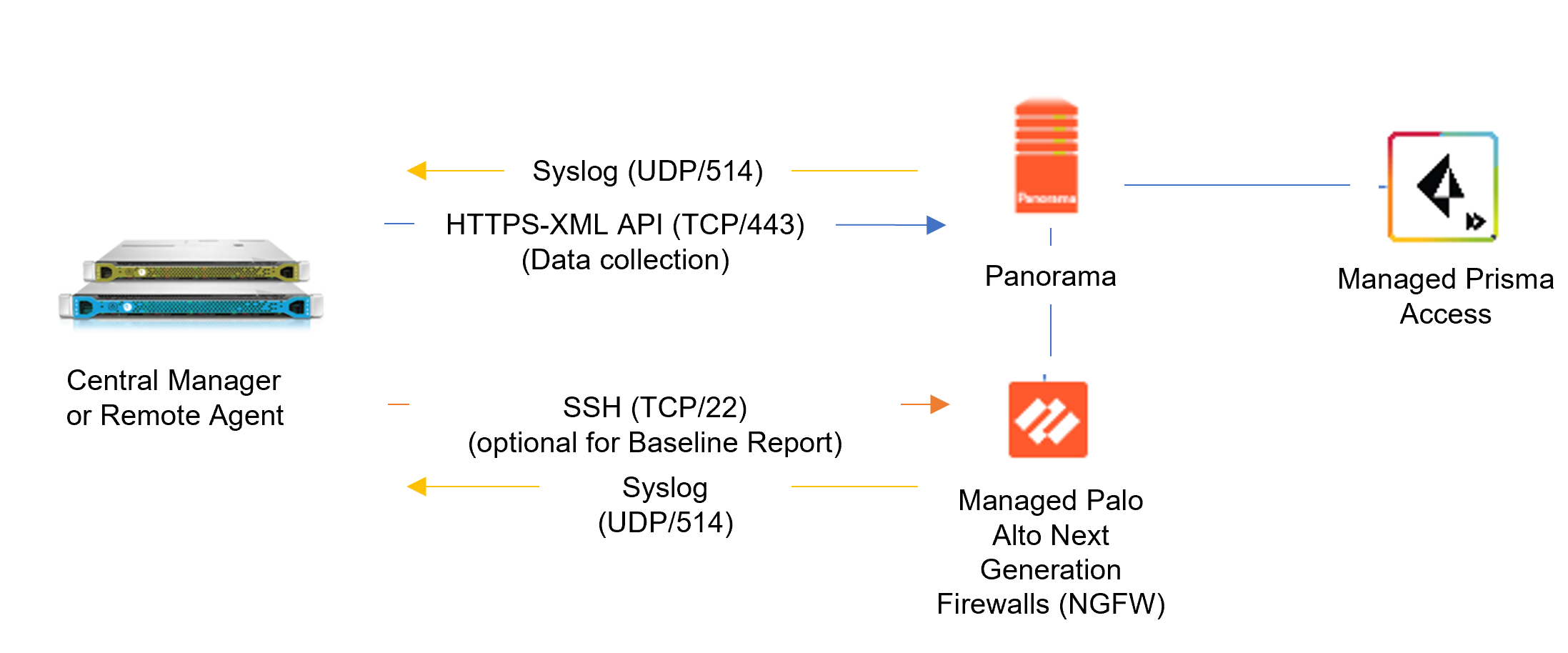
Use same permissions required for Palo Alto Panorama devices. See Panorama device permissions.
Prisma Access visibility in the device tree
Prisma Access is added under the existing Panorama tree as follows:
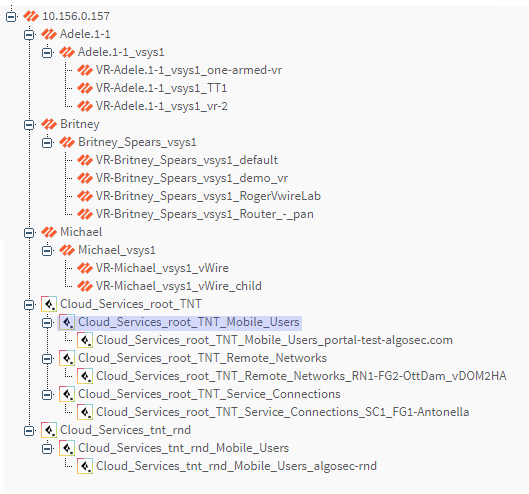
-
Level 1 Panorama Host (IP/Name )
-
Level 2 Cloud_Services (Prisma Access) managed by single Panorama devices
-
Level 3 Cloud_Services_Remote_Networks / Cloud_Services_Service_Connections / Cloud_Services_Mobile_Users
-
Level 4 Cloud_Services_Remote_Networks_<Remote_Network_Name> / Cloud_Services_Service_Connections_<Remote_Network_Name> / Cloud_services_Mobile_users_<Portal_Host-Name or Host>
Enable / Disable early availability support for Prisma Access
By default Prisma Access is disabled. This procedure describes how to enable support for Prisma Access devices in ASMS.
Do the following:
-
In AFA, click your username, and select Administration > Advanced Configuration.
-
Click Add to add a new configuration parameter. For more details, see Advanced Configuration.
-
Define the parameter value as follows:
Name AlgoSec_EA_Panorama_Prisma_Support Value One of the following:
- yes = Enable Prisma Access device support
- no = Disable Prisma Access device support
-
Logout from ASMS and then login again.
-
If you already have Panorama device(s) that manage Prisma Access onboarded to ASMS, run Edit-Next (Edit device wizard) on this/these Panorama(s). If you do not have Panorama device(s) that manage Prisma Access onboarded, onboard them. See Add Palo Alto Networks devices.
-
Continue with Configure a Panorama device that manages a Prisma Access .
Configure a Panorama device that manages a Prisma Access
This procedure describes how to configure Panorama device that manages a Prisma Access in AFA.
Do the following:
-
Access the Devices Setup page. For details, see Access the DEVICES SETUP page
-
In the device tree, select the Panorama device to configure for Prisma Access. Click Edit.
-
Click Next. You should be on the Panorama 2/2 page.
Prisma Access Tenants are shown with the prefix Cloud Services.
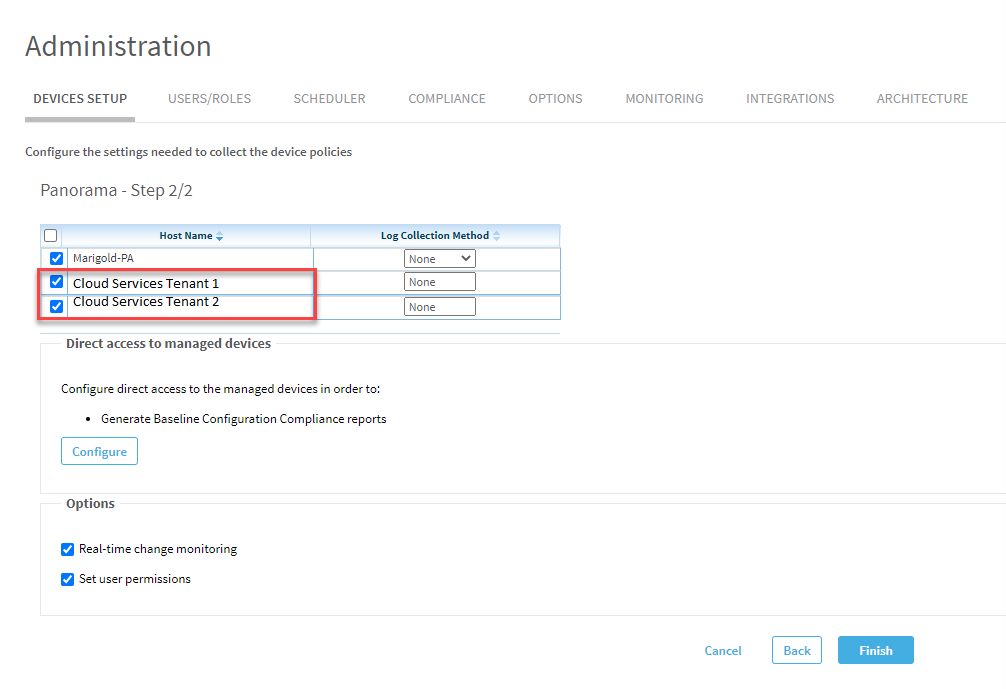
-
Select the check boxes of the tenants you want AFA to control.
Note: Log collection Method drop downs are disabled for Prisma Access tenants.
-
Click Finish. The tree of the Panorama is updated to include Prisma Access elements.
Data visualizations for reports
This Early Availability feature allows you to see report data in a customizable graph.
Note: Visualizations are built into the following reports: Risks report and Changes Summary report (on the Risks tab). You can also create your own custom visualizations for these reports as well as the Policy Optimization group report summary tables.
View data visualizations
For Risks reports and Changes Summary reports (on the Risks tab)
To view visualizations:
-
Click Graphs on the relevant report page. The section expands to show the graphs.
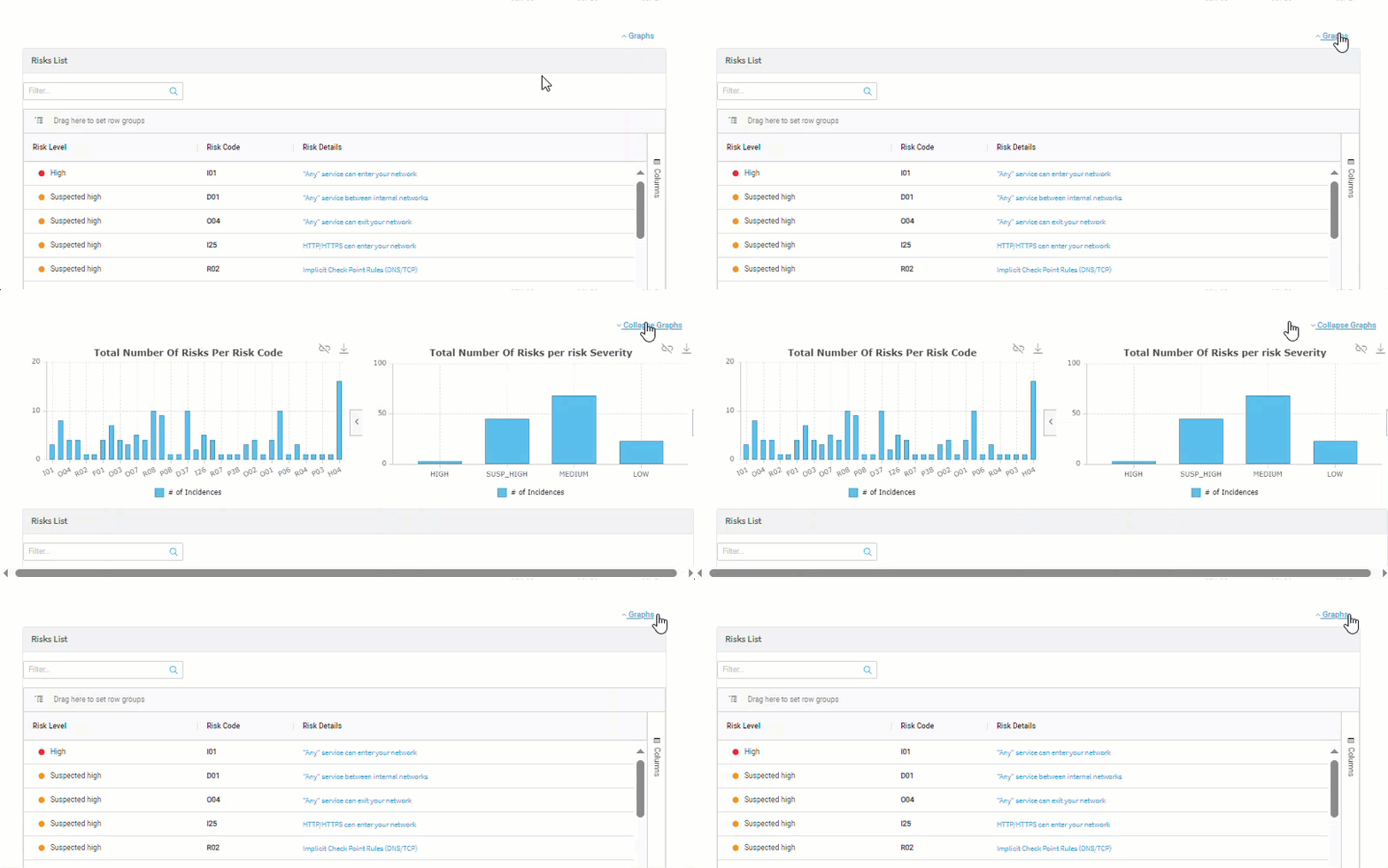
Create visualizations
For Risks reports and Changes Summary reports (on the Risks tab): individual and grouped devices
For Policy Optimization reports: grouped devices only
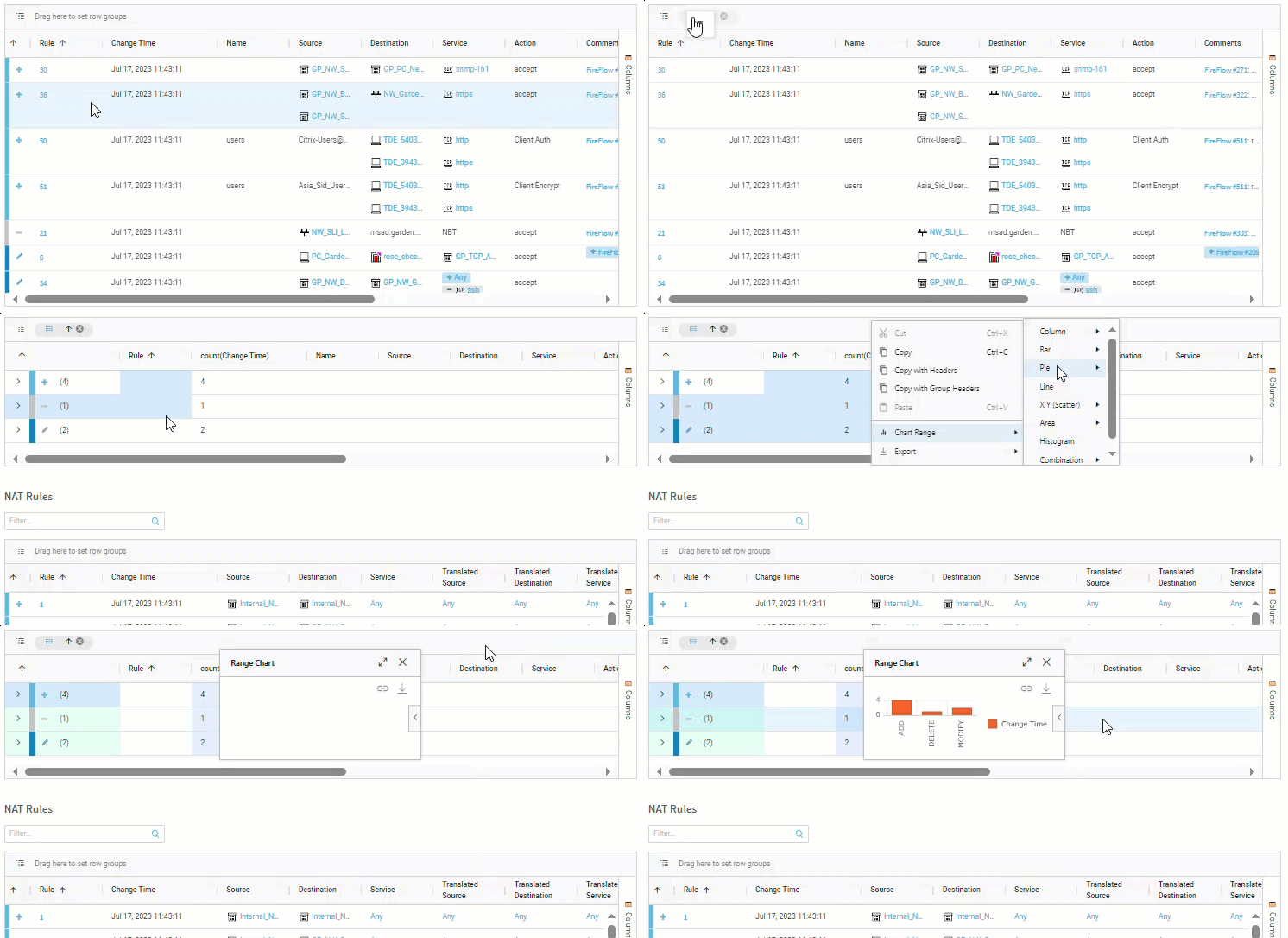
You can define a range of data to include in a new custom visualization. This is helpful when you want to create a graph from a specific set of data, and can even be used to visualize data that doesn't include numeric data.
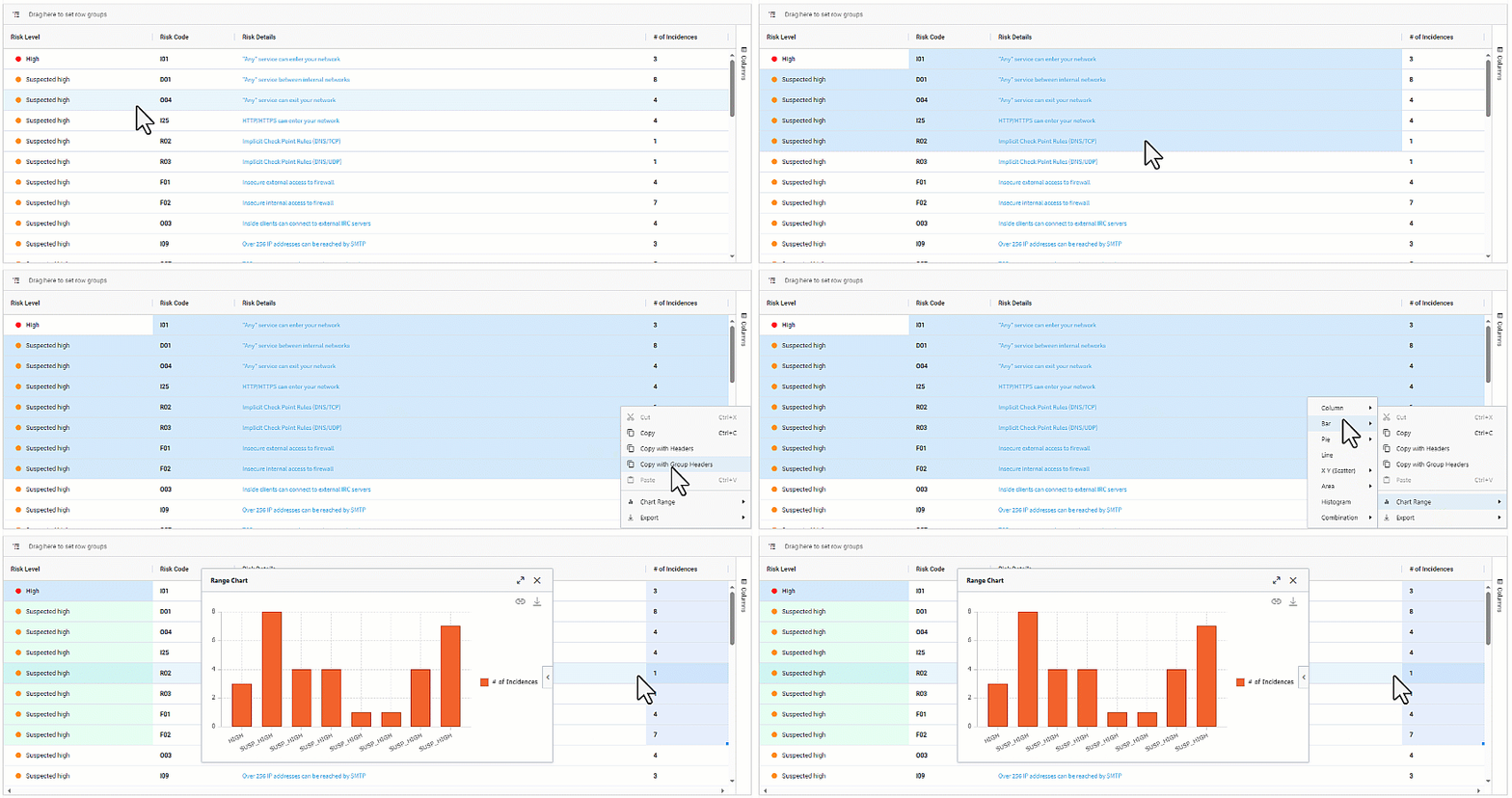
Do the following:
-
From the list, drag to select the rows and columns to use for the visualization.
-
Right click in the selection to bring up a popup menu.
-
Select Chart range and visualization style you require.
Your custom visualization appears.
Tip: In cases where the list does not include numeric data (such as many of the Changes summaries tabs), you can create a custom visualization by first grouping the data.
Work with visualizations
-
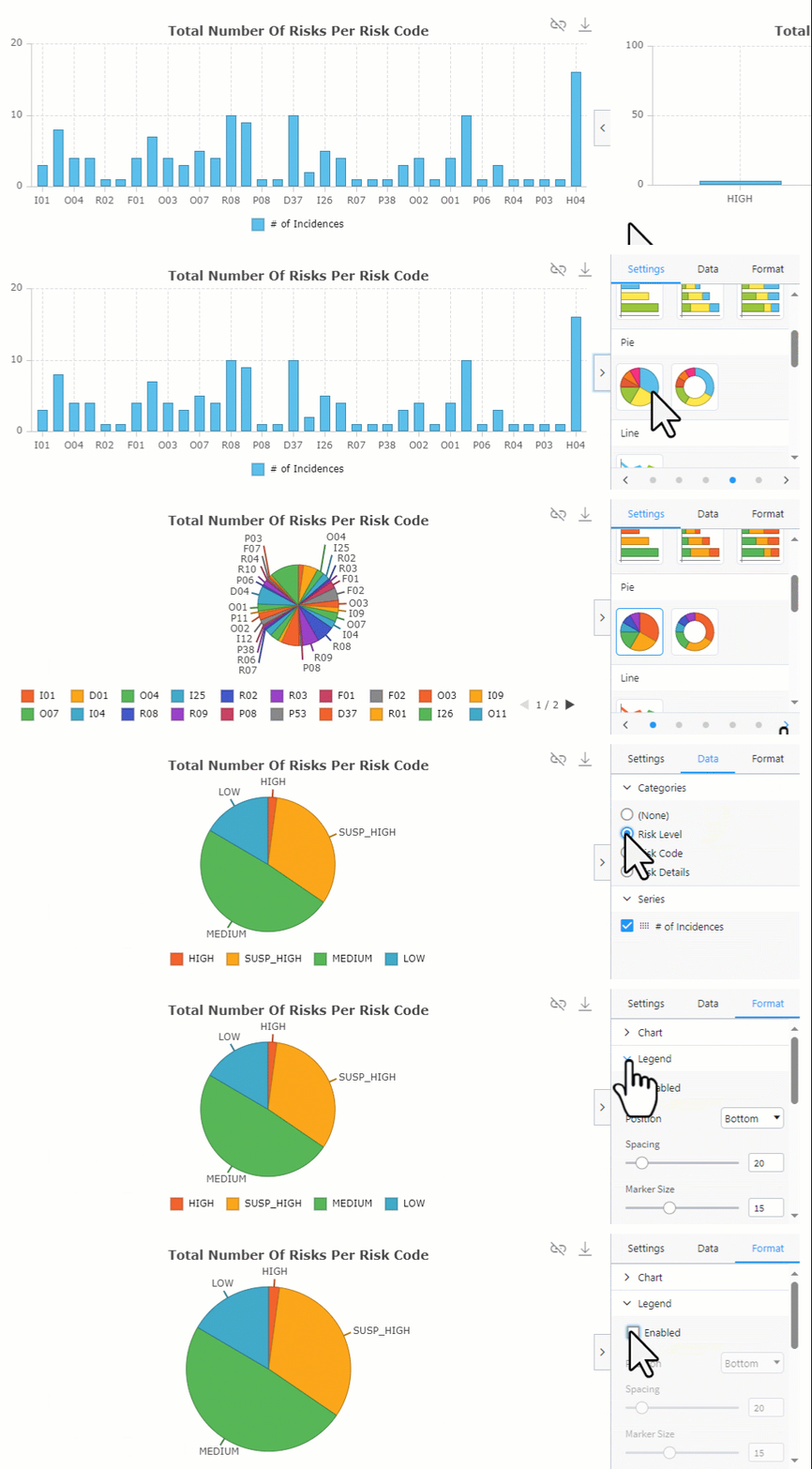
To change the layout and style, click the arrow on the right side of a graph.
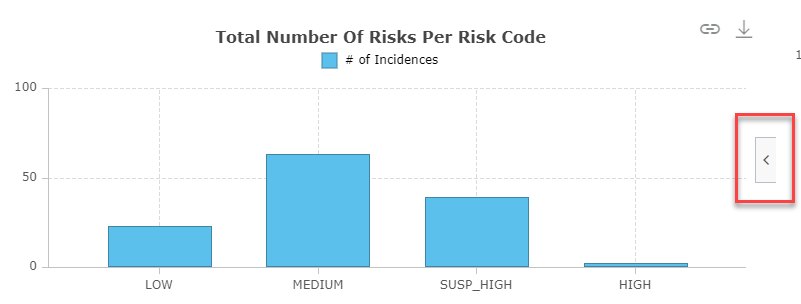
A tabbed menu of options appears where you can change the appearance and select which data is graphed.
-
To change the title of the visualization, double click the title text.
Note: If you don't see a title, you can enable it as follows:
-
Click the arrow on the right side of the graph.
The layout and style options appear.
-
Select the Format tab.
-
Click Chart to expand the chart options.
-
Click Enabled.
-
-
Click
 to save a copy of the displayed visualization onto your computer as a PNG file.
 -
Click
 to link / unlink the visualization to the list below. When linked, the relevant columns in the list are highlighted, and any rearrangement, filtering, and sorting of the highlighted list columns also update the data visualization.
Add/Update/Delete devices in bulk from xslx file
This section describes the ASMS Early Availability support for Add/Update/Delete devices in bulk from xslx file:
Note: The General Availability feature for bulk device operations (which is based on csv files) is still available for add and update operations for supported device brands. See Add/update multiple devices in bulk.
Note: By default, the bulk add/update/delete actions abort after five failed operations. To change this setting, see Bulk_Max_Failed_Attempts.
This Early Availability feature allows you to Add/Update/Delete devices in bulk from an xlsx file and offers you the following advantages:
-
Support for bulk delete devices.
-
Support for the following management devices:
-
PV1
-
CMA
-
Space
-
Panorama
-
Fortimanager
-
-
Support for these additional brands:
-
AWS
-
Azure
-
Google Cloud
-
Cisco Meraki
-
Device from file (for more information about Device from File, see Alternate data collection methods)
-
-
Support to define optional fields
-
Support for commenting out a row: if you want to avoid executing a bulk operation from that row
Known Issue: Cisco Meraki onboarding with children
Currently there is no Children tab in the Cisco Meraki Excel template. To onboard children, you can use the 'selected_devices' column. The Children tab will be added in the future.
Enable / Disable early availability support for Bulk Add/Update/Delete devices
This procedure describes how to enable or disable support for Bulk Add/Update/Delete devices.
Do the following:
-
In AFA, click your username, and select Administration > Advanced Configuration.
-
Click Add to add a new configuration parameter.
-
Define the parameter value as follows:
Name Bulk_Add_Remove_EA Value One of the following:
- ON = Enable bulk Add/Update/Delete devices support using xlsx files.
- OFF = Use legacy bulk Add/Update devices support using csv files.
For more details, see Advanced Configuration. Continue with How to perform bulk Add/Update/Delete devices.
How to perform bulk Add/Update/Delete devices
To Add/Update/Delete devices in bulk, use the sample files. You download the sample files as part of the procedure, described in Step 4a below. The sample files are in excel (.xlsx) format.
Do the following:
-
Access the Devices Setup page. For details, see Access the DEVICES SETUP page.
-
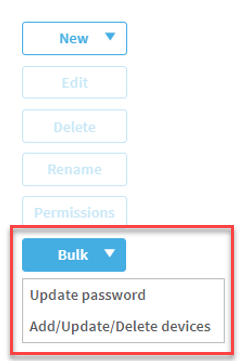
Click Bulk.
-
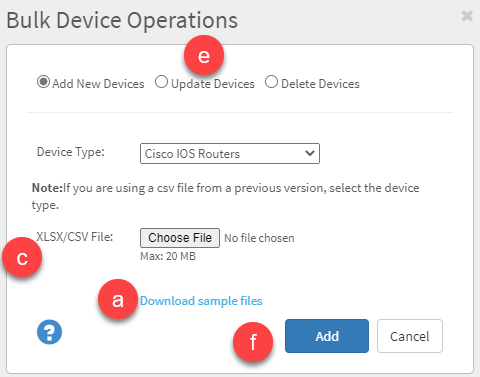
Click Add/Update/Delete devices. The Bulk Device Operations dialog appears.
-
To use this EA feature:
-
Click Download sample files to download sample excel files.
-
Edit the files as required. See How to use the sample files.
-
XLSX/CSV file: Browse to and select your prepared xlsx file.
-
Ensure that the devices you plan to change are online and accessible by AFA via SSH.
-
Select one operation:
-
Add New Devices to bulk add devices
-
Update Devices to bulk update devices
-
Delete Devices to bulk delete devices
-
-
Click Add/Update/Delete as required. A confirmation message is displayed when the process is finished.
-
How to use the sample files
Tips:
-
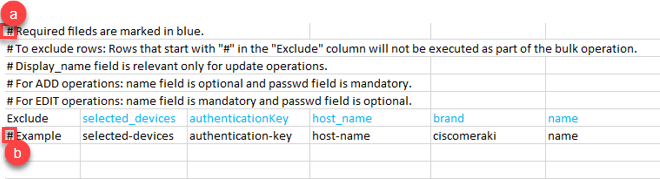
To comment out rows from the sample file: (add a ‘#’ to the Exclude column of the row ) if you want to avoid executing a bulk operation from that row.
-
Note or instruction is excluded.
-
The device will not be considered in the add/update/delete operation.
-
-
Required fields are shown in blue in the header of the sample files.
For Bulk add or update operations
-
All brands have their designated sample file. Each brand has its own set of parameters.
You can also use the Others.xlsx to add or update the following device brands in one place. (You can combine several brands together in the file):
-
F5
-
Cisco Identity Services Engine (ISE)
-
Cisco Application Centric Infrastructure (ACI)
-
Fortinet Fortigate
-
Juniper SRX
-
VMWare NSX-V
-
Palo Alto Firewall.
-
-
For all device types: The same single template file can be used for both add or update operation. However, you need to run the add and update operations separately.
-
For Management Devices (PV1, CMA, Juniper Space, Panorama, and Fortimanager): Fill out both the parent and children tabs. The expected behavior for working with child devices for management devices varies per brand.
Expected behavior per brand
Brand Adding Children Instructions Add all children automatically Add only selected children Panorama NA YES In Parent Sheet, set apply_children=yes and specify the child device details on the Children Sheet. Selection of children is optional. Juniper space NA YES In Parent Sheet, set apply_children=yes and specify the child device details on the Children Sheet. Selection of children is optional. Cisco Secure Firewall NA YES In Parent Sheet, set apply_children=yes and specify the child device details on the Children Sheet. When set, you cannot add only the parent without specifying child devices. Fortimanager YES YES To add all children automatically, in Parent Sheet, set apply_children=yes (no need to add child devices to Children Sheet). To add selected children, in Parent Sheet, set apply_children=yes and specify the child device details on the Children Sheet. Check Point Smart Center YES YES To add all children automatically, in Parent Sheet, set apply_children=yes (no need to add child device to Children Sheet). To add selected children, in Parent Sheet, set apply_children=yes and specify the child device details on the Children Sheet. Check Point PV1 YES NO To add all children automatically, in Parent Sheet, set apply_children=yes (no need to add children to Children Sheet). -
Supported device brand values
Use the following Brand Name code values to indicate device brands:
Brand
Brand Name code
Web Services (AWS) EC2
aws
Azure
azure
Cisco Application Centric Infrastructure (ACI)
ciscoaci
Cisco ASA
pix
Cisco Identity Services Engine (ISE)
ciscoise
Cisco IOS
ios
Cisco Nexus Router
nexus
Check Point Smart Center
cma
Check Point Provider 1
pv1
F5 BIG-IP LTM and AFM
f5bigip_afm
Device from file
file
Cisco Secure Firewall
firepower
Fortinet Fortigate
fortigate
Fortinet Fortimanager
fortimanager
Google Cloud Platform
gcp_cloudflow
Juniper SRX
junos
Juniper Netscreen
nsc
Juniper Space
space_security_director
VMWare NSX-V
nsx
VMWare NSX-T
nsxt
Palo Alto Firewall
paloalto
Palo Alto Panorama
panorama
Cisco Meraki
ciscomeraki
For Bulk Delete operation
-
Use the same file Delete.xlsx for all supported device brands simultaneously.
PAN Panorama | EDLs (External Dynamic Lists) in policy destinations
This procedure describes how to enable or disable support for EDLs (External Dynamic Lists) for Palo Alto Panorama devices. This early availability feature works with IP address and URL type lists.
-
For IP address type lists: The EDL source will point to a list of IPs (click for an example). You can add it to Source or Destination fields in rules.
-
For URL type lists: The EDL source will point to a list of URLs (click for an example). You can add it to URL Category fields in rules only.
Note: For URL type lists, URLs with wildcards are ignored. For example: *.office365.us/ will not be read.
To enable support for EDLs
Do the following:
-
In AFA, click your username, and select Administration > Advanced Configuration.
-
Click Add to add a new configuration parameter.
-
Add the following new parameter and set its value to yes:
-
ALGOSEC_EA_PANORAMA_EDL=yes
Note: Other configurable parameters that are related to this feature include:
-
PA_URL_CAT_DNS_LIMIT (default=500)
-
DNS_Lookup_Timeout (default=4)
-
PAN_EDL_COLLECT_TIMEOUT (default=10)
For more details, see Advanced Configuration.
-
Display VNets with no virtual machines in the ASMS tree and map
Traffic in Azure sometimes passes through VNets which do not contain virtual machines. By default, VNets with no virtual machines do not appear in the ASMS tree. As a result, they are not shown in the map or included in the TSQ results. Use this early availability parameter to determine whether or not to show these VNets in the ASMS tree.
Do the following:
-
In AFA, click your username, and select Administration > Advanced Configuration.
-
Click Add to add a new configuration parameter.
-
Define the parameter as follows:
Name DisplayVNetWithoutVMs Value One of the following:
- true = Include VNets with no virtual machines in the ASMS tree
- false (default) = Exclude VNets with no virtual machines from the ASMS tree
Display AWS Gateway Load Balancers in the device tree and network topology map
This early availability feature enables ASMS to display AWS Gateway Load Balancers in the device tree and network topology map. Requires integrating ASMS with ACE. See Enable ACE - ASMS integration (optional).
Limitations
AWS Gateway Load Balancers have the following limitations:
-
Only Palo Alto Panorama firewalls with AWS GWLB are supported. Other firewall brands are untested.
Do the following:
-
In AFA, click your username, and select Administration > Advanced Configuration.
-
Click Add to add a new configuration parameter.
-
Define the parameter as follows:
Name AlgoSec_EA_AWS_GWLB Value Possible values:
-
true = AWS Gateway Load Balancers will appear in the Device Tree and Network Map.
Note: Once enabled, AWS Gateway Load Balancers will appear in the Device Tree and Network Map after the next monitor cycle.
-
false = AWS Gateway Load Balancers will note appear in the Device Tree and Network Map.
-
Managed Instance Group support for Google Cloud Load Balancer
By default, Google Cloud Load Balancer collection includes only Unmanaged Instance Groups. This Early Availability feature adds support for collecting Managed Instance Groups and adding their VMs to the Load Balancer instances pool. This feature requires ASMS integration with ACE. See Enable ACE - ASMS integration (optional).
Do the following:
-
In AFA, click your username, and select Administration > Advanced Configuration.
-
Click Add to add a new configuration parameter.
-
Define the parameter as follows:
Name ALGOSEC_EA_GCP_MANAGED_INSTANCE_GROUPS Value Possible values:
-
true = Collect Managed Instance Groups and add VMs from Managed Instance Groups to the Load Balancer instances pool.
Note: After enabling this option, the Device Tree and Network Map are updated during the next monitoring cycle.
-
false = Collect only Unmanaged Instance Groups.
-
Automate rule removal change requests from the Disabled Rules report
You can create change requests in FireFlow to remove rules right from the Disabled rules report of the Policy Optimization page.
Note: Automated rule removal from the Disabled Rules report does not work with Bluecoat, Hillstone, Junos, Pix, or Space.
To enable the remove rules automation
Note: Only Latest Reports include the remove rules automation.
Do the following:
-
In AFA, click your username, and select Administration > Advanced Configuration.
-
Click Add to add a new configuration parameter.
-
Add the following new parameter and set its value to yes:
-
EA_POLICY_RULES_PAGES_NEW_UI=yes
-
-
Click Ok to save the changes.
To use the remove rule automation
Do the following:
-
In AFA, select the device with disabled rules that you want to remove. For more details, see View AFA device data.
-
Click on Latest Report.
-
Click the Policy Optimization tab.
The Policy Optimization page appears.
-
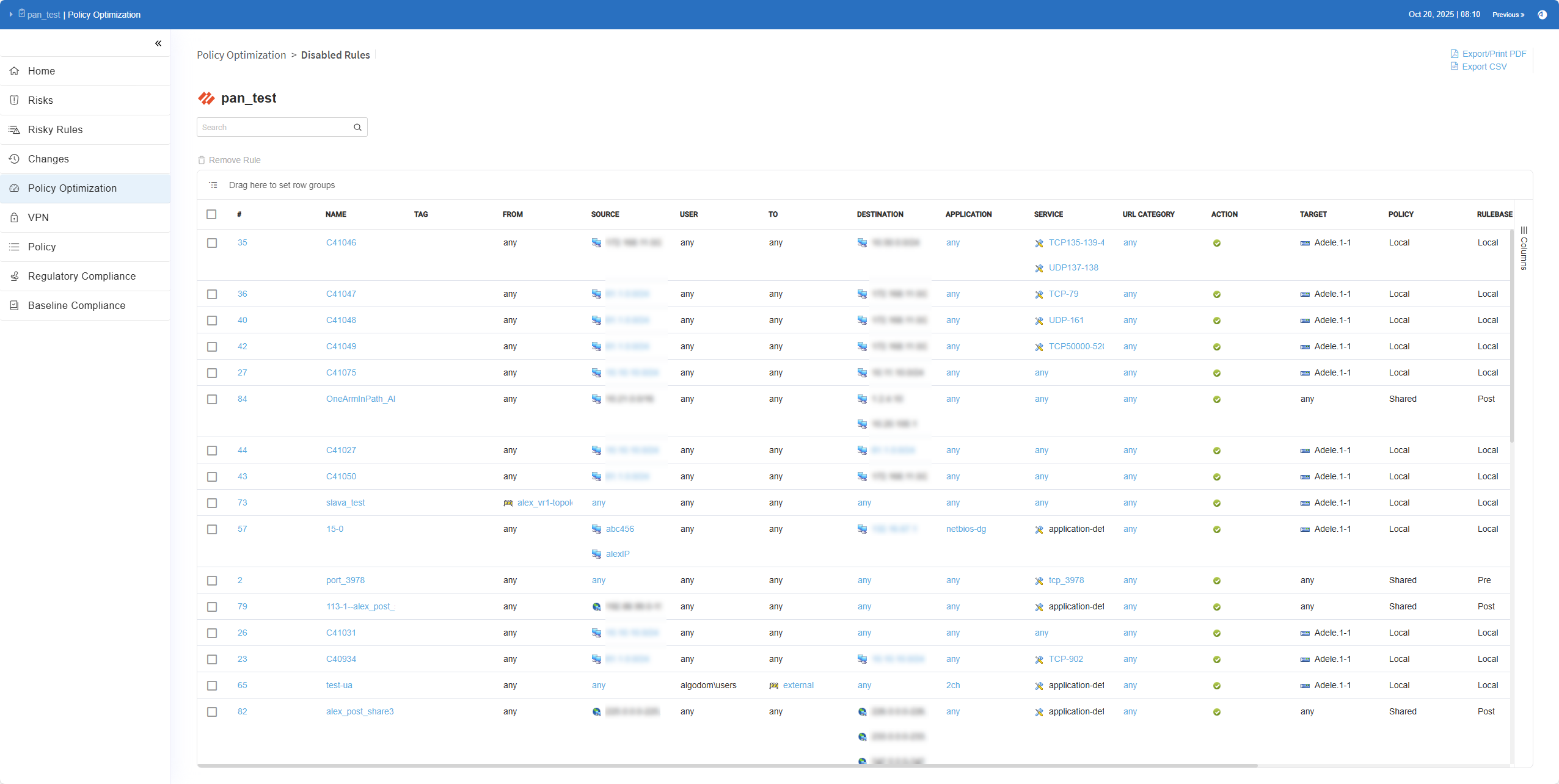
Click on the Disabled rules report.
The disabled rules appear.
-
Select the check box(es) to the left of the rule(s) to remove.
Note: Click the check box in the header to select all of the rules.
-
Click the Remove Rule button.
The change request(s) are created and the Remove Rules Change Requests popup appears.
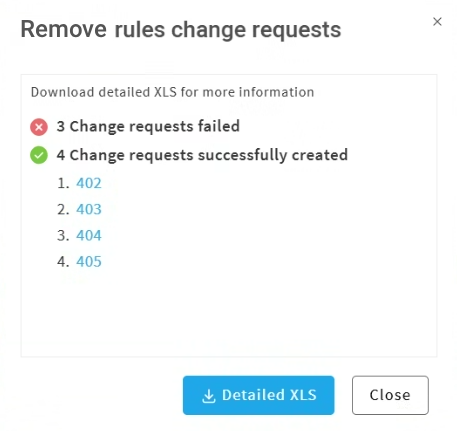
Understanding the the Remove Rules Change Requests popup:
-
Why are there multiple change requests?
Change requests contain a maximum number of rules (determined by the Num_of_Rules_Per_AFF_Ticket parameter). When the total number of selected rules exceeds this limit, the rules are split across multiple change requests.
-
Failed requests explanation:
If there is at least one failed rule in a change request then the entire request fails.
-
-
Click on the change request number to open the change request in FireFlow.
-
To download an Excel spreadsheet containing detailed information about every successful or failed change request click Detailed XLS.
-
The Successful Requests worksheet contains the list of links to the change request created in FireFlow and associated Rule IDs.
-
The Failed Requests worksheet contains the list of failed Rule IDs and associated error messages.
-
Azure ExpressRoute in ASMS Map
ASMS now provides Early Availability support for Azure ExpressRoute in the ASMS network map when integrated with ACE. This capability gives you enhanced visibility into your hybrid connectivity by displaying ExpressRoute connections directly in the topology view.
Using this feature is available only when ACE is integrated with ASMS.
Set Required Permissions
ACE requires the following Azure permissions for ASMS network topology map to display information on ExpressRoute.
Note: ACE collects the ExpressRoute information and injects it into the ASMS map. See Permissions for Azure ExpressRoute for Cloud Network Security.
Do the following:
Provide these permissions for ACE in your Azure subscription:
-
Microsoft.Network/expressRouteCircuits/read -
Microsoft.Network/expressRouteCircuits/peerings/read -
Microsoft.Network/expressRouteGateways/read
-
Microsoft.Network/expressRouteCircuits/peerings/routeTables/read
Enabling or Disabling Early Availability for Azure ExpressRoute
-
To enable or disable Azure ExpressRoute, contact Support and ask them to toggle the ExpressRoute flag.
Aruba CX Layer 3 Switches in AFA
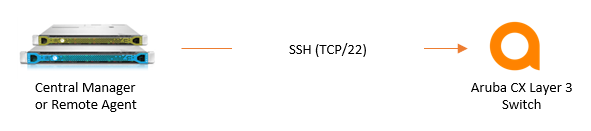
The following sections describe how ASMS connects to Aruba CX Layer 3 Switches:
The following diagram shows an ASMS Central Manager or Remote Agent connecting to a Aruba CX Layer 3 Switch:
Enable / Disable early availability support for Aruba CX Layer 3 Switch
This procedure describes how to enable or disable support for Aruba CX Layer 3 Switch.
Do the following:
-
In AFA, click your username, and select Administration > Advanced Configuration.
-
Click Add to add a new configuration parameter.
-
Define the parameter value as follows:
Name ALGOSEC_EA_ARUBA Value One of the following:
- yes = Enable Aruba CX Layer 3 Switch
- no = Disable Aruba CX Layer 3 Switch (default)
This procedure describes how to add an Aruba CX Layer 3 Switch AFA.
Do the following:
-
Access the Devices Setup page. For details, see Access the DEVICES SETUP page.
-
Click New > Device. the vendor and device selection page appears.
-
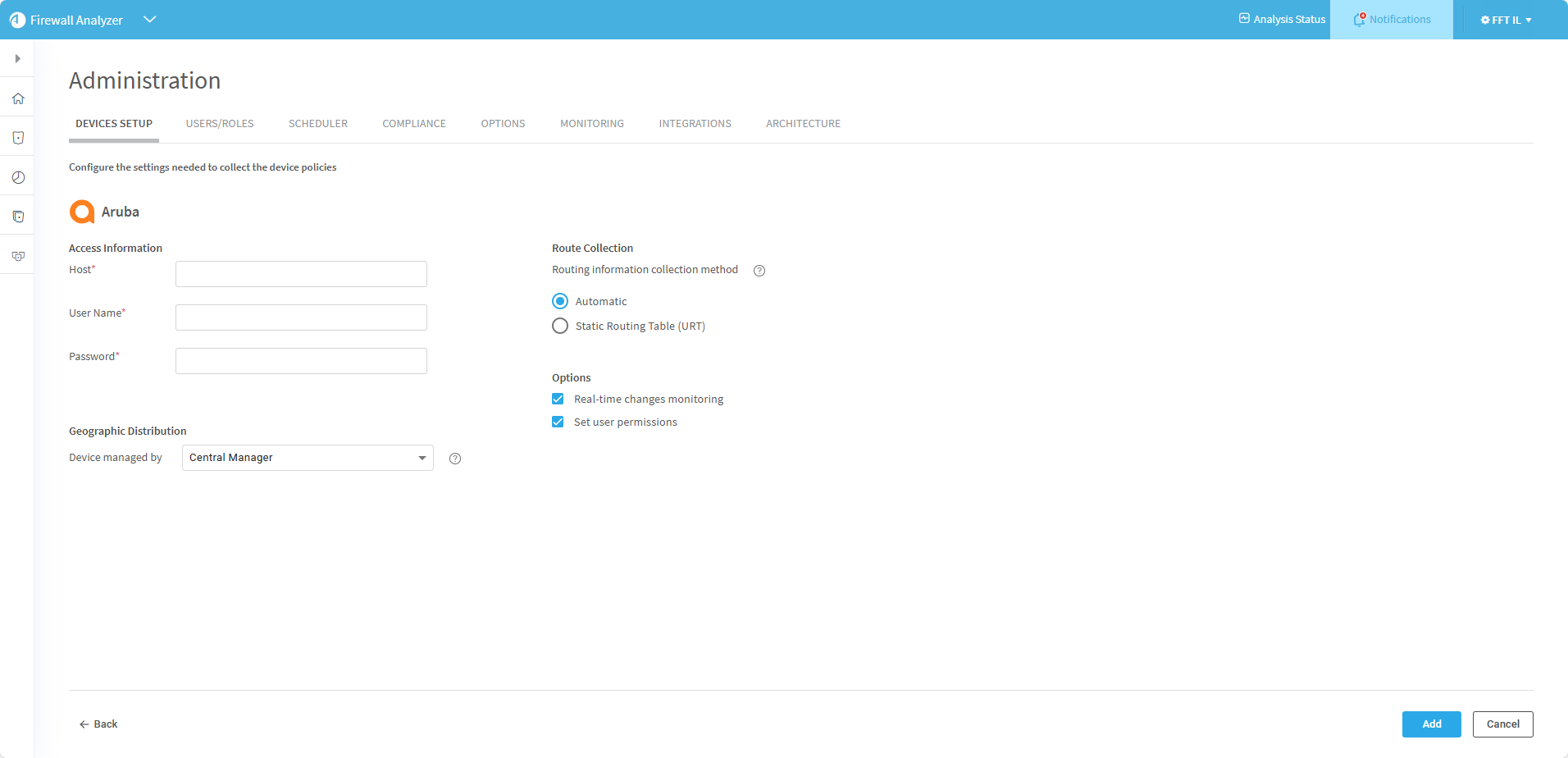
Select Aruba> Aruba. the Administration Configuration page for Aruba appears.
-
Complete the fields as needed.
Access Information
Enter details to access your device from AFA:
Host
Enter the device's host name or IP address.
User Name
Enter the username to use for SSH access to the device.
Password
Enter the password to use for SSH access to the device.
Retrieve credentials from CyberArk vault
Select to authenticate the device with a CyberArk Vault instead of saving the device credentials on the AlgoSec server.
When selected, also enter the following CyberArk details for the device being authenticated:
- Platform (Policy ID)
- Safe
- Folder
- Object
Note: These options only appear when CyberArk is configured in AFA. For details, see Integrate ASMS and CyberArk.
Geographic Distribution
Select the remote agent that should perform data collection for the device.
To specify that the device is managed locally, select Central Manager.
Note: This field is only relevant when a Geographic Distribution architecture is configured.
Remote Management Capabilities (Geographic Distribution)
Aruba uses SSH to collect data.
Select Central Manager to manage the device by, or select a Remote Agent (if available).
Route Collection
Specify how AFA should acquire the device's routing information:
-
Automatic. AFA will automatically generate the device's routing information upon analysis or monitoring.
-
Static Routing Table (URT). AFA will take the device's routing information from a static file you provide. For more details, see Specify routing data manually.
Options
Select the following as needed:
Real-time change monitoring
Select this option to enable real-time alerting upon configuration changes. For details, see Configure real-time monitoring.
Set user permissions
Select this option to set user permissions for this device.
-
Click Add. The new device is added to the device tree.
-
If you selected Set user permissions, the Edit users dialog box appears.
In the list of users displayed, select one or more users to provide access to reports for this account.
-
To select multiple users, press the CTRL button while selecting.
-
Click OK to close the dialog.
-
A success message appears to confirm that the device is added. Any configured contexts on the Aruba device are also imported.
Miscellaneous early availability fixes
Missing AWS VPCs from the map and tree
Known issue: AWS VPCs do not appear in the ASMS map and tree if they are in regions where none of the VPCs have load balancers or AWS instances. This early availability fix allows them to appear.
Do the following:
-
In AFA, click your username, and select Administration > Advanced Configuration.
-
Click Add to add a new configuration parameter.
-
Define the following parameters as true:
-
SHOW_REGIONS_WITHOUT_ASSETS_AWS
-
SHOW_UNASSIGNED_SECURITY_GROUPS_AWS
-
| SHOW_REGIONS_WITHOUT_ASSETS_AWS |
Enable this parameter to display in the ASMS map and tree AWS VPCs which are which are located in regions where none of the VPCs have assets (load balancers or AWS instances). Note: In the tree, these VPCs will appear in the AWS unassigned section. By default, this parameter is not defined. Possible values:
|
| SHOW_UNASSIGNED_SECURITY_GROUPS_AWS |
For more details, see SHOW_UNASSIGNED_SECURITY_GROUPS_AWS. |


