Troubleshoot your distributed upgrade
Resolve automatic system prerequisites checks issues
|
Text in CLI |
Description |
How to resolve (log data about prerequisite checks are found in /var/log/algosec-software-upgrade.log) |
||||||||||||||||||||||||||||||||||||||||||||||||||||||||||||||||||||||||||||||
|---|---|---|---|---|---|---|---|---|---|---|---|---|---|---|---|---|---|---|---|---|---|---|---|---|---|---|---|---|---|---|---|---|---|---|---|---|---|---|---|---|---|---|---|---|---|---|---|---|---|---|---|---|---|---|---|---|---|---|---|---|---|---|---|---|---|---|---|---|---|---|---|---|---|---|---|---|---|---|---|---|
Machine [machine IP] does not meet the minimal hardware requirements. |
Checks system machine appliance specs: cores, memory. |
Make sure the machine meets the system requirements. See System requirements. For details, see Checking cores and memory on [machine IP] in the log. |
||||||||||||||||||||||||||||||||||||||||||||||||||||||||||||||||||||||||||||||
There is less than xx MB free disk space in OS partition on node [machine IP].
Insufficient disk space. xxxMB found for installation (Less than the required 5000 MB in the OS partition on node[machine IP])
Partition (/data) on local node must have at least <required> MB free space. This includes the amount of space needed to sync the monitor data directory, plus an additional 5 GB. You currently only have <avail> MB free space. |
Checks disk space on system machine. |
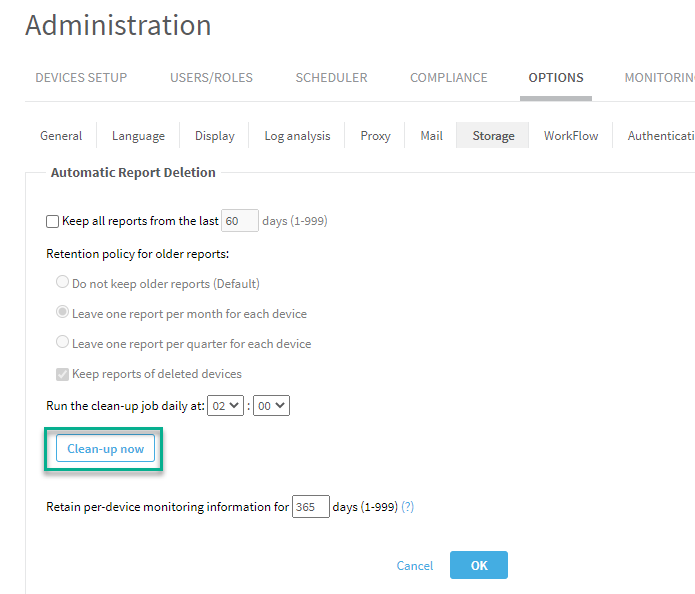
Run auto-remove to free up disk or delete old run files. To run auto-remove, in AFA Administration, go to the Options tab, Storage sub-tab, and click Clean-up now.
If the issue persists after running Clean-up now, contact AlgoSec support. |
||||||||||||||||||||||||||||||||||||||||||||||||||||||||||||||||||||||||||||||
Insufficient disk speed. |
Checks source node disk speed. |
We recommend disk write speed of at least 300MB/s. Minimum allowable is 80MB/s. Contact your IT department to determine and adjust, if necessary, your node disk speed. Tip: Use the following command to check disk speed: dd if=/dev/zero of=/data/test-big-file.bin bs=786432000 count=1 oflag=dsync 2>&1 ; rm -f /data/test-big-file.bin An example of the output is: 786432000 bytes (786 MB) copied, 0.624098 s, 1.3 GB/s
Tip: If you are using an AlgoSec VM, make sure you are following VM best practices. See Best practices for your AlgoSec VMware Deployment . If you make changes, check your disk speed again to see if it has improved. Tip:If your target machine is an AlgoSec AMI, make sure you are using recommended deployment. See Deploy ASMS on AWS. |
||||||||||||||||||||||||||||||||||||||||||||||||||||||||||||||||||||||||||||||
Distribution nodes machine time prerequisite check failed. |
Compares Time between system machine and distribution nodes (Remote Agent and LDUs). |
The machines can be in different time zones but they have to be at the same time relative to UTC:
|
||||||||||||||||||||||||||||||||||||||||||||||||||||||||||||||||||||||||||||||
NAS is configured, but directories are not mounted.
NAS mount is disabled due to fault detected. |
Checks NAS status on Central Manager and LDUs. |
Open algosec_conf menu on the node with the NAS issue. Run option option 11 - Configure NAS. Run option 3 - Re-enable NAS mount. If issue persists on an LDU, in the algosec_conf menu, run option 15 - Distributed Architecture configuration. If problem persists, contact AlgoSec support. |
||||||||||||||||||||||||||||||||||||||||||||||||||||||||||||||||||||||||||||||
NAS is suspended |
Open algosec_conf menu on the node with the NAS issue. Run option option 11 - Configure NAS. Run option 3 - Re-enable NAS mount. If issue persists on an LDU, in the algosec_conf menu, run option 15 - Distributed Architecture configuration. If problem persists, contact AlgoSec support. |
|||||||||||||||||||||||||||||||||||||||||||||||||||||||||||||||||||||||||||||||
|
Checks status of services. |
 Try to restart the services. Run for each service: Try to restart the services. Run for each service:
algosec_test_service -n <SYSTEM SERVICE NAME> -f for example, System service names to use when restarting a service:
If services do not restart, contact AlgoSec support. |
|||||||||||||||||||||||||||||||||||||||||||||||||||||||||||||||||||||||||||||||
Node: 10.20.8.95 * The path /home/afa/algosec should be non-broken symlink |
Checks essential redirect links. | Contact AlgoSec support. | ||||||||||||||||||||||||||||||||||||||||||||||||||||||||||||||||||||||||||||||
Validation of upgrade files xxx failed. The files may be corrupted. Download the files again. |
Checks for corrupted run files. | Download run files again. | ||||||||||||||||||||||||||||||||||||||||||||||||||||||||||||||||||||||||||||||
Distribution Architecture is not configured properly. |
Checks for improperly configured distribution nodes. | In the algosec_conf menu, run option 15 - Distributed Architecture configuration. | ||||||||||||||||||||||||||||||||||||||||||||||||||||||||||||||||||||||||||||||
PostgreSQL is not synced between Cluster machine ([machine IP]) and the Primary machine ([machine IP]). |
Checks PostgreSQL sync status between cluster machine and Primary. | In the algosec_conf menu, go to option 13 - HA/DR Setup. Select 1 - View cluster status details. | ||||||||||||||||||||||||||||||||||||||||||||||||||||||||||||||||||||||||||||||
Inconsistencies found between the devices list and database records. |
Checks for database inconsistencies. |
To fix the inconsistency, see procedure in the knowledge base article: www.algosec.com/r/a32.00/42845777. |
||||||||||||||||||||||||||||||||||||||||||||||||||||||||||||||||||||||||||||||
Excessive RPM removal check failed. |
Checks for RPMs that need to be removed. |
|
||||||||||||||||||||||||||||||||||||||||||||||||||||||||||||||||||||||||||||||
Failed to get HA dependent nodes, make sure that the ms-hadr service is up. |
Checks that remote HA nodes are responsive. |
In the algosec_conf menu of the HA Remote Agent, go to option 13 - HA/DR Setup. Select 1 - View cluster status details. By doing this you restart the service. Make sure that cluster is now synced. |
||||||||||||||||||||||||||||||||||||||||||||||||||||||||||||||||||||||||||||||
You are using a custom SSO module: <name of SSO module> This implementation may be incompatible with the version you're upgrading to. We recommend that you contact AlgoSec support before continuing with the upgrade. |
Checks custom SSO module. | Contact AlgoSec support. | ||||||||||||||||||||||||||||||||||||||||||||||||||||||||||||||||||||||||||||||
Communication on ports TCP/9000--9010 is blocked by firewalls between the CM and LDUs and between LDUs and LDUs. We recommend that you contact your IT department to allow traffic (bi-directional) on these firewalls before continuing with the upgrade. |
Checks required communication with LDUs |
Communication between the CM and LDUs, and between LDUs and LDUs, is encrypted and utilizes ports TCP/9001--9010.* Ask your IT department to allow traffic on these firewall(s) for these ports (bi-directional). *This is applicable for up to 5 LDUs. If you have a requirement for more than 5 LDUs, contact AlgoSec support for further assistance. |
Resolve upgrade failures
-
If your distributed upgrade fails for any reason, the system displays an error, as well as the location of specific log files.
-
The central upgrade log file is located at: /var/log/algosec-software-upgrade.log
Log files indicate the source of the issues and ways to fix them.
-
-
If you have a distributed system and only some nodes failed, the system will show a summary for all the nodes and their status. You can select the nodes you want to reinstall, or rerun the entire upgrade from scratch. Select the option that works best for you and run through the CLI process as prompted and described above.
-
For HA/DR Suspend/Resume Cluster errors: Go to /var/log/algosec_hadr/ms-hadr.log and check the log for errors.
-
For run file errors: Check the log displayed in the error message for details on why the upgrade failed.
-
If a major upgrade (from a previous version) fails with the message “Upgrade failed during encryption key regeneration,” it means the encryption key was changed and existing passwords could not be re-encrypted using the new key. Refer to the /var/log/algosec-software-upgrade.log file for troubleshooting steps. Once the issue is resolved, re-run the upgrade to continue the process.
Contact AlgoSec Support for additional assistance, and send copies of all supporting log information.


