View Configuration and Compliance Risk Trends
This topic explains how you can view a summary of a cloud account's latest cloud security assessment scan data, and track and review both regressions and progress in resolving configuration and compliance issues over time for the account.
Accessing the summary of the latest cloud security assessment scan for an account
To access the summary of the latest cloud security assessment scan for an account:
Do the following:
-
Log in to your AlgoSec dashboard. The dashboard appears in multi-account mode.
-
Select a cloud type to drill down to see specific information.
-
Click on a specific account to view specific data related to that account. Cloud App Analyzer enters single account mode and details about the selected account appears.
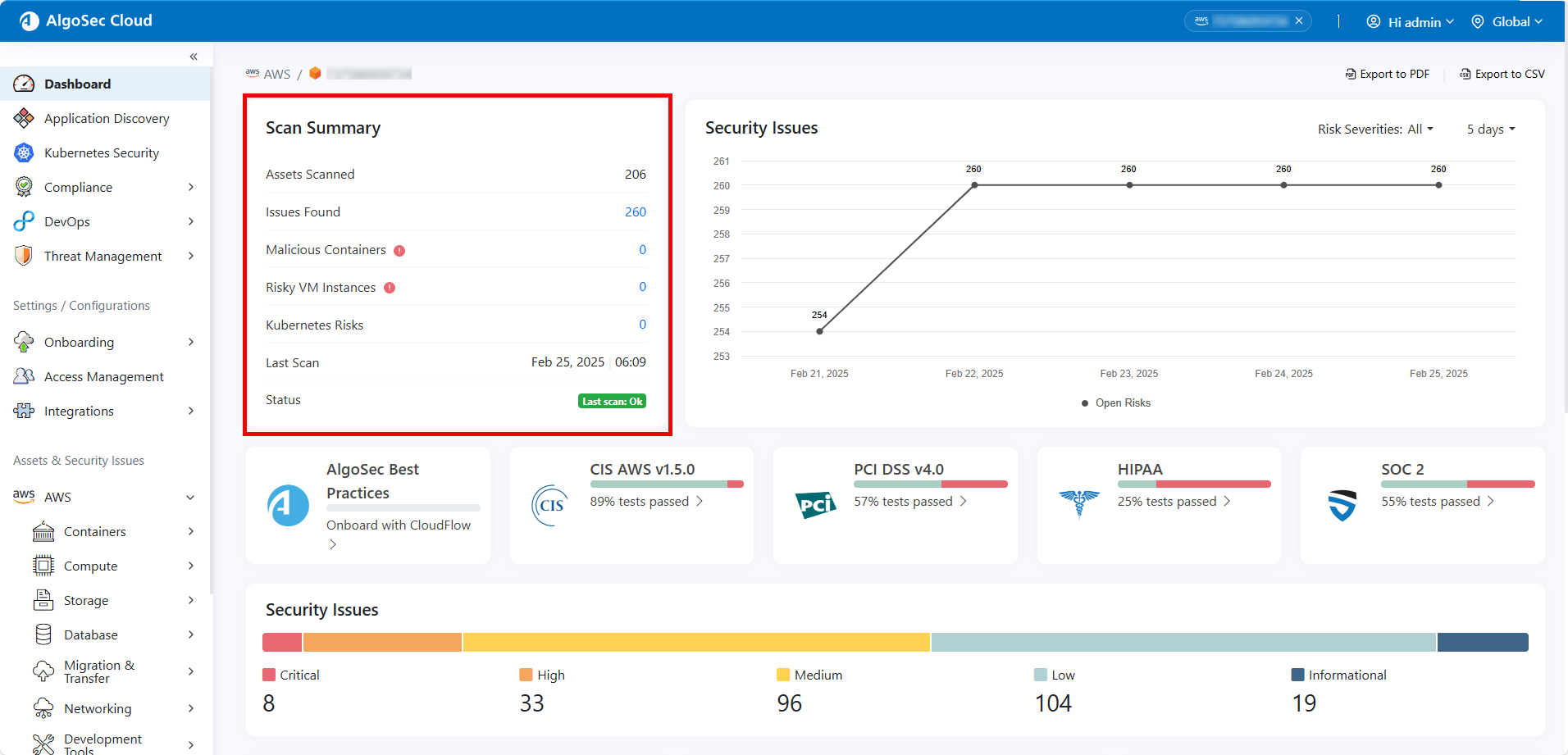
The scan summary section at the tops of the page includes the following details:
| Summary item | Description |
|---|---|
| Assets Scanned | Number of assets scanned in latest scan. |
| Misconfigurations | Number of misconfigurations scanned in latest scan. |
| VM Risks | Number of VM Risks scanned in latest scan. |
| K8s Risks | Number of K8s Risks scanned in latest scan. |
| Malicious Containers | Number of malicious containers found. Click the displayed count to explore detailed information. |
| Last Scan | Date of latest scan. |
| Status | Status of latest scan. |
Explore Configuration and Misconfiguration Trends
The Misconfiguration Trends graph displays both regressions and progress in resolving configuration and compliance issues for the account over time, enabling ongoing monitoring of your security posture's evolution and trends.
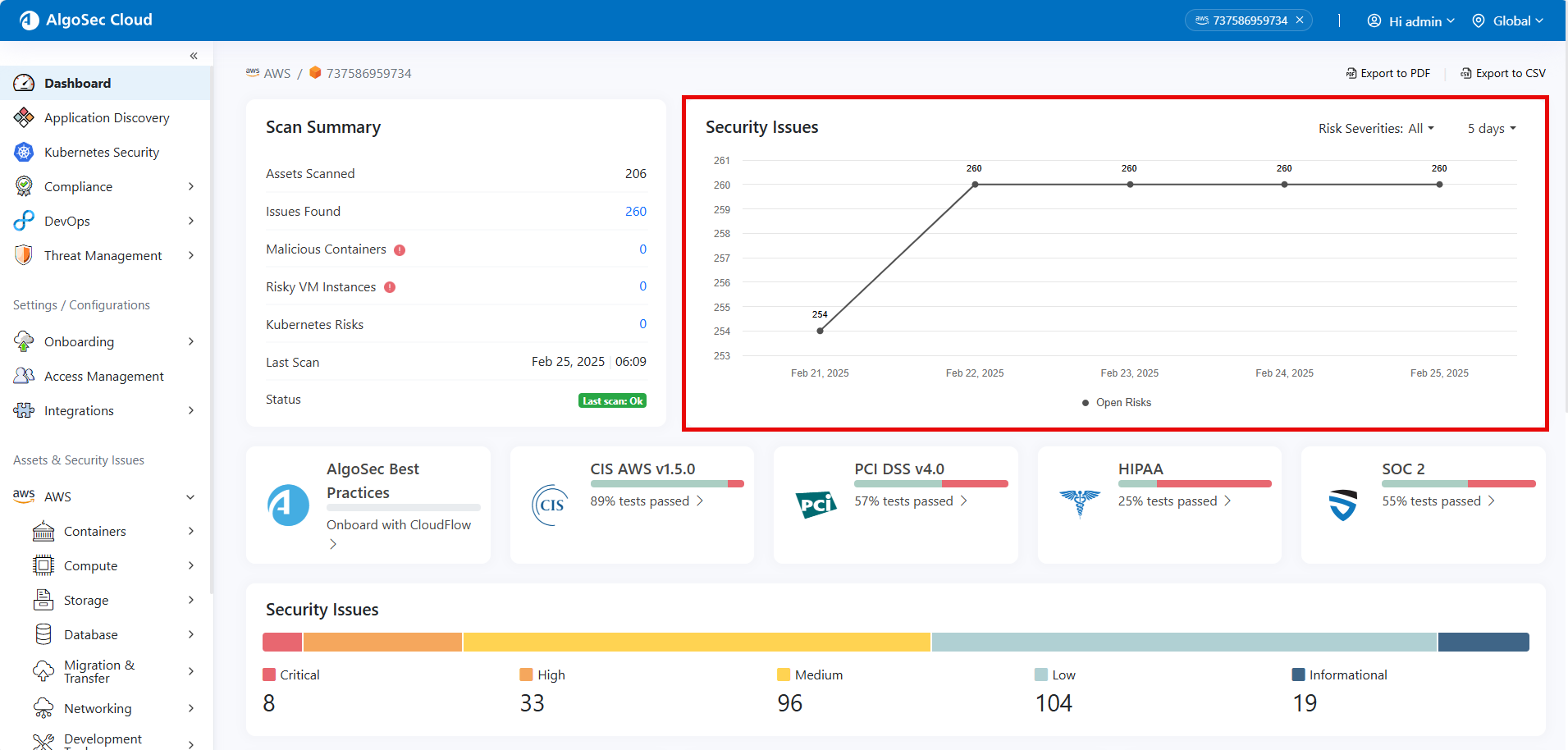
The graph allows customization by Risk Severity level, with options ranging from All, Critical, High, Medium, Low, to Informational.
Additionally, you can adjust the time frame of the data displayed, with selections spanning 5 days, 5 weeks, 5 months or you can set a custom range.
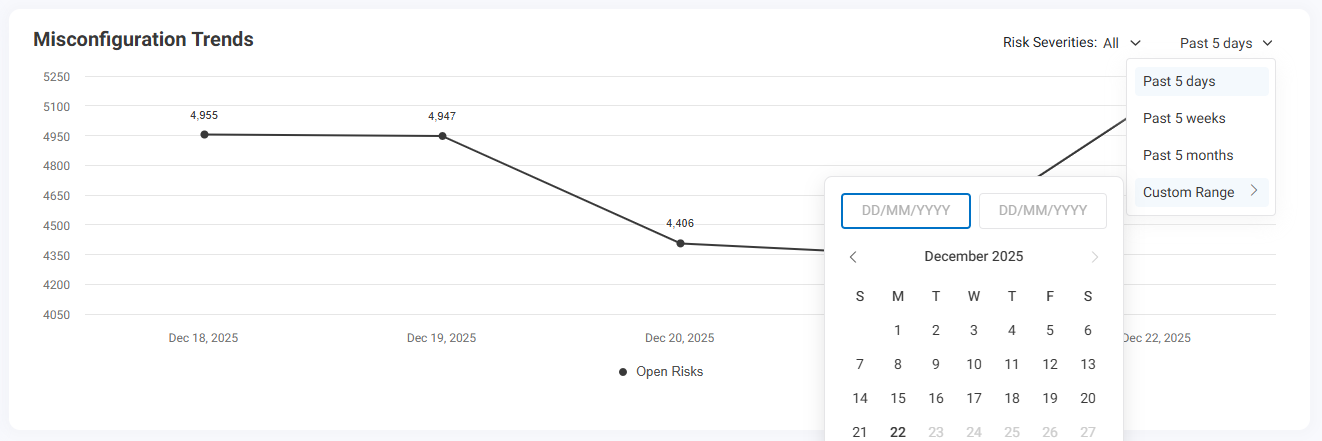
To set a custom range
Do the following:
-
Click the down-arrow next to the time frame.
-
Click Custom Range. The date selector dialog opens.
-
Select the start date and end date. The time frame is set.


 Clear your browser's cache