Getting Around Cloud App Analyzer
This section provides instructions on accessing and navigating ACE's Cloud App Analyzer.
To access Cloud App Analyzer:
-
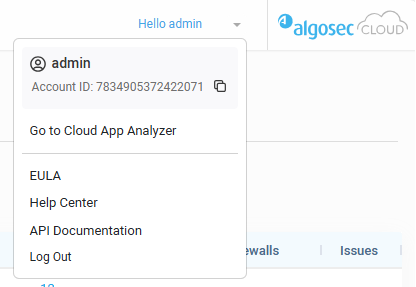
In the toolbar, click your Username. The dropdown list opens.
-
Click Go to Cloud App Analyzer. The Cloud App Analyzer Dashboard appears.
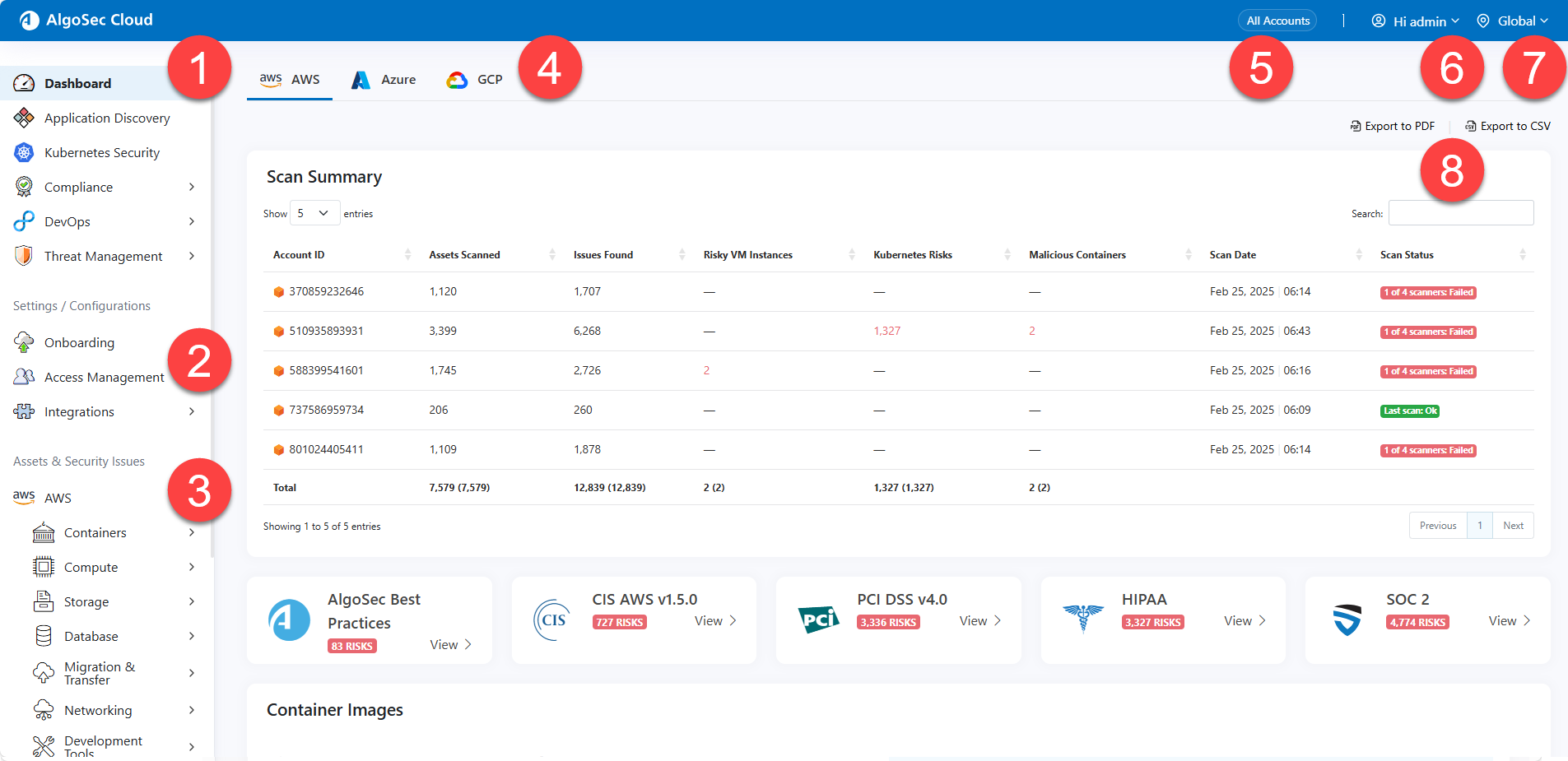
 1 Main menu
The Cloud App Analyzer Main menu consists of the following pages:
| Item | Sub-menu item | Description |
|---|---|---|
| Dashboard |
Cloud App Analyzer is a multi-tenant SaaS solution, that allows multiple clients to connect to the central management console – the Dashboard. See View Configuration and Compliance Risk Trends.
|
|
| Application Discovery |
Application Discovery is an advanced solution designed to identify applications within the customer environment. It present graphs of applications' resource inter-dependencies. See Cloud App Analyzer Application Discovery. |
|
| Kubernetes Security | Displays Kubernetes components information. | |
|
Compliance
|
Detected Risks |
Cloud Service tab |
|
Kubernetes Services tab See identified risks based on selected compliance standard. |
||
| Requirements |
Cloud Service tab See details about compliance standard requirements. See View Compliance Requirements. |
|
|
Kubernetes Services tab See details about compliance standard requirements. See View Compliance Requirements. |
||
| DevOps | GitHub CI | Lists Cloud App Analyzer CI Container Security open Pull Requests. |
| Cloud CD Security | View scan results of your Cloud CD pipeline. | |
| Threat Management | IP addresses | Define rules that determine how Cloud App Analyzer identifies and responds to IP address-related threats in CI/CD environments. See IP Addresses. |
| Domains | Define rules that determine how Cloud App Analyzer identifies and responds to domain-related threats in CI/CD environments. See Domains. | |
| Open ports | Define rules that determine how Cloud App Analyzer identifies and responds to Open Ports-related threats in CI/CD environments. See Open Ports. | |
| Countries | Define rules that determine how Cloud App Analyzer manages geographical IP address risks associated with container traffic, offering a framework for users to adapt security measures based on country risk assessments and specific operational needs. See Countries. | |
| CVEs | Define rules that determine how Cloud App Analyzer identifies and responds to CVE-related threats in CI/CD environments. See CVEs. | |
| Malware | Define rules that determine how Cloud App Analyzer identifies and responds to malware-related threats in CI/CD environments. See Malware names. | |
2 Settings & Configuration
| Item | Sub-menu item | Description |
|---|---|---|
| Onboarding | Onboarding Management | See all onboarded accounts. |
| Permissions Diagnostics |
|
|
| Integrations | Export alerts to Jira | Configure the Cloud App Analyzer to create a JIRA ticket , every time there is a new alert. See Integrate with Jira. |
| CI/CD Container Security | integrate Cloud App Analyzer with your GitHub repository CI process. To configure, see Cloud App Analyzer CI/CD Container Security. | |
| Cloud CD Security | integrate Cloud App Analyzer to manage your CD pipeline. To configure, see Enable Threat Management on AWS ECR , Enable Threat Management on Azure ACR, Enable Threat Management on GCP AR. | |
| System Settings | Scans | Gain direct control over which scans run across the tenant. See Manage Cloud App Analyzer Scanning. |
| Access management | Users | Manage users from this tab. See Manage Users |
| API Access | Instructions on generating and managing API access keys for secure API interactions. See Manage API Access Keys | |
| SSO setup | Enable SSO login on your tenant to give users access to multiple services with a single authentication. See Manage Single Sign-On (SSO). | |
| User Activity | Overview of tracking and managing user activity within the system for security and auditing. See Track User Activities |
3 Assets and Security Issues
Opens the security posture management for the cloud resources native to each cloud service provider.
4 Cloud type selection
Select a cloud type to onboard accounts and drill down to see specific information.
5 All Accounts and Single-account view
At the top of the screen, the Account View indicator switches between two modes: All Accounts and Single-account .
All Accounts: In All Accounts mode, the Account View indicator shows All Accounts presenting an overview of your network’s status by combining data from all accounts at once.
Single-account mode:When you switch to a specific account, the Account View indicator displays the cloud type and account name. You can then drill down into that account’s details to view its specific data. At any time, you can click to return to All Accounts mode.
6 User name (with dropdown menu)
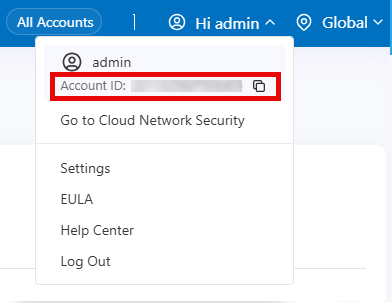
Click the dropdown arrow for additional options:
-
Account ID: Shows Tenant ID. Click
 to copy.
 -
Go to Cloud Network Security: Click to open Cloud Network Security
-
Settings: Delete all connections to JIRA from Cloud App Analyzer. See To delete the integration with Jira
-
EULA: Link to view the EULA
-
Help Center: Click to open ACE Tech Docs
-
Log out: Log out of ACE.
7 Region selector
In Single account view: Use this dropdown to view resources by cloud region. The list shows all regions currently available for the selected account. On services pages (for instance, for AWS, Compute>Lambda, etc.) the list includes the number of discovered resources in each region.
New regions enabled by your cloud provider—or added by you—will automatically appear here after the next scan.
Note: For AWS and GCP, when a region that is new to the system is detected, it will appear at the bottom of the Regions menu and be shown by its region code only. This does not apply to regions that are already known to the system.
8 Export to PDF / Export to CSV buttons


