Manage Cloud App Analyzer Scanning
This topic describes how to disable Cloud App Analyzer scans at the tenant level, the effects of disabling them, and how those changes appear in dashboards and feature pages.
Administrators can manage exactly which Cloud App Analyzer scans are active across the tenant. While all scans are enabled by default, you can turn off individual scans or disable all scans in a single action.
Once a scan is disabled, it no longer runs, and its status is clearly shown in dashboards and feature pages. Previous results remain available until the next scan cycle, after which the scan is displayed as Disabled and no further data is shown.
Note: Removing permissions stops a scan from completing successfully, but it does not prevent the scan from running. The system will still attempt the scan, encounter missing permissions, and mark it as failed—adding unnecessary noise and failed status indicators to dashboards.
Disabling a scan, on the other hand, prevents it from running altogether. This avoids false failures and clearly indicates that the scan has been intentionally turned off.
Cloud App Analyzer Scan Types
| Basic Scan |
Scans general cloud services, detecting misconfigurations and compliance-related risks. You may keep Basic Scan selected and deselect any of the other three scans individually. However, if you deselect Basic Scan, all scans are automatically disabled. |
| Kubernetes Scan |
Security and compliance checks for Kubernetes clusters. Scans for K8s vulnerabilities, malware, and secrets. |
| VM Scan |
Scans Virtual Machines for vulnerabilities, malware, and secrets. Note: Basic Scans also cover virtual machines, but this VM Scan provides deeper analysis. |
| Containers Scan | Analyzes files and executables in an isolated environment. Scans for static and dynamic analysis of containers |
Manage Cloud App Analyzer Scans
-
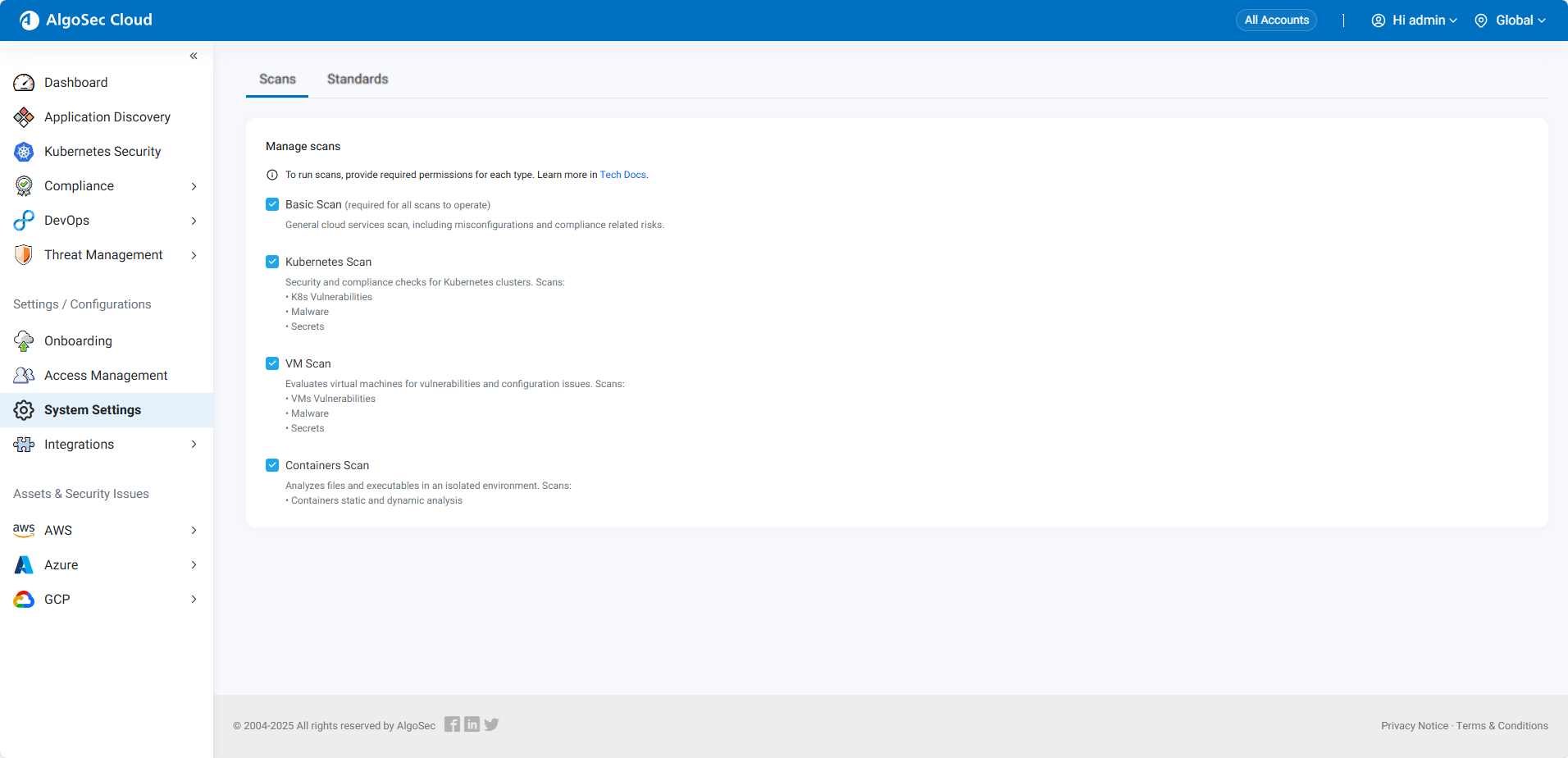
In the Cloud App Analyzer left hand menu, navigate to System Settings > Scans tab. The Scans tab opens.
-
Clear the checkbox next to the scans you want to disable.
Note: You may keep Basic Scan selected and deselect any of the other scans individually. However, if you deselect Basic Scan, all scans are automatically disabled.
The system immediately stops running the disabled scans and updates all dashboards and reports accordingly. Dashboards and feature pages clearly show the scan as Disabled. Any previously collected results remain visible until the next scan cycle, after which no data is displayed for the disabled scan.


 Clear your browser's cache