Saved views
Important: The Saved Views functionality is currently supported on the Objects page and on all tabs of the Analysis page (except Similar Groups).
This topic explains how you can set personalized views of supported ObjectFlow pages.
The default view of ObjectFlow pages is displayed every time you log in. If you make changes to a page while you are logged in, those changes will remain as you navigate through ObjectFlow. However, if you log out and log in again, the view will revert to the default view.
To save a personalized view for supported pages, you can specify the following settings:
-
The search terms entered
-
The filters applied
-
The sorting order of the columns
-
The personalization of the columns (e.g., which columns are displayed, their width, and their order)
-
The object type (network or service) selected (for the Objects page)
-
The Dynamic Objects toggle state (for the Objects page)
Saved views are saved per user, so each user can have their own set of saved views.
The Views Icon at the top right corner of ObjectFlow pages indicates the following states:
| View icon state | Description |
|---|---|
 |
No saved views have been set |

|
Saved views have been set |
 (followed by name of the saved view) (followed by name of the saved view) |
The current page is displaying this view |
Once you have saved a view, you can quickly recall it by clicking the Views icon and selecting the name of the view from the list. You can also set a view as your default view, so that it is always displayed when you first log in to ObjectFlow.
Save a new view
To save a new view:
Do the following:
-
Adjust the list view by setting search terms, filters, sorting, columns, object type, and the Dynamic Objects toggle state.
-
Click the Views icon (
, , or ) and then click . The Save New View dialog appears.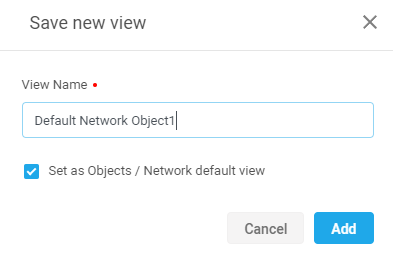
-
Enter a View Name for the view.
-
Select the Set as default view check box if you want this view to be the default view of the page.
-
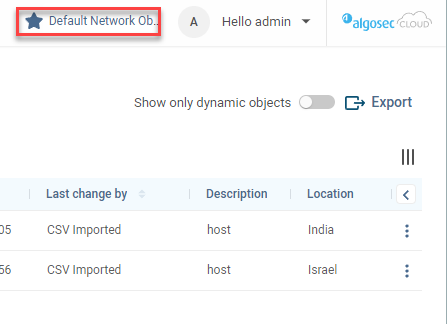
Click Add . The current view appears in the top menu bar.
Modify views
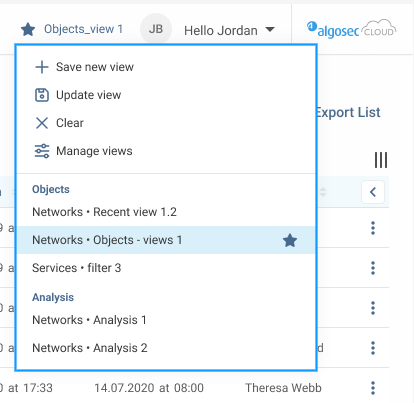
Once views have been saved, click the View icon (, or ) to display the saved views options.
| Option | Description |
|---|---|
| +Save new view | Click to save a new view. See Save a new view. |
| Update view | Save the current view with any new settings you have made. |
| Clear | Revert current view to the system default view. |
| Manage views |
Click Manage Views to open the Manage Saved Views dialog:
|
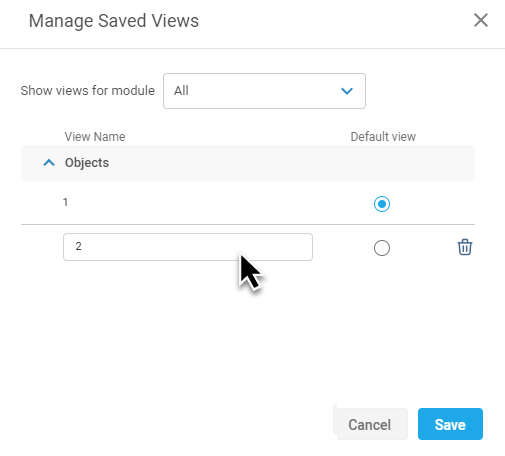
 to permanently delete view from the page. There is no way to recover a view after you remove it.
Any changes made in this dialog box will take effect after you select the Save button.
Switch between views
Once views have been saved, click the View icon (, or ) to display the saved views options.
Click views to switch to the saved view on the current or other page.


 Clear your browser's cache