Permission Diagnostics for the Flow Logs
This topic explains how to enable and validate VPC Flow Logs so Cloud App Analyzer can use Flow Logs to analyze network connectivity between microservices and accurately map application behavior.
Note: If you do not plan to use Cloud App Analyzer, these steps in this topic are not required.
For users who want to leverage Cloud App Analyzer, we recommend enabling VPC Flow Logs for all relevant VPCs.
After completing AWS account onboarding and configuring flow logging (described in VPC Flow Logs ACE will guide you through reviewing and addressing any remaining access requirements. The following steps explain how to complete this process.
Do the following:
-
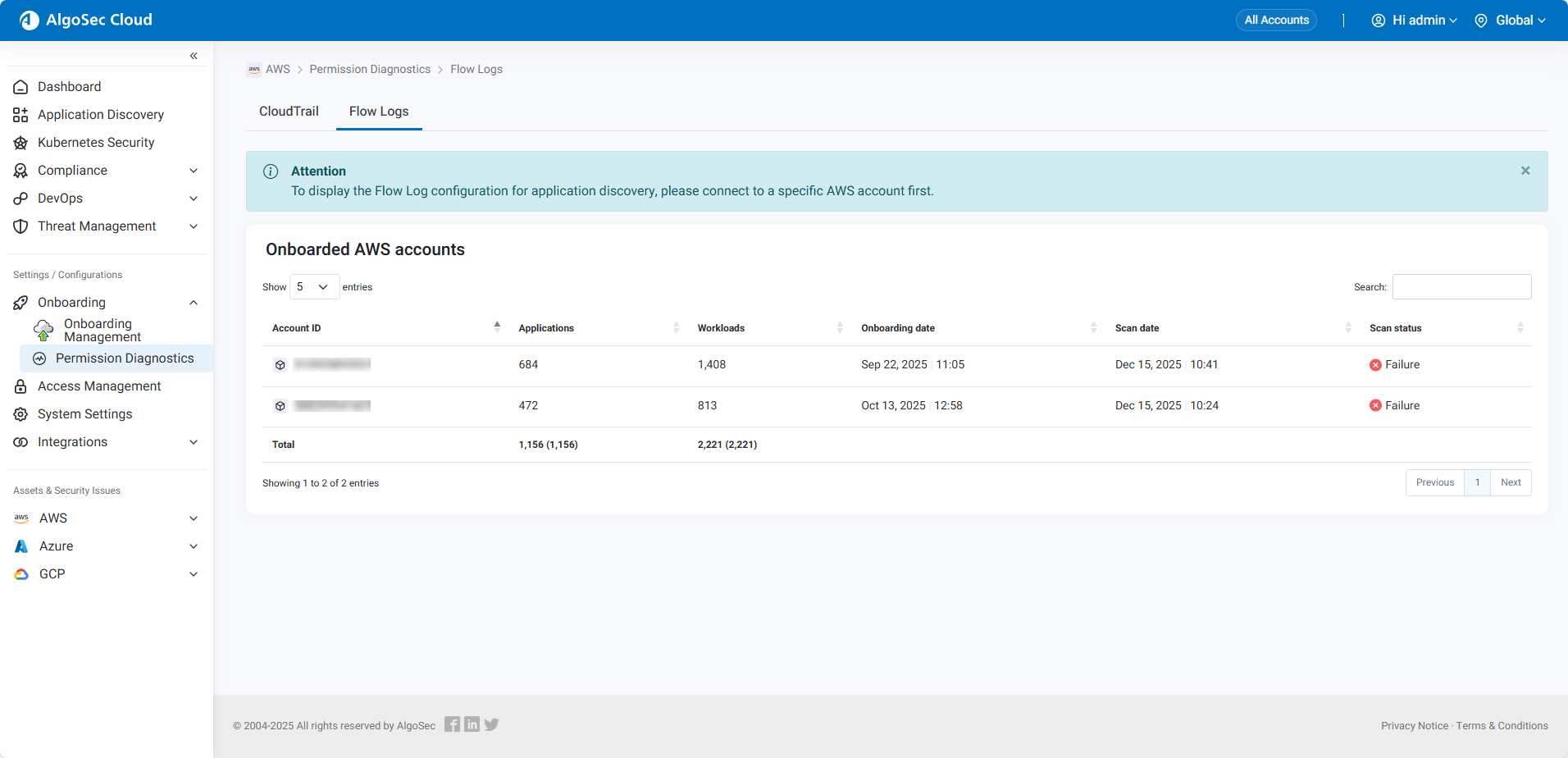
Open the Flow Logs Diagnostics: In Cloud App Analyzer, go to Settings / Configurations > Onboarding > Permissions Diagnostics > Flow Logs.
The AWS Flow Logs page opens.
-
Select an AWS Account: Choose the AWS account you want to review.
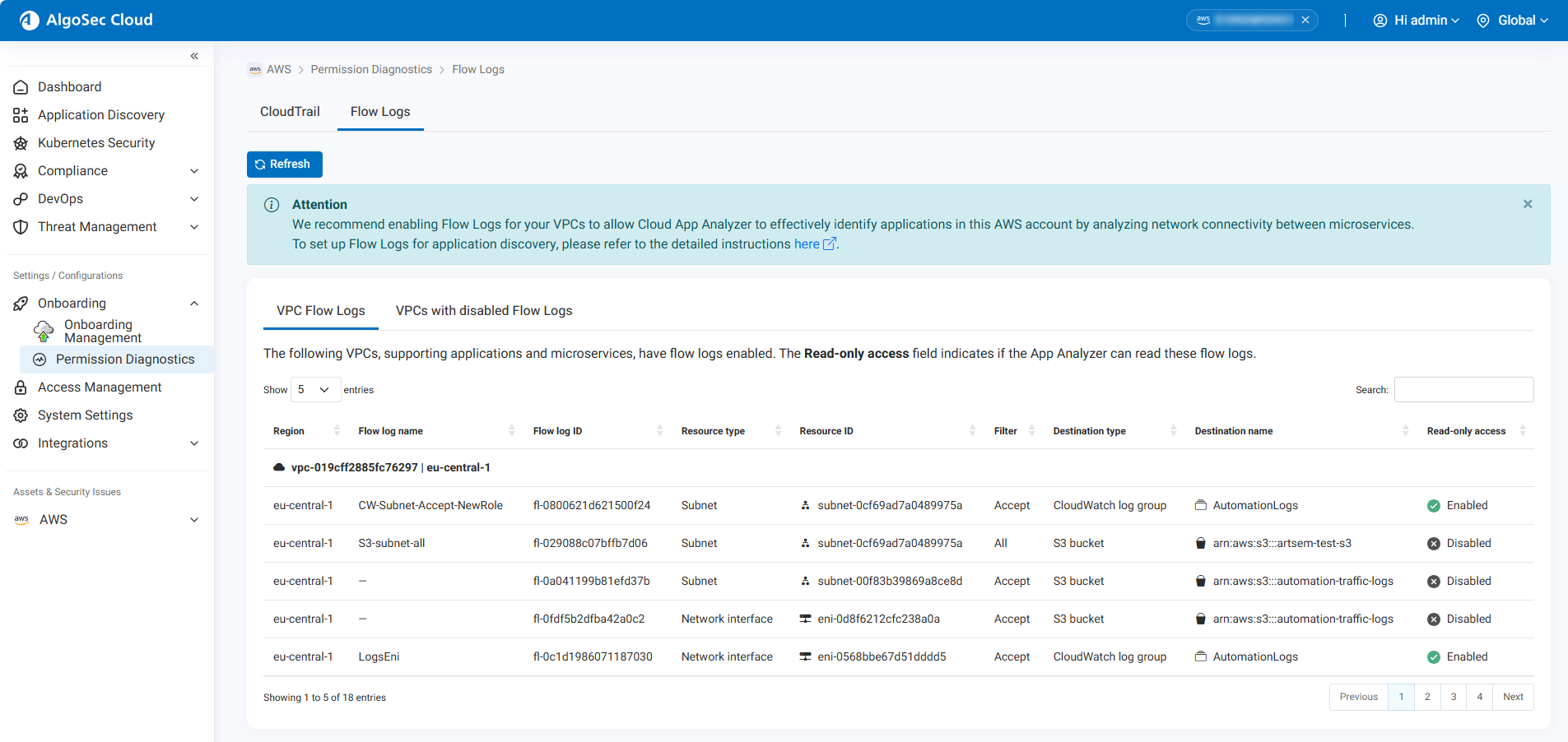
The VPC Flow Logs status for the selected account is displayed.
-
Review the VPC Flow Log Status:
On the VPC Flow Logs tab, ACE displays read-only access status for each VPC::
-
 Enabled — VPC Flow Logs are configured properly in ACE.
 -
 Not Found — VPC Flow Logs are not configured properly.
The VPCs with Disabled Flow Logs tab lists VPCs that currently do not have Flow Logs enabled..
Tip: Click Refresh to update the Diagnostics table in real time.
-
-
Review the Attention Box
At the top of the Flow Logs page, check the Attention box.
-
If all requirements are met, no further action is needed.
-
If configuration is incomplete, a notification appears with a link to tailored setup instructions.
Click the link in the Attention box to open step-by-step configuration guidance specific to your environment.
-
-
Complete Flow Logs Setup: If updates are required:
-
Click the link in the Attention box to view the detailed instructions for each VPC.

-
Follow the steps to complete the VPC Flow Logs configuration.
While you proceed, the configuration status updates in the table.
Tip: Click Refresh to view real-time updates.
-


 Clear your browser's cache