Add cloud devices
Relevant for: AFA Administrators
This topic describes how to add an AWS account or an Azure subscription to AFA, to be managed and analyzed similarly to on-premises devices. ASMS supports Google Cloud Project policy visibility and risks for Google Cloud firewalls added in ACE.
Add AWS (Amazon Web Service) accounts in AFA
When ASMS is connected to ACE, onboarding AWS accounts is done in ACE and the accounts are onboarded automatically to ASMS. See Simultaneously Onboard AWS Accounts into ACE and ASMS.
For existing onboarded AWS accounts in ASMS:
-
If accounts are also onboarded to ACE: There are two ways to sync accounts. See Simultaneously Onboard AWS Accounts into ACE and ASMS
-
If accounts are not onboarded to ACE they will continue operating in ASMS without interruption. See Add accounts to ASMS when ACE is not connected.
Simultaneously Onboard AWS Accounts into ACE and ASMS
You can use onboard AWS accounts to both ACE and ASMS from one central location—ACE Cloud Network Security (see Onboard AWS Accounts to Cloud Network Security). By following the steps in this section, once you add AWS accounts to ACE, they will automatically be onboarded to ASMS, using the permissions set in ACE.
Note: Accounts that are already added to ASMS but not to ACE will continue to operate in ASMS without interruption.
When you make changes to the status of accounts in ACE, you need to sync these changes to ASMS to ensure alignment.
This is particularly useful:
-
After initially connecting ASMS and ACE.
-
After upgrading to A33.10.
-
After updating ActiveChange permissions for AWS accounts in ACE.
-
If there is a discrepancy in account listings between ASMS and ACE.
Note: When ACE is connected to ASMS, always update the account display name in ACE—any changes you make in ASMS will be overwritten by ACE at the next sync.
Do the following:
-
ASMS-ACE Integration If ASMS is not yet integrated with ACE, refer to ASMS integration to SaaS services for guidance on completing the integration. Once integration is established, any AWS accounts already onboarded to ACE will automatically be included in ASMS, and newly onboarded accounts will be simultaneously added to ASMS.
-
Sync between ASMS and ACE:
You can initiate a sync in either of two ways:
-
In AFA: click your username, and select Administration > Integrations.
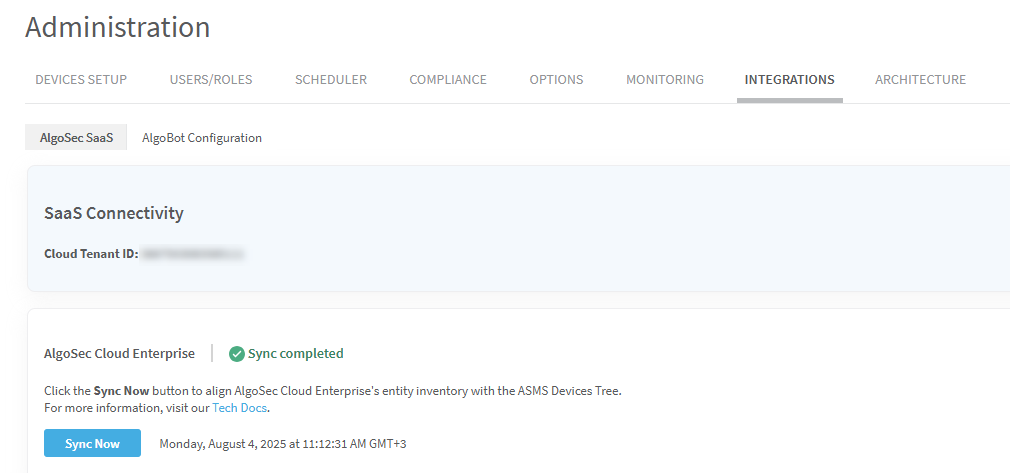
Click Sync Now. This aligns ACE entity inventory including permissions with ASMS.
-
Use the Sync AWS Accounts API: by sending a POST request to /aws-accounts/sync. See Sync ACE Resources with ASMS .
Added accounts to ACE, will automatically be onboarded to ASMS, including all associated permissions.
Tip: If you notice some accounts aren’t yet in ASMS, let ACE finish onboarding them before you try again.
-
-
For instructions on how to add new accounts, visit AWS Account Management in ACE Tech Docs.
Edit AWS accounts onboarded with ACE
After onboarding an AWS account to ACE, you can still update AWS account details directly in ASMS.
Do the following:
-
Access the Devices Setup page. For details, see Access the DEVICES SETUP page.
-
Select the AWS account from the device tree that you want to edit and click Edit.
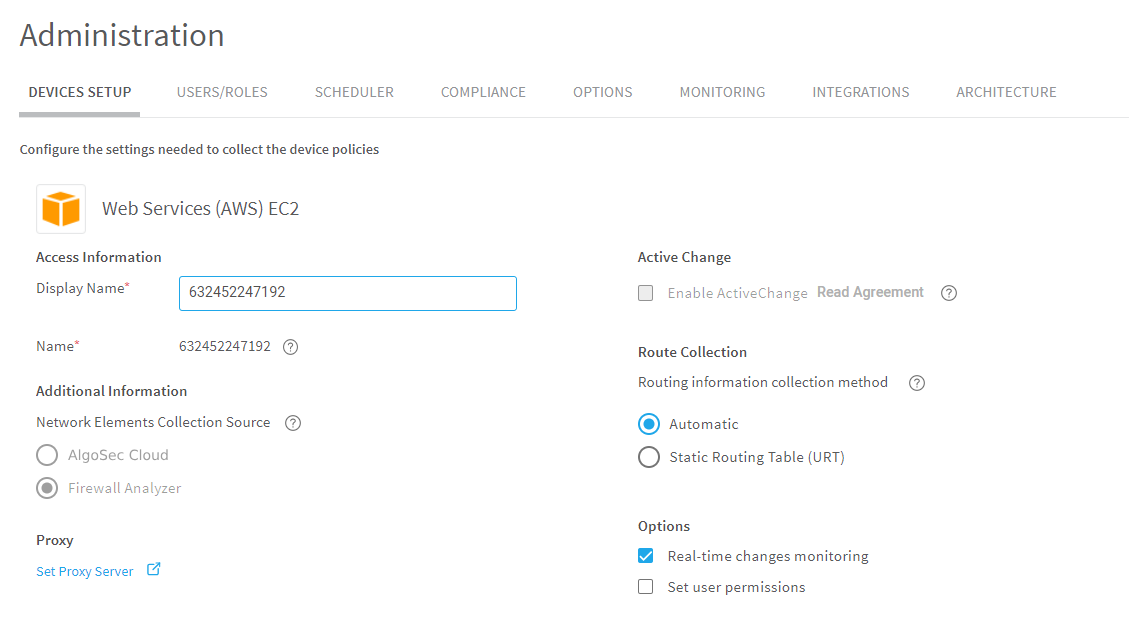
The Web Services (AWS) EC2 page opens.
-
Complete the fields as needed.
Access Information
In the Display Name field, enter the name that you want to appear in the device tree for this account.
Note: if you change the Display Name in ACE, the update will automatically be reflected in ASMS. However, any changes you make in ASMS will be overwritten by ACE at the next sync.
Tip: Use the account's host or route name.
ActiveChange This read-only field shows whether ActiveChange is enabled. ActiveChange is enabled when permissions for policy change are granted during onboarding. To update the ActiveChange status of an onboarded AWS account, see Update AWS details. Additional Information
Network Elements Collection Source This read-only field displays the source module that collects the network elements of the subject AWS account and updates the network map.
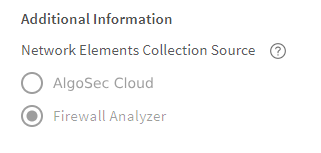
The default source is ACE. To switch to ASMS for AWS network element support in the network map, set the AWS_Network_Elements_Parse_From_AFA parameter to true.For instructions on how to modify this parameter, see Configuring the AWS Network Elements Collection Source in Algopedia
 .
.Note: When set to be run from ASMS, data collection is performed on the Central Manager only (not on Load Distribution Units).
Route Collection
Select one of the following to determine how AFA should acquire the device's routing data.
-
Automatic. Automatically generate routing data upon analysis or monitoring.
-
Static Routing Table (URT). Take the device's routing data from a static file that you provide.
For details, see Specify routing data manually.
Options Select the following options for your AWS account as needed:
- Real-time change monitoring.Select this option to enable real-time alerting upon configuration changes. For more details, see Configure real-time monitoring.
- Set user permissions. Select this option to set user permissions for this device.
Click Set Proxy Server to configure a proxy server to connect all cloud devices defined in AFA, including both AWS and Azure.
For more details, see Define a proxy server .
-
-
Click Edit to save your changes.
-
If you selected Set user permissions, the Edit users dialog box appears.
In the list of users displayed, select one or more users to provide access to reports for this account.
-
To select multiple users, press the CTRL button while selecting.
-
Click OK to close the dialog.
-
Set Up Specific Regions for Data Collection in AFA
When onboarding new accounts, AFA connects to multiple data centers spread across multiple geographical locations (regions) to gather data from the available AWS resources. If you want to limit data collection to specific regions only, this section explains how you can configure a customized set of regions for data collection on the DEVICES SETUP.
Do the following:
-
Edit the file /usr/share/fa/data/plugins/aws/brand_config.xml as follows:
-
In the configuration file, locate the FORM_FIELD with the title "Regions".

The FORM_FIELD is followed by a list of dropdown options.
-
Add a new option to the dropdown specifying the regions to collect data from. Set 'value' to the specific data collection regions and 'display' to how the selection appears in the Regions dropdown. For example:
<OPTIONS value="eu-north-1 eu-central-1 us-east-1 eu-west-1" display="My Regions"/>
-
-
Save the file.
Note: For the new option to appear in the dropdown, log out and then log in.
Add accounts to ASMS when ACE is not connected
Add an AWS account to AFA to analyze data using the AWS access key and secret IDs you provide.
Analyzed data includes all of the security groups protecting EC2 instances and application load balancers (ALBs), from all AWS regions related to the configured access key. AFA separates these instances into groups called security sets. Each AWS security set is a group of instances or ALBs with the same security group and network ACLs, as well as network policies.
This section explains how to add AWS accounts to ASMS when ACE is NOT connected, as follows:
- Network connection
- Permission requirements for AWS
- Add an AWS account to AFA
- Add cloud devices
- Bulk Update of AWS Account Credentials
Tip: You can also add an AWS account, using the Assume-Role method. For more details, see AWS account fields and options using the assume-role method.
The following diagram shows an ASMS Central Manager connecting to an AWS account via HTTPS-REST (TCP/443).

Tip: ASMS also supports connecting to AWS via a proxy server, which can be configured when adding the device to AFA. For more details, see Define a proxy server .
Note: AFA does not support using Geographical Distribution Remote Agents to manage AWS accounts.
Permission requirements for AWS
ASMS requires the following permissions for your AWS accounts:
 Device analysis
AFA requires minimal read-only access permissions to access AWS and collect data.
This includes the following AWS access keys:
- Access Key ID
- Secret Access Key
We recommend creating a specific IAM user with access keys instead of relying on root user access keys.
The AmazonEC2ReadOnlyAccess policy must be attached to the IAM user.
For example:
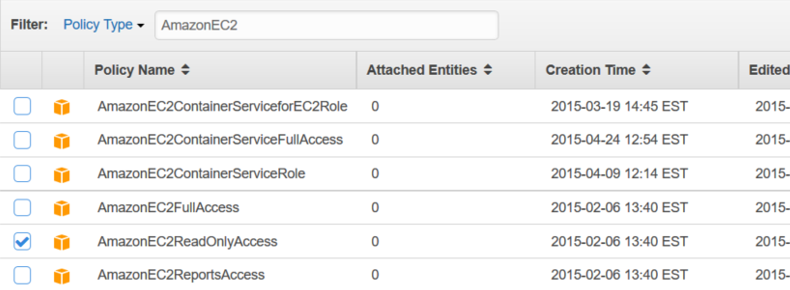
This enables the following permissions for ASMS to perform data collection for target AWS accounts:
|
Required IAM permission* |
API permission |
Purpose |
ASMS functionality |
|---|---|---|---|
|
*Click for link to Amazon API Docs |
|||
| Access level: READ | |||
ec2:Describe* |
describeInstances |
Gets all of the AWS data needed for ASMS |
Devices tree, network map & TSQ |
describeVpcs |
Devices tree, network map & TSQ | ||
describeSecurityGroups |
Policy visibility, TSQ | ||
describeNetworkAcls |
Policy visibility, TSQ | ||
describeNetworkInterfaces |
Network map & TSQ | ||
describeInternetGateways |
VPN support in network map & TSQ | ||
describeRouteTables |
Network map & TSQ | ||
describeRegions |
Devices tree | ||
describeSubnets |
Network map & TSQ | ||
describeVpnGateways |
VPN support in network map & TSQ | ||
describeVpcPeeringConnections |
Network map & TSQ | ||
describeVpnConnections |
VPN support in network map & TSQ | ||
elasticloadbalancing:Describe* |
describeLoadBalancers |
Gets the specified load balancers or all load balancers | Network map & TSQ |
| sts:Get* | getCallerIdentity | Gets AWS Account ID by the provided Access Key ID and Secret Access Key |
Needed for all supported AWS API calls. |
ActiveChange
When ActiveChange is enabled, the IAM user must have read-only permissions, plus the following additional permissions:
| # |
Required IAM permission* |
API permission |
Purpose |
ASMS functionality |
|---|---|---|---|---|
|
*Click for link to Amazon API Docs |
||||
| Access level: WRITE | ||||
| 1 | ec2:AuthorizeSecurityGroupIngress |
AuthorizeSecurityGroupIngress |
Adds the specified inbound (ingress) rules to a security group |
Active change |
| 2 | ec2:RevokeSecurityGroupEgress |
RevokeSecurityGroupEgress |
Removes the specified outbound (egress) rules from the specified security group | Active change |
| 3 | ec2:RevokeSecurityGroupIngress |
RevokeSecurityGroupIngress |
Removes the specified inbound (ingress) rules from a security group | Active change |
| 4 | ec2:AuthorizeSecurityGroupEgress |
AuthorizeSecurityGroupEgress |
Adds the specified outbound (egress) rules to a security group for use with a VPC | Active change |
For example:
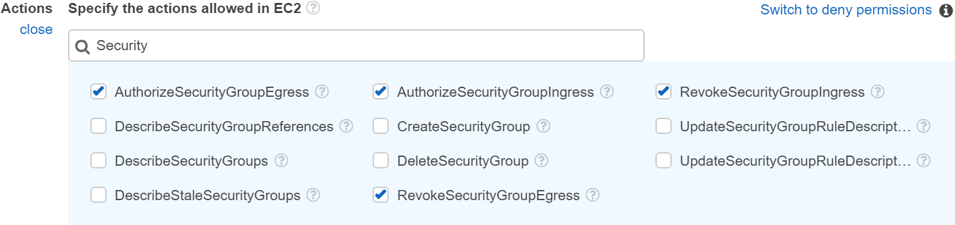
You can add an AWS account to ASMS in two ways:
-
Using the standard method: Add an account by providing regular credentials - Access Key ID, Secret Access Key
-
Using the assume-role method: By using the assumed role method, you can leverage the same authentication credentials for multiple accounts. To implement this, add target AWS accounts to ASMS and configure them to assume the role of an existing AWS base account. During each target account setup, provide the base account's Access Key ID and Secret Access Key and enter the target account's Role ARN.
Note: The setup of target accounts is a sequential process and does not involve simultaneous onboarding of multiple accounts.
Note: The base account does not have to be onboarded to ASMS.
Do the following:
-
Access the DEVICES SETUP page. For details, see Access the DEVICES SETUP page.
-
Click New > Devices.
-
In the vendor and device selection page, select Amazon > Web Services (AWS) EC2.
-
Configure the fields and options as needed:
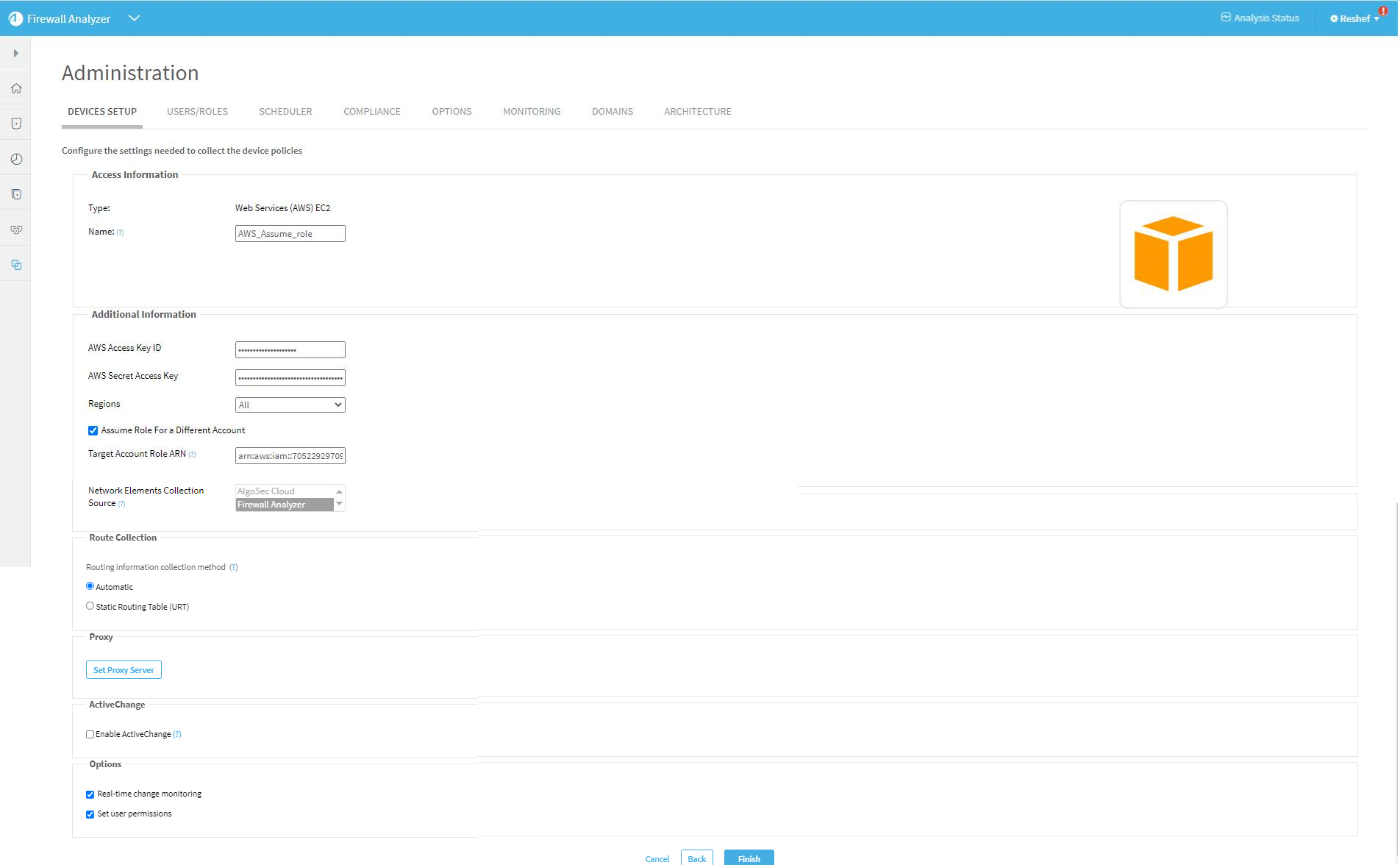 AWS account fields and options using the standard method
Access Information
The device type is automatically defined.
In the Name field, enter the name that you want to appear in the device tree for this account.
Tip: Use the account's host or route name.
Additional Information
Enter the following details to define access to your AWS account:
- AWS Access Key ID. Enter your access key, supplied by Amazon.
- AWS Secret Key ID. Enter your secret key, supplied by Amazon.
-
Regions. Select a region. For example:
- All
- China (Beijing)
- GovCloud
Tip: If you want to create a custom list of regions that AFA collects data from, see Set Up Specific Regions for Data Collection in AFA.
Route Collection
Select one of the following to determine how AFA should acquire the device's routing data.
-
Automatic. Automatically generate routing data upon analysis or monitoring.
-
Static Routing Table (URT). Take the device's routing data from a static file that you provide.
For details, see Specify routing data manually.
Click Set Proxy Server to configure a proxy server to connect all cloud devices defined in AFA, including both AWS and Azure.
For more details, see Define a proxy server .
ActiveChange Select Enable ActiveChange for this device.
Options Select the following options for your AWS account as needed:
- Real-time change monitoring.Select this option to enable real-time alerting upon configuration changes. For more details, see Configure real-time monitoring.
- Set user permissions. Select this option to set user permissions for this device.
AWS account fields and options using the assume-role method
Access Information
The device type is automatically defined.
In the Name field, enter the name that you want to appear in the device tree for this account.
Tip: For example, AWS_Assume_Role
Additional Information
Enter the following details:
-
Provide the credentials of an existing AWS account:
-
AWS Access Key ID. Enter the access key, supplied by Amazon.
-
AWS Secret Key ID. Enter the secret key, supplied by Amazon.
-
-
Specify the Region of the new, target account, you wish to onboard to AFA:
- All
- China (Beijing)
- GovCloud
Tip: If you want to create a custom list of regions that AFA collects data from, see Set Up Specific Regions for Data Collection in AFA.
-
Assume Role for a Different Account. Select to add a target account that assumes the role of the existing AWS account accessed above.
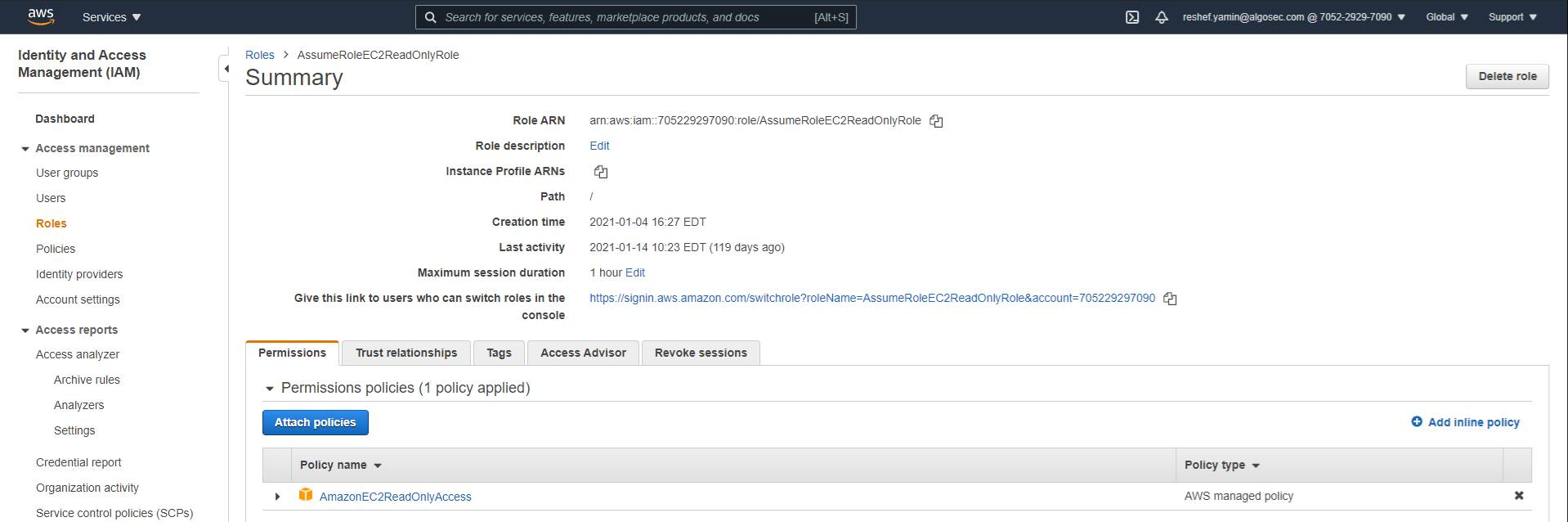
Add the Target Account Role ARN (add the Amazon Resource Name (ARN) of the role to assume.)
TIP: Get the Target Account Role ARN in AWS:
Route Collection
Select one of the following to determine how AFA should acquire the device's routing data.
-
Automatic. Automatically generate routing data upon analysis or monitoring.
-
Static Routing Table (URT). Take the device's routing data from a static file that you provide.
For details, see Specify routing data manually.
Click Set Proxy Server to configure a proxy server to connect all cloud devices defined in AFA, including both AWS and Azure.
For more details, see Define a proxy server .
ActiveChange Select Enable ActiveChange for this device.
Options Select the following options for your AWS account as needed:
- Real-time change monitoring.Select this option to enable real-time alerting upon configuration changes. For more details, see Configure real-time monitoring.
- Set user permissions. Select this option to set user permissions for this device.
-
Click Finish. The new device is added to the device tree.
-
If you selected Set user permissions, the Edit users dialog box appears.
In the list of users displayed, select one or more users to provide access to reports for this account.
-
To select multiple users, press the CTRL button while selecting.
-
Click OK to close the dialog.
-
A success message appears to confirm that the account is added.
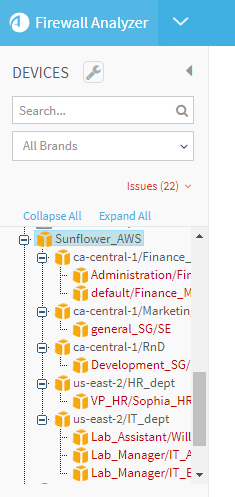
In the device tree, AWS accounts are shown in three levels: the account, region/VPC, and security group.
For example:
Tip: In the onboarding stage, communication may be temporarily directed to the public services of the AWS firewall when using a third party proxy. Wait 10-15 minutes to sync the proxy settings inside the ASMS services.
To verify that proxy setting have been synced to all nodes, on the Central Manager run the following code:
/bin/algosec_conf --verify-proxy-configuration
Bulk Update of AWS Account Credentials
An API facilitates access/key password updating, which some customers require to do periodically for their AWS accounts, without reloading the accounts, which can be very time-consuming. See Bulk update keys of AWS cloud accounts
Add Microsoft Azure subscriptions in AFA
These instructions apply to the feature’s general availability, which requires onboarding Azure subscriptions separately to AFA and ACE.
For centralized onboarding via ACE—with automatic ASMS integration using ACE’s permissions—see the Early Availability feature: Unified Azure Subscription Onboarding via ACE.
Important: To see Azure topology in the ASMS map (used for Traffic Simulation Queries) and FireFlow Automation, you must onboard the Azure Subscription in both ASMS and ACE. First connect ACE to ASMS (see ACE - ASMS Integration) and then onboard your subscription (see Onboard Azure Subscriptions to Cloud Network Security).
When you add an Azure subscription to AFA, all VMs related to your subscription are represented in the device tree.
-
AFA separates the VMs into groups called security sets. Each Azure security set is a group of VMs with the same network security group and subnet network security groups.
-
VMs with no network security groups are assigned to a security set called Unprotected VMs. To enable accurate traffic simulation, AFA automatically creates a rule to allow all traffic for these VMs.
-
A Network security group, that is not attached to any VMs or subnets, is placed into a dedicated security set.
For more details, see:
- Network connection
- Permission requirements for Azure
- Add a Microsoft Azure subscription to AFA
- Enable ACE - ASMS integration (optional)
The following diagram shows an ASMS Central Manager connecting to an Azure subscription via HTTPS-REST (TCP/443).
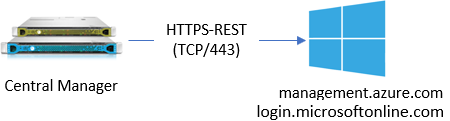
Tip: ASMS also supports connecting to Azure via a proxy server, which can be configured when adding the device to AFA. For more details, see Define a proxy server .
Permission requirements for Azure
ASMS requires the following permissions for your Azure subscriptions:
Device analysis
AFA requires minimal Reader access permissions defined for the subscription to access Azure and collect data.
In your Azure subscription, configure an Active Directory Application to use to connect to AFA.
For details, see How to configure a Microsoft Entra ID Application in AlgoPedia.
For example:
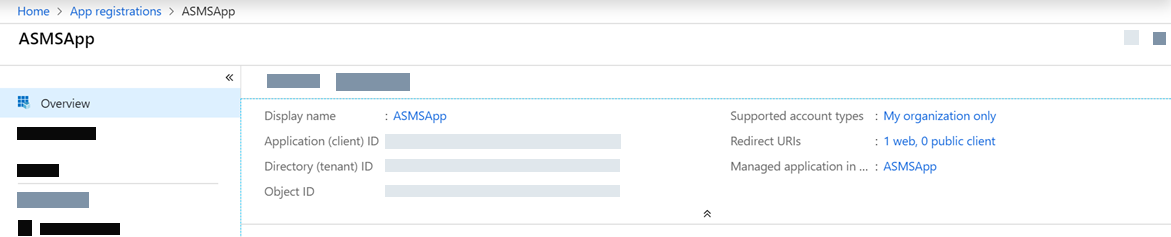
The IAM permissions should be Reader.
For example:

| # |
Required IAM permission* |
Purpose |
ASMS functionality |
|---|---|---|---|
|
*Click for link to Microsoft API Docs |
|||
| Access level: READ | |||
| 1 | Microsoft.Network/networkSecurityGroups/read |
Gets all network security groups in a subscription |
Policy visibility, TSQ, and AFF |
|
2 |
Microsoft.Network/virtualNetworks/read |
Gets all virtual networks in a subscription |
Devices tree, network map, TSQ, and AFF |
| 3 | Microsoft.Network/networkInterfaces/read |
Gets all network interfaces in a subscription |
Network map, TSQ, and AFF |
| 4 | Microsoft.Network/publicIPAddresses/read |
Gets all the public IP addresses in a subscription | Topology, network map, TSQ, and AFF |
| 5 | Microsoft.Compute/virtualMachines/read |
Lists all of the virtual machines in the specified subscription |
Devices tree |
| 6 | Microsoft.Network/routeTables/read |
Gets all the route tables in the specified subscription | TSQ and AFF |
| 7 | Microsoft.Network/virtualNetworkGateways/read |
Gets all virtual network gateways in the specified subscription | VPN support in network map, TSQ, and AFF |
| 8 | Microsoft.Network/localnetworkgateways/read |
Gets all local network gateways in the specified subscription | VPN support in network map, TSQ, and AFF |
| 9 | Microsoft.Network/connections/read |
Gets all the virtual network gateways connections in the specified subscription | VPN support in network map, TSQ, and AFF |
| 10 | Microsoft.Web/hostingEnvironments/read |
Gets all app service environments for a subscription | Devices tree |
| 11 | Microsoft.Network/locations/serviceTags/read |
Gets a list of service tag information resources | Content of the network objects in the policy, TSQ, and AFF |
| 12 | Microsoft.Network/locations/serviceTagDetails/read |
Gets a list of service tag information resources | Content of the network objects in the policy, TSQ, and AFF |
ActiveChange
When ActiveChange is enabled, the IAM user permissions must be updated to Contributor.
For example:

|
Required IAM permission* |
Purpose |
ASMS functionality |
|---|---|---|
|
*Click for link to Microsoft API Docs |
||
| Access level: WRITE | ||
Microsoft.Network/networkSecurityGroups/write (create-or-update) Microsoft.Network/networkSecurityGroups/write (delete) |
Creates or updates a network security group in the specified resource group |
NSG Active change |
Add a Microsoft Azure subscription to AFA
Do the following:
-
In your Azure subscription, configure Entra ID Application to use to connect to AFA, if you have not already.
For details, see How to configure a Microsoft Entra ID application in AlgoPedia
. - In AFA, access the Devices Setup page. For details, see Access the DEVICES SETUP page.
-
In the vendor and device selection page, select Microsoft > Azure.
-
Configure the fields and options as needed.
Azure subscription field and options
Access Information
Enter the following details:
- Name. The Azure subscription's host name or IP address.
- Subscription ID. The Azure subscription's ID.
- Tenant ID. The Entra tenant ID. For more details, see Azure documentation .
- Application ID. The application client ID.
- Key. The application key.
Route Collection
Select one of the following to determine how AFA should acquire the device's routing data.
-
Automatic. Automatically generate routing data upon analysis or monitoring.
-
Static Routing Table (URT). Take the device's routing data from a static file that you provide.
For details, see Specify routing data manually.
Click Set Proxy Server to configure a proxy server to connect all cloud devices defined in AFA, including both AWS and Azure.
For more details, see Define a proxy server .
ActiveChange Select Enable ActiveChange for this device.
Mapping After running a report for an Azure subscription, its topology will be displayed in the network map (with no configuration required). Options Select the following options for your AWS account as needed:
- Real-time change monitoring.Select this option to enable real-time alerting upon configuration changes. For more details, see Configure real-time monitoring.
- Set user permissions. Select this option to set user permissions for this device.
-
Click Finish.
The subscription is added to the device tree.
-
If you selected Set user permissions, the Edit users dialog box appears.
In the list of users displayed, select one or more users to provide access to reports for this account.
-
To select multiple users, press the CTRL button while selecting.
-
Click OK to close the dialog.
-
A success message appears to confirm that the account is added.
Tip: In the onboarding stage, communication may be temporarily directed to the public services of the Azure Cloud firewall when using a third party proxy. Wait 10-15 minutes to sync the proxy settings inside the ASMS services.
To verify that proxy setting have been synced to all nodes, on the Central Manager run the following code:
/bin/algosec_conf --verify-proxy-configuration
Enable ACE - ASMS integration (optional)
Enable ACE - ASMS integration to see:
-
VNets and NSGs on the network map.
-
Azure Firewalls and Hubs in the device tree and on the network map
-
Azure Load Balancers
Do the following:
-
Integrate ACE and ASMS. See ASMS Integration.
-
Onboard the Azure subscription in both AFA and ACE.
-
Enable real time device monitoring. See Configure real-time monitoring. All Azure elements will be visible after the next monitoring cycle.
Tip:
-
To get details about an Azure Firewalls policies and risks:
-
Click the Azure Firewall in the device tree to open the device page.
-
-
Click Policy page to see policies associated with the device in the ACE Policy page.
-
Click Risks page to see risks associated with the device in the ACE Risks page.
-
If your on-premises network is connected to the Azure network via an Azure ExpressRoute, see the following knowledge base article.
Device tree display of NSGs
-
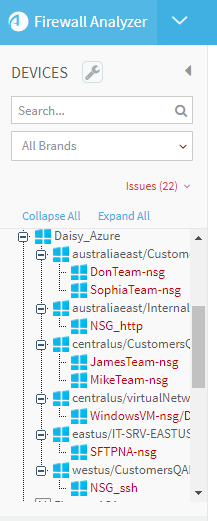
Attached NSGs: in the device tree, Azure NSGs have a three-tier hierarchy:
-
Subscription (customer-given name for the subscription when onboarded to AFA)
-
Region/VNet
-
Security set (a container for one or two NSGs assigned to one or more instances)
Note; When two NSGs exist in the security set, they are both shown separate by a / (For example, WindowsVM-nsg/DT3019).
-
-
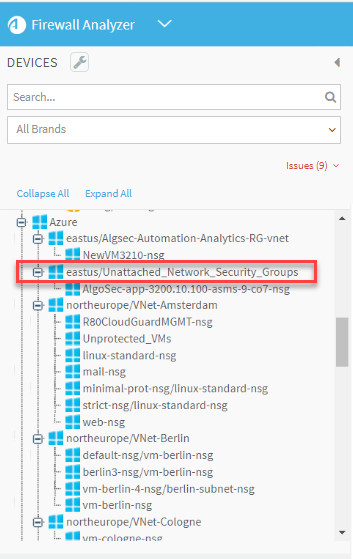
Unattached NSGs: Unattached NSGs include network security groups that are either unassigned or not associated with a VM or App Service Environment (ASE), even if they are linked to an interface or subnet. In the device tree they are shown with the same three-tier hierarchy as attached NSGs except that the second tier is shown as a placeholder virtual network labeled region/"Unattached_Network_Security_Groups".
Note: Network Map/TSQ/Routing Query are not relevant for unattached NSGs.
Device tree display of Azure Firewall
-
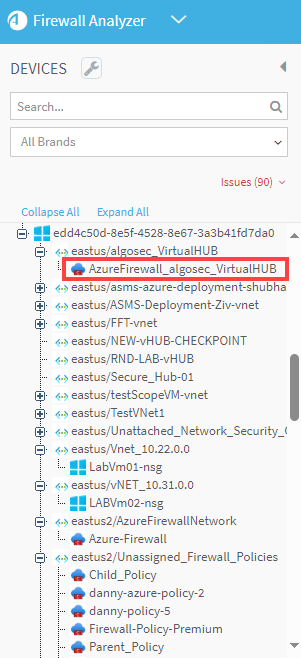
Azure Firewall: in the device tree, Azure Firewall has a three-tier hierarchy:
-
Subscription (customer-given name for the subscription when onboarded to AFA)
-
Region/VNet or Virtual Hub
-
Azure Firewall
-
-
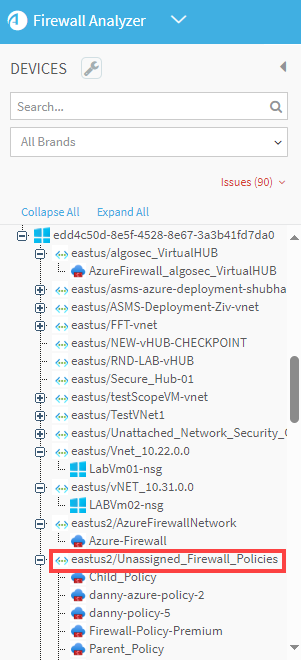
For unassigned Azure Firewall policies (policies which are not assigned to any Azure Firewall): The device tree displays the following three-tier hierarchy:
Note: Unassigned Azure Firewall policies are not shown in the network map and the TSQ results
-
Subscription (customer-given name for the subscription when onboarded to AFA)
-
Region/"Unassigned_Firewall_Policies"
-
Unassigned Firewall Policies
-
Device tree display of Azure Load Balancer
-
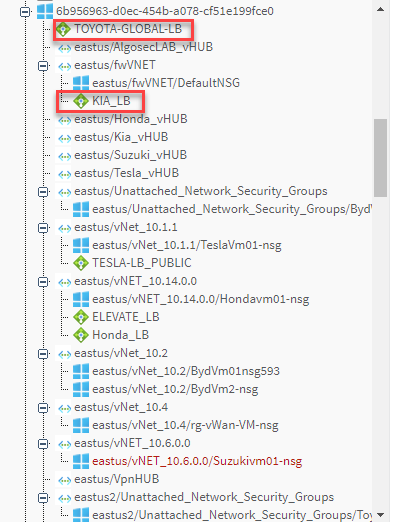
In the device tree, Azure Load Balancer has a three-tier hierarchy:
-
Subscription (customer-given name for the subscription when onboarded to AFA)
-
Region/VNet or Virtual Hub/Azure Global Load Balancer
-
Azure Load Balancer
-
Google Cloud projects in AFA
Note: ASMS supports visibility and risks calculations for Google Cloud Projects. There is an Early Availability feature which supports additional features including Map and Traffic Simulation Query. See Early availability features.
ASMS supports Google Cloud Project policy visibility and risks for Google Cloud added in ACE (formerly CloudFlow).
Note: To enable this feature, you must first:
-
Integrate ASMS with ACE, see ACE - ASMS Integration
-
Onboard your Google Cloud Project, see Onboard Google Cloud Project.
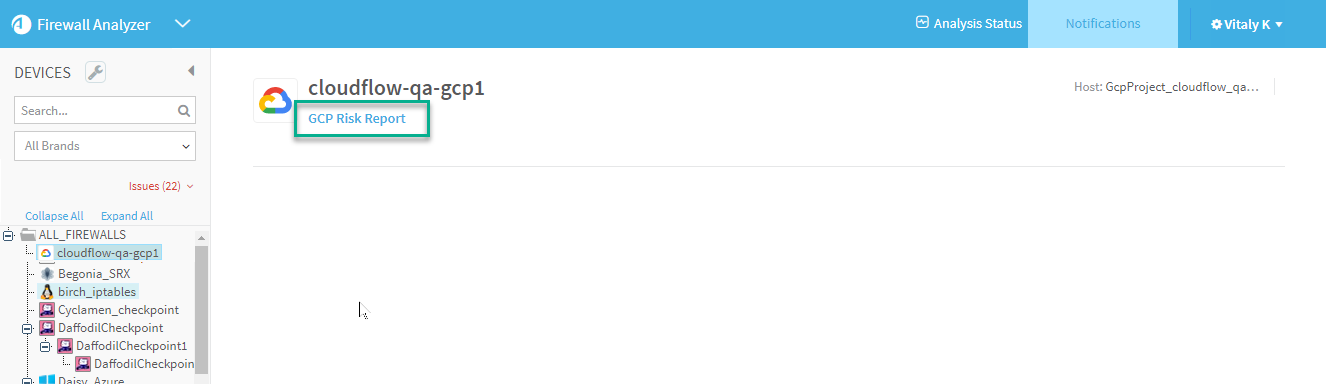
To open the Google Cloud Risk Report in ACE from ASMS.
Do the following:
-
In the ASMS device tree, select the Google Cloud Project.
-
Click the link to Google Cloud Risk Report to open the report in ACE.


