For network objects
You can run an AFA Traffic Simulation Query (TSQ) based on a selected object right from ObjectFlow and see results without leaving the application. This topic explains how.
To access the Connectivity tab
-
In ObjectFlow, from the main menu on the left, click OBJECTS. The Objects page opens, listing found objects.
-
Select an object. You can select directly from the Objects Found list or by using the Object Search bar (see Search objects). The Object Details pane appears in the workspace.
-
Click the CONNECTIVITY tab.
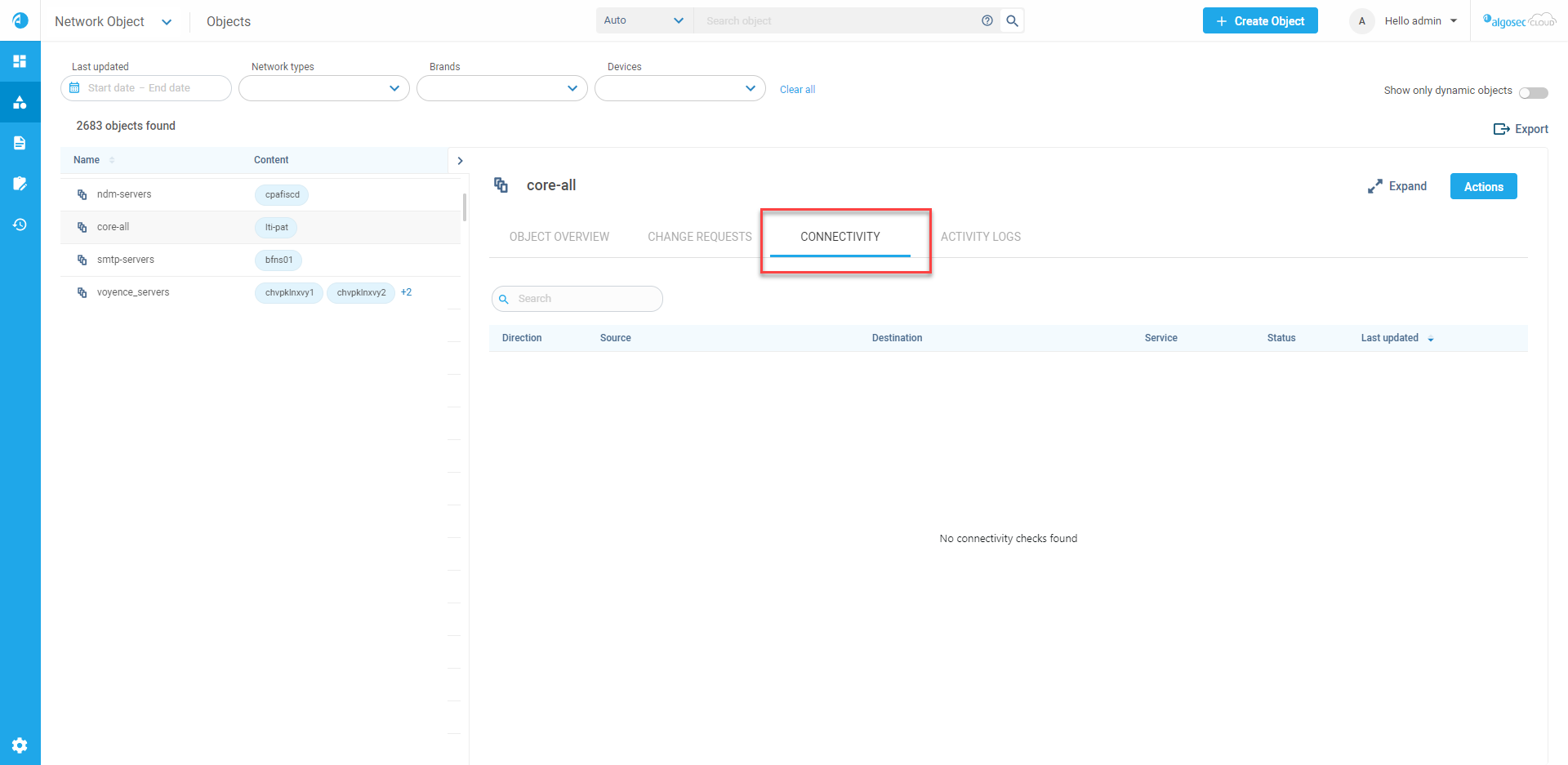
The Connectivity tab includes the following:
|
Direction |
Connectivity check traffic direction (Inbound or Outbound) |
|
Source |
Source object |
|
Destination |
Destination object |
|
Service |
Defined service(s) |
| Status |
Connectivity check status. Can be:
|
| Last updated | Last time connectivity check run |
|
|
Click to rerun the connectivity check |
 (Delete line) (Delete line) |
Click to delete the connectivity check line |
To make a Connectivity Check
Tip: if you have already run a connectivity check for an object that you want to run again, you do not need to reenter details, just click the Recheck Connectivity  button of the relevant line.
Do the following:
-
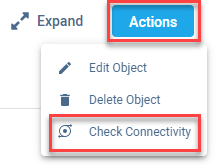
On the CONNECTIVITY tab, click Actions.
-
Click Check Connectivity.
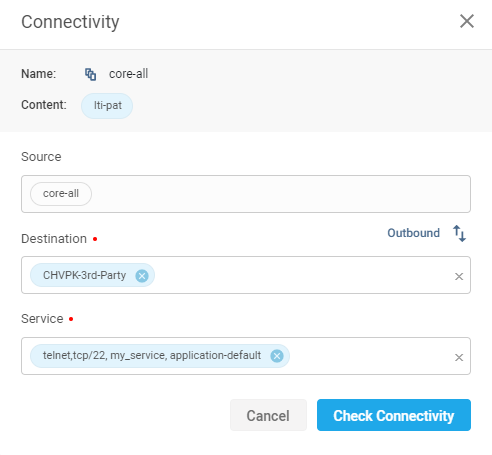
The Connectivity dialog appears.
-
At the top of the Connectivity dialog, your selected object is shown . It can be set as the source or destination. Click the Outbound
 /Inbound
 button to toggle the direction of traffic to be queried.
 -
Define a source or destination object, as required.
-
Define one or more Services. An example of the format to enter services is:
telnet,tcp/22, my_service, application-default
-
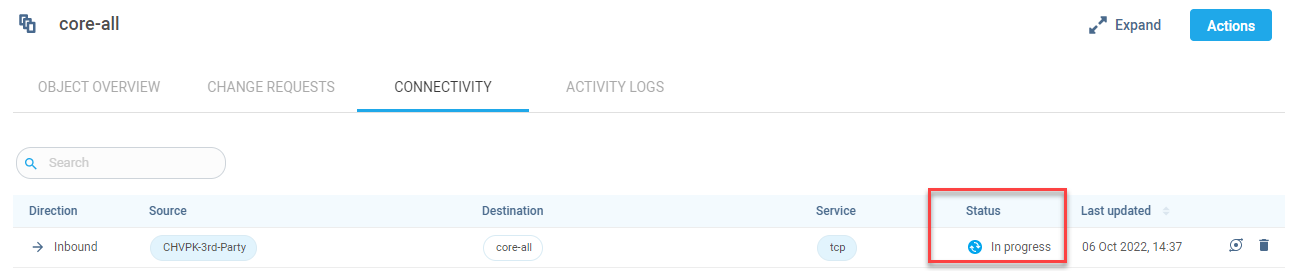
Click Check Connectivity. Connectivity check is in progress. A TSQ with your data is run in the background in AFA. Connectivity status is shown in the Status column
-
When the connectivity check status is allow, block, or partial, you can to get more information by clicking anywhere on the row to open the TSQ results (with the mini-map) in AFA .


 Clear your browser's cache