Clean Up Policies
Note: In our technical documentation, we use the term "Azure Native Firewall" to refer to Azure Firewall (Policy-based) devices, distinguishing it from Azure Firewall (Classic).
Cloud security groups are constantly adjusted, and can bloat rapidly. This makes cloud security groups difficult to maintain, and increases potential risk.
This topic describes how to avoid policy bloat by identifying and then editing or deleting unused rules in your AWS SGs, Azure NSGs, Azure Firewalls (except Azure Firewall (classic)), and Google Cloud Firewalls.
We recommend removing unused rules from your policies to keep your network policies clean of irrelevant or outdated rules and avoid risk.
About ACE unused rules
ACE considers a rule to be unused when these criteria are met:
-
Flow logs / resource logs are enabled:
-
For AWS: VPC Flow Logs are enabled for the VPC that contains the rule. For more details, see Enable AWS VPC flow logging.
-
For Azure: Logs are enabled for the Azure Firewall / NSG that contains the rule. For more details see Enable Azure resource logs for traffic analysis.
-
For Google Cloud: Firewall logs are enabled for the project (Hierarchical) or the individual (firewall) rules. For more details see Enable Google Cloud logs.
-
-
ACE did not find a single hit for the rule during the configured inactivity period.
Note: For more details on how ACE determines what rules are considered inactive, see Set the inactivity period for calculating unused rules.
Note: The Unused rules list may be empty for any of the following reasons:
- None of the target AWS SGs / Azure Native Firewalls have flow logs enabled.
- None of the target Azure NSGs have resource logs enabled.
- There's a log collection failure.
- Flow logs / resource logs were properly enabled and collected, but no rule matches the unused rule criteria.
- Some rules match the unused rule criteria, but are filtered out based on the search box filter.
View policies with unused rules only
By default, ACE displays all rules in the device policy. Filter rules to identify inactive rules, allowing you to focus on potentially risky rules for modification or deletion as needed.
Note: For more details on how ACE determines what rules are considered inactive, see Set the inactivity period for calculating unused rules.
Do the following:
-
Click NETWORK POLICIES in the left navigation. Select AWS SG Policies, Azure Policies, or GCP Firewall Policies.
-
For Azure Policies: Select the Azure NSG tab or the Azure Firewall tab.
-
For GCP Firewall Policies: Select the Firewall Policies tab or the Hierarchical Policies tab.
-
-
Select Unused rules from the Cleanup view filter at the top of the page.
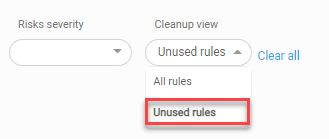
Only policies with unused rules are displayed.
Tips:
- If you do not see any unused rules, see No unused rules listed.
- Use the search box to filter the items further
- While the Cleanup view is set to Unused rules, you can change the length of the inactivity period by clicking Modify at the right of the page. For more details, see Set the inactivity period for calculating unused rules.
Edit or delete unused rules
Examine each unused rule and consider editing or deleting it to keep your policy free from complicated noise. For more details, see Edit network policy rules.
Set the inactivity period for calculating unused rules
ACE defines an unused rule as a rule that has not had any traffic for the configured inactivity period. You can modify the length of this inactivity period.
Note: We recommend setting a minimum of 30 days to confirm a rule doesn’t have hits before deleting it.
Note (for Google Cloud): The same inactivity period is used for both Firewall Policies and Hierarchical Policies. Setting the inactivity for one policy type updates both policy types.
Do the following:
-
Click NETWORK POLICIES in the left navigation. Select AWS SG Policies, Azure Policies, or GCP Firewall Policies.
-
For Azure Policies: Select the Azure NSG tab or the Azure Firewall tab.
-
For GCP Firewall Policies: Select the Firewall Policies tab or the Hierarchical Policies tab.
-
-
Set the Cleanup view to Unused rules.
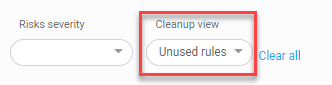
The current length (in days) of the configurable inactivity period and an Edit
 button are displayed on the right of the screen.
- Click . The Set Unused Rules Period dialog appears.
-
Enter length (in days) of the inactivity period.
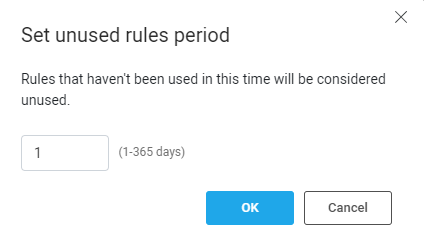
- Click OK.


 Clear your browser's cache